
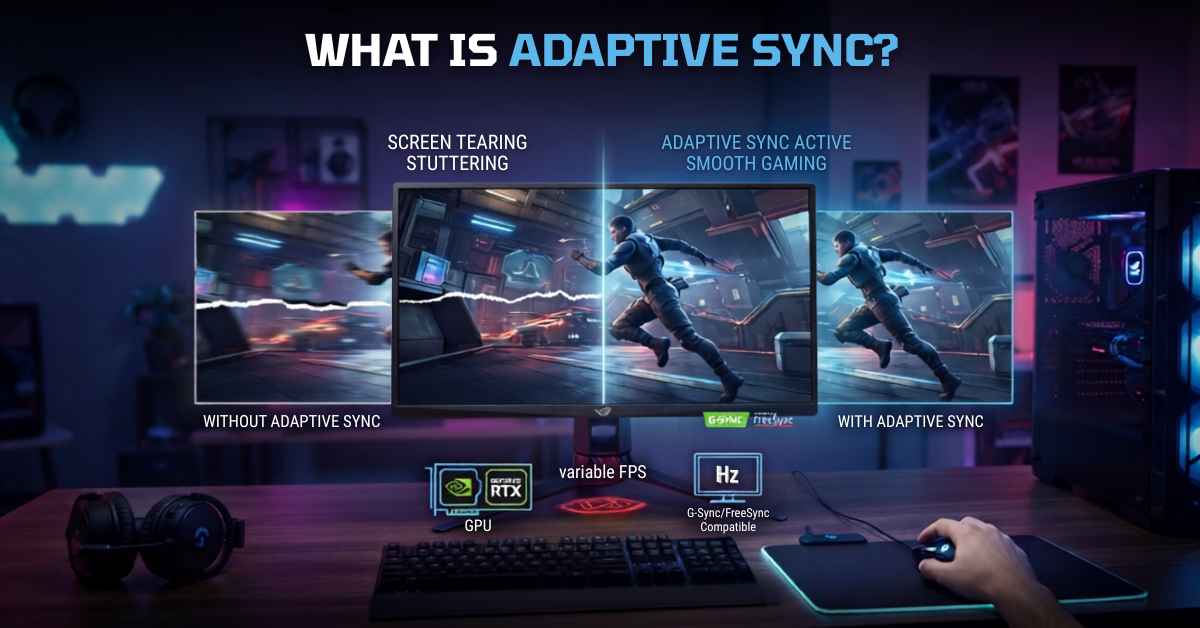
If your game looks like it’s been sliced in half during fast motion, or your screen stutters even though your frame rate looks fine, you’re running into two of the oldest problems in PC and console gaming: screen tearing and stutter. Adaptive Sync is the technology built to fix both, and today it’s built into most modern gaming monitors, many laptops, most current TVs, and every current-generation console.
This guide covers everything you need to know: what Adaptive Sync actually is, how it works, how it differs from VSync, FreeSync, G-SYNC, and VRR, which devices support it, how to turn it on, and whether you should actually use it.
What Is Adaptive Sync?
Adaptive Sync is a display technology that lets a monitor, laptop screen, or TV change its refresh rate within a supported range to match the frame rate your GPU is producing, instead of refreshing at one fixed rate all the time.
In plain terms: normally a monitor redraws the screen a fixed number of times per second — say 60 or 144 times. Your graphics card, however, doesn’t produce frames at a perfectly steady rate. It might render 87 frames one second and 112 the next, depending on how demanding the scene is. When those two numbers don’t match, you get visible glitches.
There’s an important technical distinction worth getting right, since it trips up a lot of guides: VESA Adaptive-Sync is specifically a DisplayPort standard, added to the DisplayPort 1.2a specification. HDMI displays achieve the same result through a separate, parallel standard called HDMI Forum VRR, introduced with HDMI 2.1. They’re not the same specification — they just accomplish the same goal on two different cable standards. “Adaptive Sync” is often used informally as an umbrella term for both, which is where a lot of the confusion comes from.
How Does Adaptive Sync Work?
To understand Adaptive Sync, it helps to understand what happens without it.
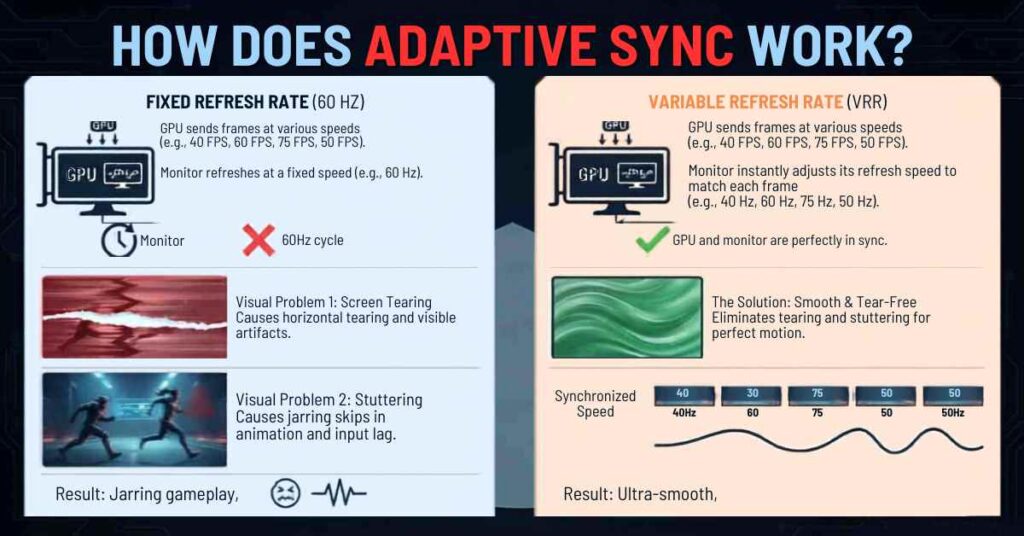
- Your GPU renders frames at a variable speed based on scene complexity, resolution, and settings.
- Your monitor refreshes at a fixed interval — for example, every 16.7 milliseconds on a 60Hz display.
- If a new frame arrives mid-refresh, the monitor displays part of the old frame and part of the new one in the same pass. That’s screen tearing.
- If the GPU is forced to wait for the monitor’s next refresh cycle before sending a frame (this is what traditional VSync does), you get input lag and, if the frame rate drops below the refresh rate, stutter.
Adaptive Sync solves this by giving the display a variable refresh window — a supported range, such as 48Hz to 165Hz — rather than one fixed number. Within that window, the monitor refreshes as soon as the next frame is ready, rather than waiting for a scheduled interval. It is not literally instantaneous in every case: there’s still a minimum and maximum refresh rate the panel can physically handle, and behavior outside that range depends on the display. Below the minimum, some monitors will show tearing or stutter again unless a feature called Low Framerate Compensation (LFC) kicks in, which duplicates frames to keep the refresh rate inside the supported range artificially.
Key components involved:
- The GPU – Must support variable refresh signaling (AMD, NVIDIA, and Intel GPUs all do, with some model-year restrictions).
- The cable/port – DisplayPort 1.2a or later for VESA Adaptive-Sync, or HDMI 2.1 for HDMI Forum VRR (some FreeSync-over-HDMI implementations also work on HDMI 2.0 — more on that below).
- The display panel – Must have a scaler or timing controller that supports a variable refresh rate range.
Why Was Adaptive Sync Created?
Before Adaptive Sync existed, PC gamers had exactly two options, and both were flawed:
- VSync off – Fast, responsive, but tearing was constant during fast motion.
- VSync on – No tearing, but added noticeable input lag, and in older, double-buffered VSync implementations, frame rate could halve (e.g., 60fps to 30fps) if performance dipped even slightly below the refresh rate. Modern VSync implementations — including triple buffering and NVIDIA’s “Fast Sync” or “Adaptive VSync” modes — handle this more gracefully and don’t always cause the same hard halving, but they still don’t eliminate the fundamental sync-vs-latency trade-off.
AMD and NVIDIA both recognized this as a fundamental hardware limitation, not a software bug. NVIDIA launched G-SYNC in 2013, using a proprietary hardware module inside the monitor. AMD followed with FreeSync in 2014/2015, built on an existing but unused variable refresh feature inside the DisplayPort 1.2a specification. VESA then formalized this feature industry-wide as the open “Adaptive-Sync” standard, making it available to any DisplayPort manufacturer without licensing fees.
The goal was simple: eliminate tearing and stutter without introducing the lag penalty of traditional VSync.
Screen Tearing, Stuttering, and Input Lag — Explained Simply
These three terms get mixed up constantly. Here’s the difference:
| Problem | What It Looks Like | What Causes It |
|---|---|---|
| Screen tearing | A horizontal line where the top and bottom of the screen appear misaligned, especially during fast camera movement | GPU sends a new frame mid-refresh, so two frames display at once |
| Stuttering | Motion feels choppy or freezes briefly even though the average FPS looks fine | Frame times are inconsistent — from sync mismatches, poor frame pacing, or CPU bottlenecks |
| Input lag | A delay between pressing a button and seeing the result on-screen | Frames sit in a buffer waiting for the next refresh cycle instead of displaying immediately |
Adaptive Sync directly addresses tearing and sync-related stutter — the choppiness caused by refresh-rate mismatch — and reduces the specific input lag caused by VSync-style buffering. What it cannot fix is stutter caused by other sources: CPU bottlenecks, background processes stealing resources, poorly optimized game engines, or bad frame pacing at the rendering level. If a game stutters because the CPU can’t feed frames to the GPU fast enough, Adaptive Sync won’t smooth that out — the problem is happening upstream of where Adaptive Sync operates.
Adaptive Sync vs VSync
This is one of the most searched comparisons, and the confusion is understandable since both technologies solve the same core problem: tearing.
| Feature | Adaptive Sync | Traditional VSync |
|---|---|---|
| How it works | Monitor’s refresh rate changes within a supported range to match GPU output | GPU frame is held back until the monitor’s next fixed refresh |
| Tearing | Eliminated within the VRR range | Eliminated |
| Input lag | Minimal | Noticeable, especially in classic double-buffered implementations |
| Frame rate drops | Handled smoothly within range, or via LFC below it | Can cause frame rate to halve in older VSync modes; newer implementations vary |
| Hardware needed | Adaptive Sync-capable monitor + GPU | None — works on any monitor |
| Best for | Gaming, especially variable frame rates | Older hardware without Adaptive Sync support |
Bottom line: If your monitor and GPU both support Adaptive Sync, use it instead of VSync. Many gamers still pair a frame-rate cap a few FPS below their monitor’s maximum refresh rate alongside Adaptive Sync — this prevents tearing above the top of the VRR range while keeping input lag minimal, since Adaptive Sync alone doesn’t help once your frame rate exceeds the panel’s maximum refresh rate.
Adaptive Sync vs FreeSync vs G-SYNC vs VRR
This is where most buyers get genuinely confused, largely because manufacturers use these terms almost interchangeably in marketing. Here’s the clearest way to think about it:
- Adaptive Sync = the open, VESA-defined technical standard for DisplayPort that makes variable refresh rates possible.
- FreeSync = AMD’s brand name and certification program, built on top of the Adaptive-Sync standard for DisplayPort, plus AMD’s own implementation over HDMI.
- G-SYNC = NVIDIA’s brand name. Native G-SYNC originally required a proprietary hardware module; “G-SYNC Compatible” refers to third-party monitors NVIDIA has specifically tested and validated for VRR behavior with GeForce GPUs.
- VRR (Variable Refresh Rate) = the general umbrella term, also the specific name used for the HDMI Forum’s HDMI 2.1 implementation, adopted by TVs and consoles (Xbox, PS5).
They’re all doing the same fundamental thing — dynamically matching refresh rate to frame rate — but with different certification requirements, hardware demands, and branding.
Comparison Table
| Technology | Owner | Hardware Required | Connection | Cost Impact |
|---|---|---|---|---|
| Adaptive Sync | VESA (open standard) | None — built into the DisplayPort spec | DisplayPort 1.2a+ | None |
| FreeSync | AMD | None (certification-based, tiered) | DisplayPort, and HDMI (AMD’s own implementation) | Little to none |
| G-SYNC (native) | NVIDIA | Proprietary hardware module | DisplayPort | Adds noticeably to monitor price; exact premium varies by model and has narrowed as NVIDIA has moved toward integrated scaler chips |
| G-SYNC Compatible | NVIDIA | None — but the specific monitor must be validated by NVIDIA | DisplayPort, HDMI | None |
| HDMI Forum VRR | HDMI Licensing Administrator | HDMI 2.1 port on both ends | HDMI 2.1 | None |
FreeSync Tiers (Updated Requirements)
AMD updated its FreeSync certification requirements to reflect modern display standards. Current tiers:
- FreeSync – Baseline certification for latency and refresh-rate variation; sub-3440px-wide monitors and TVs must now support at least 144Hz to qualify (this replaced an older tier that had no refresh-rate floor at all).
- FreeSync Premium – Adds mandatory Low Framerate Compensation (LFC). Sub-3440px monitors need at least 200Hz; ultrawide/4K displays (3440px and above) need at least 120Hz.
- FreeSync Premium Pro – Meets Premium requirements plus HDR-specific demands: brightness and color-volume minimums well above HDR400, along with low-latency tone mapping where the display receives game data directly rather than going through a standard OS color-management pipeline — this is what lowers HDR-related input lag, not just brightness and color numbers.
Older monitors certified under previous, lower thresholds keep their certification; the updated requirements apply going forward.
G-SYNC Compatible: How Validation Actually Works
“G-SYNC Compatible” isn’t just NVIDIA rubber-stamping any FreeSync monitor. NVIDIA runs a specific validation test suite — checking for things like flickering, blanking, and pixel-transition artifacts during VRR operation — against individual monitor models. Only models that pass get the official G-SYNC Compatible label and appear on NVIDIA’s supported list. Plenty of FreeSync monitors that were never submitted for testing (or that didn’t pass) will still often work reasonably well with NVIDIA GPUs if you manually enable G-SYNC in the NVIDIA Control Panel — but that’s not the same as an official guarantee.
Do You Need G-SYNC Hardware in 2026?
Not for most people. Since NVIDIA introduced the G-SYNC Compatible program in 2019, most modern FreeSync monitors work well with NVIDIA GPUs through driver-level Adaptive Sync support — no dedicated module required. Native G-SYNC hardware still offers a somewhat wider variable refresh range and NVIDIA’s variable overdrive feature, which mainly benefits very high refresh rate (240Hz+) monitors and certain motion-handling scenarios. For everyone else, a good FreeSync or G-SYNC Compatible monitor delivers a very similar experience for meaningfully less money.
Monitor, Laptop, TV, and Console Support
Monitors
Many modern gaming monitors support some form of Adaptive Sync, though it’s not universal — budget office and general-purpose monitors, especially older or entry-level models, may lack it entirely. Among monitors that do support it, budget models often have a narrow VRR range (say 48–75Hz), while premium monitors offer a much wider range (30–240Hz or more) plus Low Framerate Compensation.
Laptops
Support on laptops depends on more variables than desktop monitors: the panel itself, the GPU, and critically, the connection path between them. Many gaming laptops built since around 2019 support Adaptive Sync on their internal display, but it’s not guaranteed — some models route the internal panel through a MUX switch or Optimus/Advanced Optimus configuration that can block or complicate Adaptive Sync from functioning correctly. If Adaptive Sync options are greyed out on a laptop, this routing is one of the most common causes, alongside outdated drivers or a panel that simply doesn’t support VRR. Always check the specific laptop model’s spec sheet rather than assuming based on release year.
TVs
Modern TVs (roughly 2019 and later, particularly LG OLED, Samsung QLED/Neo QLED, and Sony Bravia models) commonly support HDMI Forum VRR, AMD FreeSync, and, on select models, G-SYNC Compatible certification. This is what allows console gaming to benefit from Adaptive Sync-style smoothing.
Consoles
| Console | VRR Support | Requirements / Notes |
|---|---|---|
| Xbox Series X/S | Yes, since launch | HDMI Forum VRR or FreeSync-compatible display |
| Xbox One X/S | Yes (added via update) | FreeSync-over-HDMI compatible display |
| PlayStation 5 | Yes (added post-launch) | Requires an HDMI Forum VRR-compatible display; enable in Settings → Screen and Video → Video Output |
| Nintendo Switch (original) | No | Not a supported feature on this hardware |
| Nintendo Switch 2 | Handheld mode only, as of mid-2026 | Nintendo has confirmed VRR works on the built-in display in handheld mode, but not in docked/TV mode at this time, despite early marketing suggesting otherwise. Docked VRR support is rumored to be in development for a future update but is not currently available — check Nintendo’s official statements for the latest status before assuming docked VRR will work |
If you’re buying a display specifically for console gaming, don’t rely on “FreeSync” or “Adaptive Sync” labeling alone — check specifically for HDMI Forum VRR support, since that’s the standard both Xbox and PS5 actually use, and it’s distinct from the older FreeSync-over-HDMI implementations described below.
HDMI, DisplayPort, and USB-C Compatibility
| Connection | Adaptive Sync / VRR Support | Notes |
|---|---|---|
| DisplayPort 1.2a and later | Yes (VESA Adaptive-Sync) | The native home of the VESA standard; the most consistent implementation on PC |
| HDMI 2.1 (HDMI Forum VRR) | Yes | The standardized approach used by modern TVs and required by Xbox and PS5 |
| HDMI 2.0 (FreeSync over HDMI) | Partial, model-dependent | AMD has supported FreeSync over HDMI since FreeSync’s inception, including on many HDMI 2.0 displays — this predates HDMI Forum VRR and is a separate, AMD-specific implementation. It is not the same as HDMI Forum VRR, and not every console or GPU will recognize it the same way. Some NVIDIA GPUs (Turing and newer) can also use VRR over HDMI in specific cases. Always check the specific monitor and GPU combination rather than assuming based on HDMI version alone |
| USB-C with DisplayPort Alt Mode | Yes, if the underlying DP version supports it | Common on laptops, ultrabooks, and USB-C monitors; behaves the same as a native DisplayPort connection |
Practical takeaway: For PC gaming, DisplayPort is generally the more consistent choice for Adaptive Sync. For console gaming or TV-based setups, look specifically for HDMI Forum VRR (usually listed alongside HDMI 2.1 support) — a monitor advertising generic “FreeSync over HDMI” isn’t automatically guaranteed to behave the same way with a console.
AMD, NVIDIA, and Intel GPU Support
| GPU Brand | Adaptive Sync Support | Minimum Requirements |
|---|---|---|
| AMD (Radeon) | Full native support via FreeSync | Radeon 200 series and newer (GCN 2.0 and later) via DisplayPort; many recent GPUs also support FreeSync over HDMI |
| NVIDIA (GeForce) | Full support via G-SYNC Compatible mode | GTX 10-series (Pascal) or newer, driver 417.71+, Windows 10 or later |
| Intel (Arc / integrated Xe graphics) | Supported since 11th-gen Intel Core processors and Arc GPUs | Typically requires a DisplayPort connection; enabled through Intel Graphics Command Center |
Cross-brand compatibility is now common: an AMD FreeSync monitor generally works with an NVIDIA card via G-SYNC Compatible mode, or with an Intel GPU, though results vary by specific model rather than being guaranteed across the board.
How to Enable and Test Adaptive Sync
Step 1: Turn It On at the Monitor Level
Some monitors ship with Adaptive Sync disabled in their on-screen display (OSD) menu. Check under a menu labeled “FreeSync,” “Adaptive Sync,” “G-SYNC,” or “MBR/VRR” and set it to On.
Step 2: Enable It in Your GPU Driver
NVIDIA (GeForce):
- Right-click the desktop → NVIDIA Control Panel
- Go to Display → Set up G-SYNC
- Check “Enable G-SYNC, G-SYNC Compatible”
- Choose “Enable for full screen mode” or “Enable for windowed and full screen mode”
- Apply
AMD (Radeon):
- Open AMD Radeon Software
- Go to Settings → Display
- Toggle AMD FreeSync to On
Intel (Arc / integrated graphics):
- Open Intel Graphics Command Center
- Go to Preferences → Global Settings
- Look for Adaptive Sync and enable it
- If the option is greyed out: confirm Adaptive Sync is already enabled in the monitor’s own OSD menu, confirm you’re using a DisplayPort connection (Intel’s implementation frequently only exposes the toggle over DisplayPort, not HDMI), and check for outdated drivers or BIOS-level restrictions on laptops
Step 3: Enable It on Consoles
Xbox: Settings → General → TV & Display Options → Video Modes → turn on Variable Refresh Rate (it may already be automatic).
PlayStation 5: Settings → Screen and Video → Video Output → Variable Refresh Rate → set to Automatic.
Step 4: Test That It’s Working
- Blur Busters UFO Test – A tool free browser-based tool with a dedicated VRR test that shows visually whether your display is syncing correctly.
- In-game frame rate counter – If your FPS fluctuates below your monitor’s max refresh rate and you see no tearing, Adaptive Sync is working.
- AMD/NVIDIA overlay – Both driver suites show an on-screen indicator confirming when Adaptive Sync/G-SYNC is actively engaged.
Common Problems and Myths
“Adaptive Sync only works on gaming monitors.” False. Many productivity monitors, most modern TVs, and some ultrawide and portable monitors support it too — though it’s still not universal across all displays.
“You need a top-tier GPU to use Adaptive Sync.” False. Adaptive Sync works at any frame rate within the monitor’s supported range — even 40–50fps on a mid-range GPU benefits from smoother, tear-free motion.
“G-SYNC is always better than FreeSync.” Mostly false today. The real-world difference between a good FreeSync/G-SYNC Compatible monitor and a native G-SYNC module monitor is small for most users. Native G-SYNC’s advantages are concentrated in a narrow niche of very high refresh rate monitors and specific motion-handling scenarios.
“Adaptive Sync causes flickering or brightness shifts.” This can genuinely happen on some OLED panels, where perceived brightness is tied to refresh rate — a real limitation, not a myth. It varies significantly by panel and model, so it’s worth checking reviews for the specific monitor before buying, especially with OLED.
“Adaptive Sync eliminates all input lag and stutter.” Not true. It minimizes sync-related lag and sync-related stutter specifically. It does nothing for latency caused by mouse polling rate, network ping, or GPU processing time, and it can’t smooth out stutter caused by CPU bottlenecks or poor game-level frame pacing.
“You can’t use Adaptive Sync and a frame cap together.” False — the opposite is true. Capping your frame rate a few FPS below your monitor’s maximum refresh rate, alongside Adaptive Sync, is a commonly recommended setup to avoid tearing above the top of the VRR range while keeping input lag minimal.
Benefits Beyond Gaming: Productivity, Video, and Battery Life
Gaming is the headline use case, but Adaptive Sync-adjacent features help elsewhere too:
- Productivity – Smoother scrolling in browsers, documents, and creative apps like Premiere Pro or Photoshop, especially at higher refresh rates.
- Video playback – Some implementations, particularly on laptops and TVs, can dynamically match refresh rate to a video’s native frame rate — reducing judder in 24fps film content played on displays not natively running at a clean multiple of 24Hz.
- Battery life – Adaptive Sync itself doesn’t automatically save battery power; a variable refresh rate on its own is not a power-saving feature. However, AMD and laptop manufacturers commonly pair FreeSync with related power-management technologies, such as panel self-refresh, that lower the refresh rate during idle or low-motion tasks and reduce power draw as a result. AMD itself advertises improved battery life as a benefit of FreeSync-certified laptops, tied specifically to these companion features rather than VRR alone — so the benefit is real but comes from the surrounding implementation, not the sync mechanism by itself.
Advantages and Disadvantages
Advantages:
- Eliminates screen tearing and reduces sync-related stutter without the input lag penalty of traditional VSync
- Works across a range of frame rates, not just at your monitor’s max
- Widely available on modern monitors, many laptops, most current TVs, and current-gen consoles, generally at no extra cost (aside from native G-SYNC hardware)
- Can be paired with power-saving display features that improve laptop battery life
Disadvantages:
- Only works reliably within the monitor’s supported VRR range — outside that range, tearing can return unless Low Framerate Compensation is present
- Some OLED panels can show brightness flicker with VRR enabled, and this varies by model
- Native G-SYNC hardware adds meaningful cost for a benefit most users won’t notice
- Certification and branding differences (FreeSync tiers, HDMI Forum VRR, G-SYNC Compatible, FreeSync-over-HDMI) can make shopping genuinely confusing
- Not all “Adaptive Sync” monitors perform equally — cheap or unvalidated implementations may have a narrow or glitchy VRR range
- A small number of competitive esports players deliberately avoid VRR in favor of a fixed high refresh rate, citing a preference for perfectly consistent frame timing over variable refresh — this is a minority preference but worth knowing about
Buying Advice: What to Actually Check
Use this checklist when shopping for a display:
- [ ] Confirm the VRR range (e.g., 48–165Hz) — wider is generally better, and check whether Low Framerate Compensation is included
- [ ] Match the connection type to your use case: DisplayPort for PC, HDMI Forum VRR (not just any “FreeSync over HDMI”) for console
- [ ] Check for G-SYNC Compatible or FreeSync Premium/Premium Pro certification if you want a validated quality bar rather than an unverified generic “Adaptive Sync” label
- [ ] If buying an OLED, look up VRR flicker reports for that specific model before buying
- [ ] Don’t assume native G-SYNC hardware is necessary unless you’re buying a very high refresh rate competitive monitor — get current pricing at the time of purchase rather than relying on old figures
- [ ] For console gaming, confirm the monitor/TV explicitly lists HDMI Forum VRR support
- [ ] For laptops, check the specific model’s spec sheet for Adaptive Sync/VRR support rather than assuming it based on release year alone
The Future of Adaptive Sync
Adaptive Sync is steadily becoming a baseline expectation rather than a premium feature, similar to how high resolution or USB-C ports stopped being major selling points. A few trends are shaping where it’s headed:
- Hardware consolidation – NVIDIA has moved toward integrating G-SYNC functionality into shared scaler chips (in partnership with companies like MediaTek) rather than requiring a fully separate proprietary module, which should reduce the cost premium of premium VRR features over time.
- Wider OLED adoption – As OLED gaming monitors and TVs become mainstream, expect continued engineering focus on reducing VRR-related brightness flicker.
- Deeper integration with upscaling – Frame generation technologies like DLSS and FSR interact directly with frame pacing, and Adaptive Sync implementations are being tuned to handle generated frames smoothly alongside traditionally rendered ones.
- Console standardization, with gaps still closing – HDMI Forum VRR is now standard on Xbox and PlayStation, but the Nintendo Switch 2’s docked-mode VRR situation shows that even in 2026, console VRR support isn’t fully uniform across the industry yet.
Conclusion:
If your monitor, laptop, TV, or console supports Adaptive Sync, turning it on is worthwhile for the large majority of use cases — gaming with fluctuating frame rates, everyday scrolling and browsing, and video playback all benefit from it. It’s not a universal feature yet, though, and it’s not entirely without edge cases: some OLED panels show VRR flicker, cheap or unvalidated implementations can have a narrow or glitchy sync range, and a small subset of competitive players prefer the predictability of a fixed high refresh rate over variable sync.
Turn it on if:
- You play games where frame rate fluctuates (which is most of them)
- Your GPU and display both list FreeSync, G-SYNC Compatible, or HDMI Forum VRR support
- You’ve noticed tearing during fast motion or choppiness during frame rate dips
Check your specific hardware first if:
- You own an OLED display, since VRR flicker varies by model
- You’re setting this up for console gaming, since you specifically need HDMI Forum VRR rather than generic “Adaptive Sync” or “FreeSync over HDMI” labeling
- You’re on a laptop, since support depends heavily on the exact model’s GPU routing, not just its release year
For nearly everyone else gamers, console players, laptop users, and general desktop users — Adaptive Sync is a low-cost, high-value upgrade to how a screen feels in motion. The main decision left is whether the specific display you’re buying has been properly validated for the sync range and connection type you actually need.
Frequently Asked Questions
What is adaptive sync on a monitor?
It’s a feature that lets the monitor change its refresh rate, within a supported range, to match the frame rate coming from your GPU or console, reducing screen tearing and sync-related stutter without adding much input lag.
What does adaptive sync do?
It synchronizes your display’s refresh rate with your graphics card’s frame output within a bounded range, so frames display as soon as they’re ready rather than waiting for a fixed refresh interval or overlapping with the previous frame.
What’s adaptive sync?
Adaptive Sync is the open VESA standard for variable refresh rate over DisplayPort. HDMI achieves the equivalent result through a separate standard, HDMI Forum VRR. AMD FreeSync and NVIDIA G-SYNC Compatible are branded implementations built on these underlying standards.
Should I use adaptive sync on my monitor?
In most cases, yes, if your monitor and GPU both support it — it reduces tearing and sync-related stutter with minimal downside. The main exceptions are a small number of OLED models with noticeable VRR flicker, or competitive players who specifically prefer a fixed refresh rate.
Should I turn on adaptive sync on my monitor?
Yes, for most users. Turn it on in both your monitor’s OSD menu and your GPU driver settings — it’s often off by default even on hardware that supports it.
Is adaptive sync good for gaming?
Yes — it’s one of the more impactful display features for gaming, particularly in titles where frame rate naturally fluctuates. It won’t fix stutter caused by CPU bottlenecks or poor game optimization, but it directly addresses tearing and sync-related choppiness.
How to turn on adaptive sync?
Enable it first in the monitor’s on-screen menu, then in your GPU control panel (NVIDIA Control Panel, AMD Radeon Software, or Intel Graphics Command Center), and confirm it’s active using a test like the Blur Busters UFO Test.
How to turn on Adaptive Sync in Intel Graphics Command Center?
Open Intel Graphics Command Center → Preferences → Global Settings → enable the Adaptive Sync toggle. If it’s greyed out, confirm you’re connected via DisplayPort, that Adaptive Sync is already enabled in your monitor’s own menu, and that your graphics drivers are current.
