

Understanding PC components is essential whether you’re building your first custom desktop or upgrading an existing setup. As a technical guide informed by hands-on hardware expertise, this resource breaks down every core part — from the CPU and GPU to RAM, storage, and the motherboard — so you can make confident, informed purchasing decisions.
Modern PCs rely on a precise interplay of components: a fast processor handles computational tasks, dedicated graphics cards power gaming and creative workloads, and high-speed NVMe SSDs eliminate storage bottlenecks. Paired with a reliable PSU, quality cooling solutions, and the right peripherals, each part directly impacts real-world performance and longevity.
Whether you’re sourcing individual parts, exploring PC component bundles, or considering compact mini PC systems, this guide covers everything you need — backed by up-to-date specifications and expert recommendations.
Important PC Components
Recognizing the significance of PC components is vital for anyone using a computer, regardless of their tech knowledge. Every part, from mini PC components to PC water cooling components, contributes to your computer’s overall performance. Knowing which are the best PC components helps you make informed decisions when selecting PC component bundles
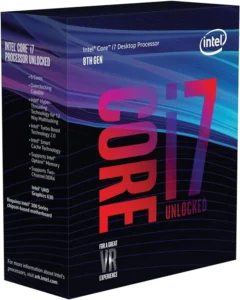
The processor, or CPU (Central Processing Unit), is the brain of your computer. It executes instructions, performs calculations, and keeps your software running smoothly. CPU performance depends on speed, core count, cache, and architecture. The right choice depends on what you do: gaming, video editing, or everyday productivity.
Key features at a glance
- Clock speed (GHz) Measures how fast the CPU processes instructions. Higher GHz generally means snappier single-threaded performance.
- Number of cores: Each core works independently. More cores enable better multitasking and smoother performance under heavy workloads.
- Cache memory: Ultra-fast on-chip storage for frequently accessed data. A larger cache reduces latency and improves overall efficiency.
CPU architecture: Defines how efficiently the chip handles tasks. Modern architectures deliver gains in gaming, content creation, and daily use.
- Power & efficiency: Efficient processors deliver strong performance while consuming less energy — critical for laptops and compact builds.
- Price vs. performance: High-end CPUs offer peak output but at a premium. Matching your budget to your actual workload avoids unnecessary spending.
Why the CPU matters
- Directly drives gaming frame rates and in-game responsiveness
- Accelerates video rendering, encoding, and design workflows
- Enables true multitasking — running many apps without slowdowns
- Sets the overall speed ceiling of your entire system
| Pros | Cons |
|---|---|
Modern multi-core CPUs handle gaming, streaming, and work simultaneously with ease | High-performance CPUs carry a significant price premium over mid-range options |
Efficient architectures (e.g. Intel Core Ultra, AMD Zen 5) deliver more per watt than ever before | CPU performance gains plateau quickly for tasks that are GPU-bound (e.g. 3D rendering) |
Upgradeable in desktop builds — extend your system’s life without replacing everything | Laptop CPUs are soldered in — no upgrade path once purchased |
Integrated graphics on many CPUs provide a fallback for light tasks without a dedicated GPU | More cores don’t help if software isn’t optimized for multithreading |
Strong single-core speed benefits everyday apps, browsers, and legacy software | High-TDP chips generate significant heat and require robust cooling solutions |
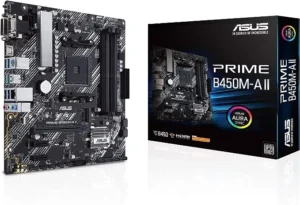
A motherboard is the main circuit board inside every computer. It acts as the backbone of the entire system, connecting and coordinating every component so they can work together. Without a motherboard, your CPU, RAM, storage drives, and graphics card would have no way to communicate with each other. It is the foundation on which everything else is built.
When building or buying a PC, the motherboard is one of the most important decisions you make. It determines which processor you can use, how much RAM you can install, and what upgrades are possible in the future.
Key Functions of a Motherboard
- Central Hub — The motherboard physically connects the CPU, RAM, storage drives, and graphics card. All data between components passes through it.
- Compatibility — Every motherboard is designed for a specific CPU socket type. Intel and AMD processors use different sockets, so your motherboard must match your processor. It also determines which generation and speed of RAM you can use.
- Expansion Slots (PCIe) — These slots let you add extra hardware such as a dedicated graphics card, sound card, Wi-Fi card, or additional storage through NVMe drives.
- Connectivity Ports — The rear panel of a motherboard includes USB ports (USB-A, USB-C), audio jacks, HDMI or DisplayPort outputs, LAN Ethernet port, and sometimes built-in Wi-Fi and Bluetooth.
- Power Distribution — The motherboard receives power from the PSU and distributes stable, regulated power to the CPU, RAM, storage, and all connected devices.
- BIOS / UEFI Firmware — Every motherboard contains firmware that controls hardware settings, boot order, overclocking options, and system configuration before the OS even loads
- Communication Pathways — Internal buses and chipsets on the motherboard manage data transfer between all components, ensuring everything works in sync without bottlenecks.
Why Choosing the Right Motherboard Matters
The motherboard decides what CPU you can use today and whether you can upgrade to a newer processor later. It limits how much RAM you can install and at what speed. It determines how many storage drives, GPUs, and expansion cards your system can support. Choosing the wrong motherboard means paying for features you do not need — or being locked out of upgrades you want later.
| Pros | Cons |
|---|---|
| High-end motherboards support overclocking for extra CPU and RAM performance | Premium motherboards with advanced features are expensive |
| More PCIe slots allow multiple GPUs, NVMe drives, and expansion cards | Cheap motherboards have poor power delivery, limiting CPU performance |
| Modern motherboards include built-in Wi-Fi, Bluetooth, and fast USB ports | Wrong socket choice means you cannot upgrade your CPU without replacing the board |
| Good motherboards have strong VRMs that improve CPU stability and longevity | Some features, like Thunderbolt or 10GbE LAN, are only on very expensive models |
| BIOS updates can add support for newer processors on the same board | Larger form factors (ATX) require bigger cases |
| ATX, Micro-ATX, and Mini-ITX options suit every case size and build type | Integrated audio and networking on budget boards is often of mediocre quality |
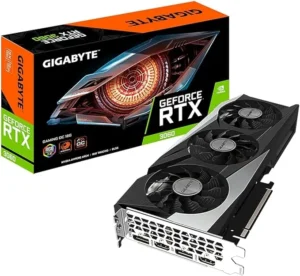
A Graphics Card (GPU) also called a GPU (Graphics Processing Unit), is responsible for rendering every image, video, and animation you see on your screen. It is one of the most critical components for gaming, video editing, 3D modeling, animation, and AI workloads.
Unlike the CPU, which handles general-purpose computing tasks, the GPU is built with thousands of smaller cores designed to process massive amounts of visual data in parallel. This makes it incredibly efficient at tasks that require rendering complex images or running mathematical operations simultaneously.The GPU you choose has a direct impact on the frame rates you get in games, the speed of your video exports, the quality of real-time 3D rendering, and increasingly, the performance of AI-based tools.
Key Factors to Consider When Choosing a GPU
GPU Model and Brand — The two main manufacturers are NVIDIA and AMD. NVIDIA GeForce cards (like the RTX 4070 or RTX 4090) are known for excellent gaming performance, ray tracing, and AI-powered features like DLSS. AMD Radeon cards (like the RX 7800 XT) are known for strong value, open-source drivers, and competitive rasterization performance.
- VRAM (Video Memory) — VRAM is the GPU’s dedicated memory for storing textures, frames, and graphical data. For 1080p gaming, 8GB is a minimum. For 1440p, 12GB is recommended. For 4K gaming or professional 3D work, 16GB or more is ideal. Low VRAM causes stuttering and texture pop-in in demanding games and applications.
- Performance Benchmarks — Always check real-world benchmarks for the specific games or software you use. FPS in games and rendering times in tools like DaVinci Resolve or Blender are more useful than spec sheets alone.
- Ray Tracing and AI Features — Ray tracing simulates realistic lighting, shadows, and reflections. NVIDIA’s DLSS and AMD’s FSR use AI to upscale lower-resolution images to higher quality, letting you gain performance without losing visual quality. These features are now standard in modern GPUs.
- Power and Cooling Requirements — High-end GPUs consume a lot of power (200W to 450W or more). They need an adequate PSU and proper case airflow or liquid cooling to stay stable. Always check the recommended PSU wattage for your GPU before buying.
- Future-Proofing — Buying a current-generation GPU ensures driver support, game optimization, and AI feature compatibility for years to come. Older GPUs may lose support for new APIs, features, and game engines faster.
Why the GPU Matters
Without a dedicated GPU, gaming at modern settings is not possible. Video editors, 3D artists, and motion designers all rely on GPU acceleration to speed up renders and previews. AI tools like image generation, video upscaling, and machine learning workloads are also GPU-accelerated. For creative professionals, the GPU can be even more important than the CPU.
| Pros | Cons |
|---|---|
| Delivers smooth, high frame rate gaming at 1080p, 1440p, and 4K | High-end GPUs are very expensive, especially flagship models |
| GPU acceleration dramatically speeds up video editing and 3D rendering | Consume significant power and require a high-wattage PSU |
| Modern features like ray tracing and DLSS improve visuals and performance together | Generate a lot of heat and need proper case airflow or liquid cooling |
| Dedicated VRAM handles complex textures that would overwhelm system RAM | Not upgradeable in most laptops — you are locked to whatever GPU came with the machine |
| Upgradeable in desktop builds to keep your system current | Entry-level GPUs offer limited performance for demanding games or creative software |
| Increasingly useful for AI tasks, machine learning, and image generation | GPU prices fluctuate greatly due to supply issues and crypto mining demand |

RAM, which stands for RAM (Random Access Memory),, is your computer’s short-term working memory. Every active task, open application, and file being processed right now is stored in RAM so the CPU can access it instantly. It is not for permanent storage — everything in RAM disappears when you shut down your computer.
Think of RAM as your desk. The bigger the desk, the more things you can have open and accessible at the same time. Your storage drive is like a filing cabinet — it holds everything long-term, but it takes time to retrieve things from it. RAM keeps the most important active data right at hand for instant access.
Key Points About RAM
- What it is — Random Access Memory is ultra-fast, volatile memory that holds data your CPU is actively working with.
- How it works — When you open an app or file, it is loaded from storage (SSD or HDD) into RAM. The CPU then reads from and writes to RAM constantly while you use that app.
- Speed — RAM operates many times faster than even the fastest SSD. This speed gap is why moving data into RAM before the CPU processes it makes such a difference.
- Capacity — For everyday use and light multitasking, 8GB is the bare minimum. 16GB is the sweet spot for most users in 2024. 32GB is recommended for video editing, 3D rendering, and heavy multitasking. 64GB or more is used in professional workstations.
- RAM Speed and Type — Modern systems use DDR4 or DDR5 RAM. Higher MHz ratings mean faster data transfer. Your motherboard determines which type and speed of RAM you can use.
- Dual Channel — Installing RAM in two matching sticks rather than one enables dual-channel mode, which roughly doubles memory bandwidth and noticeably improves performance.
- Performance Impact — More RAM means smoother multitasking, faster application loading, better gaming performance (especially in open-world games), and quicker response when switching between tasks.
- Difference from Storage — RAM is fast and temporary. SSDs and HDDs are slower but permanent. RAM and storage work together, but they are not interchangeable.
| Pros | Cons |
|---|---|
| Dramatically improves multitasking and overall system responsiveness | Data is completely lost when the PC is turned off (volatile) |
| Affordable and straightforward to upgrade in most desktop PCs | Many modern laptops have soldered RAM with no upgrade option |
| Dual-channel configuration noticeably boosts performance at no extra cost | Adding more RAM beyond your actual needs provides zero additional benefit |
| DDR5 RAM offers significantly higher bandwidth for future workloads | DDR5 kits are more expensive than DDR4 for similar capacities |
| Large RAM capacity enables smooth video editing, 3D work, and virtual machines | RAM speed is limited by your motherboard’s maximum supported frequency |
| Fast RAM directly benefits integrated graphics performance on AMD APUs | Installing mismatched RAM sticks can cause instability or prevent dual-channel mode |
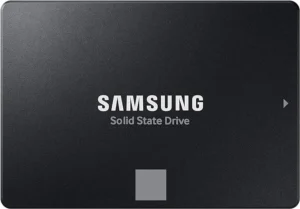
Storage drives, like SSDs (Solid State Drives) and HDDs (Hard Disk Drives) are where your computer permanently saves everything — your operating system, installed software, games, documents, photos, videos, and any file you want to keep. Unlike RAM, storage retains your data even when the computer is powered off.
There are two main types of storage drives: SSDs and HDDs. Understanding the difference helps you make smarter decisions about where to spend your budget and how to organize your data.
An SSD (Solid State Drive) stores data on NAND flash memory chips. It has no moving parts, which makes it fast, silent, and resistant to physical shock. An HDD (Hard Disk Drive) stores data on spinning magnetic platters read by a mechanical arm. It is slower and more fragile but offers far more storage capacity for the money.
NVMe SSDs (installed directly into the motherboard via an M.2 slot) are the fastest consumer storage available today. SATA SSDs are slower than NVMe but faster than HDDs. HDDs remain relevant for mass storage where speed is not the priority.
Key Differences Between SSD and HDD
- Speed — An NVMe SSD can read and write data at 3,000 to 7,000 MB/s. A SATA SSD reaches around 500 to 600 MB/s. A traditional HDD typically manages 100 to 200 MB/s.
- Durability — SSDs have no moving parts, making them shock-resistant and more reliable in mobile devices. HDDs are vulnerable to damage from drops or vibration.
- Noise — SSDs operate silently. HDDs produce audible noise from spinning platters and the read/write arm.
- Cost per Gigabyte — HDDs are significantly cheaper per gigabyte, making them ideal for storing large amounts of data like video archives, backups, and game libraries.
- Lifespan — SSDs have a limited number of write cycles but are generally very reliable for everyday use. HDDs can fail mechanically without warning.
| Pros of SSD | Cons of SSD |
|---|---|
| Extremely fast load times, boot speeds, and file transfers | More expensive per gigabyte than HDD |
| Silent operation and resistant to physical shock | Maximum affordable capacities are lower than HDD |
| Compact form factor, especially M.2 NVMe drives | Flash memory has a finite number of write cycles |
| Dramatically reduces application and game load times | High-capacity NVMe drives can run warm under sustained loads |
| Pros of HDD | Cons of HDD |
|---|---|
| Very affordable for large storage (4TB, 8TB, 12TB+) | Much slower read and write speeds than any SSD |
| High maximum capacities for archives, backups, and media libraries | Moving parts make it vulnerable to shock and mechanical failure |
| Well-established technology with a long track record | Generates audible noise and vibration during operation |
| Still useful as secondary storage alongside a primary SSD | Larger and heavier than SSDs, especially problematic in laptops |
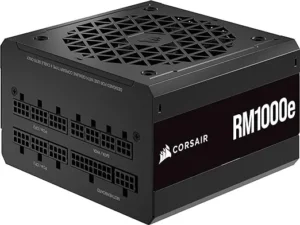
The Power Supply Unit (PSU) is the component that powers everything in your computer. It takes the AC (Alternating Current) electricity from your wall outlet and converts it into the DC (Direct Current) that your PC components need to operate. Every single component — the CPU, GPU, motherboard, RAM, storage drives, fans, and RGB lighting — draws power from the PSU.
A quality PSU delivers clean, stable power consistently. A poor quality or underpowered PSU is one of the most common causes of system instability, crashes, unexpected shutdowns, and in worst cases, permanent hardware damage. It is not the component to cut corners on.
Key Points About a PSU
- Power Conversion — Converts 110V or 230V AC wall power into the 12V, 5V, and 3.3V DC rails that PC components use.
- Wattage Rating — The total power a PSU can deliver. You should calculate your system’s total power draw and add a 20% headroom buffer. A 650W PSU is enough for most mid-range builds. High-end gaming systems with flagship GPUs may need 850W to 1200W.
- Efficiency Rating (80 Plus) — PSUs are rated by efficiency. An 80 Plus Bronze certified PSU wastes less power as heat than an uncertified one. Gold and Platinum ratings are even more efficient, meaning lower electricity bills and less heat output.
- Modular Design — A fully modular PSU lets you connect only the cables you actually need, which makes cable management much cleaner and improves airflow inside the case. Semi-modular PSUs have some fixed cables and some removable ones. Non-modular PSUs have all cables permanently attached.
- Voltage Regulation — A high-quality PSU maintains stable voltage under changing loads. Poor voltage regulation causes instability, especially during gaming or rendering when the GPU suddenly demands more power.
- Protection Features — Quality PSUs include over-voltage protection (OVP), under-voltage protection (UVP), over-current protection (OCP), and short-circuit protection (SCP) to safeguard your components.
- System Longevity — A reliable PSU extends the life of every component connected to it. Fluctuating or unclean power degrades hardware over time even if it does not cause immediate failure.
| Pros | Cons |
|---|---|
| A quality PSU protects all other components from damaging power fluctuations | Cheap or failing PSUs can destroy other expensive components without warning |
| 80 Plus certified units save electricity and produce less heat | High-wattage, high-efficiency units (Gold, Platinum) cost significantly more |
| Modular design dramatically improves cable management and airflow | Oversizing wattage unnecessarily wastes money without any performance benefit |
| Built-in protection circuits guard against surges, shorts, and overloads | PSU failure is not always obvious — it can cause random crashes blamed on other parts |
| Long-lasting quality units often come with 10-year warranties | Non-modular PSUs create cable clutter even when cables go unused |
| Right-sizing wattage means the PSU runs at its most efficient operating range | A PSU that is too small will throttle or crash your system under heavy load |
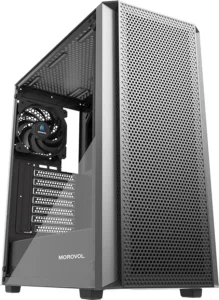
A computer case, also called a chassis or tower, is the physical enclosure that holds all your PC components together in one organized, protected structure. It houses the motherboard, CPU cooler, GPU, RAM, storage drives, PSU, and all the cables connecting them. While it may seem like just a box, the case plays a significant role in airflow, cooling performance, build quality, and future upgradeability.
The right case makes building easier, keeps your components cooler, and gives you room to expand later. The wrong case creates airflow problems, limits what hardware you can fit, and makes maintenance a frustrating experience.
Key Functions of a Computer Case
- Physical Protection — The case shields every internal component from dust, debris, accidental spills, and physical impact. Many cases include dust filters on intake areas to reduce buildup on fans and heatsinks.
- Cooling and Airflow — Good cases are designed with clear airflow paths. Front or bottom intake fans bring cool air in. Top or rear exhaust fans push hot air out. More fan mounts, better mesh panels, and smart layout design all contribute to lower component temperatures.
- Form Factor Compatibility — Cases are built to fit specific motherboard sizes. ATX is the standard full-size motherboard. Micro-ATX is smaller. Mini-ITX is the smallest for compact builds. Full Tower cases fit even extended ATX (E-ATX) motherboards and multiple radiators for custom liquid cooling setups. Mid Tower is the most common and versatile size for most builds.
- Component Organization — Cases include dedicated drive bays for SSDs and HDDs, PSU shrouds to hide cables below the motherboard tray, and cable management routing holes to keep the build tidy and accessible.
- Radiator and Liquid Cooling Support — High-end cases support 240mm, 280mm, 360mm, or even larger radiators for all-in-one or custom liquid cooling loops.
- Aesthetic Options — Cases come in styles ranging from minimalist and professional to aggressive gaming designs with tempered glass side panels and RGB lighting. The exterior design is purely personal preference, but should not come at the cost of airflow.
Why Choosing the Right Case Matters
Better airflow means lower temperatures, which extends the life of your CPU, GPU, and other components. A well-organized case is far easier to work inside when upgrading RAM, adding a storage drive, or swapping a GPU. Choosing a case that fits your current motherboard and leaves room for future components saves you from having to replace it later.
| Pros | Cons |
|---|---|
| A well-designed case significantly improves airflow and lowers component temperatures | Larger cases (Full Tower, Mid Tower) take up substantial desk or floor space |
| Protects all hardware from dust, physical damage, and accidental spills | Cheap cases use thin steel that flexes, rattles, and provides poor airflow |
| Good cable management options keep the build clean and improve airflow | Compact cases (Mini-ITX) restrict cooling options and can cause heat buildup |
| Tempered glass panels let you display your build aesthetics | Cases with poor dust filters require more frequent cleaning |
| Multiple form factor options, from ultra-compact to full tower, suit every need | Some stylish cases prioritize looks over airflow, leading to higher temperatures |
| Drive bays and expansion slots accommodate future storage and hardware additions | Premium cases with good airflow and tempered glass are expensive |
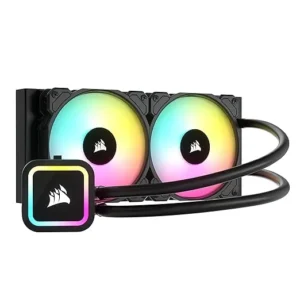
The cooling system in a computer is what keeps every component operating at safe temperatures. CPUs and GPUs generate significant amounts of heat when under load — during gaming, video editing, or any demanding task. Without effective cooling, components overheat, throttle their performance to reduce heat, and eventually suffer permanent damage.
Cooling is not just about preventing failure. It is about maintaining consistent, stable performance. A well-cooled CPU runs at full speed all the time. A poorly cooled one may throttle down to protect itself, giving you worse performance than you are paying for.
Key Components of a Cooling System
- CPU Cooler — Installed directly on top of the processor. It consists of a metal heatsink that absorbs heat from the CPU and one or more fans that push that heat away into the case airflow. Aftermarket CPU coolers perform better than stock coolers and run quieter. All-in-one (AIO) liquid coolers use a pump, radiator, and fans to move heat away from the CPU more efficiently, especially for high-performance processors.
- Case Fans — Mounted at intake and exhaust positions inside the case. Intake fans (usually front or bottom) pull in cool ambient air. Exhaust fans (rear or top) push heated air out. The combination creates a steady flow of air through the case, cooling the GPU, motherboard, RAM, and storage drives as it passes. More fans and better airflow layout leads to lower temperatures across all components.
- Thermal Paste — Applied between the CPU and the cooler’s contact plate to fill microscopic gaps and improve heat transfer. Over time, thermal paste can dry out and need replacing, which is a common solution for CPUs running hotter than expected.
- Liquid Cooling (AIO and Custom Loop) — AIO liquid coolers are self-contained units with a pump, hoses, and a radiator with fans. They are more effective than most air coolers for high-TDP processors and take up less space above the CPU. Custom liquid cooling loops allow full control over every component, offering the best thermal performance for extreme overclocking builds.
Why Proper Cooling Matters
Overheating causes thermal throttling, where the CPU or GPU reduces its clock speed to lower heat output. This results in lower FPS in games, slower renders, and poor system responsiveness — exactly the opposite of what you want from high-end hardware. Good cooling prevents this entirely. It also reduces fan noise because fans do not need to spin as fast when temperatures are well managed.
| Pros | Cons |
|---|---|
| Prevents thermal throttling and keeps CPU and GPU at full performance | High-end AIO liquid coolers and custom loops are expensive |
| Extends the lifespan of all components by keeping temperatures in a safe range | Large tower air coolers may not fit inside compact or mid-tower cases |
| Good airflow reduces fan noise because fans do not need to spin as aggressively | AIO liquid coolers have pumps that can fail over time, requiring replacement |
| Aftermarket CPU coolers perform noticeably better than stock Intel or AMD coolers | Poor installation of thermal paste or a cooler causes worse results than stock |
| AIO liquid coolers are excellent for high-TDP CPUs that overheat on air cooling | Custom liquid cooling loops require maintenance, refilling, and technical knowledge |
| Case fans improve temperatures for the GPU, motherboard, and storage, not just the CPU | Budget case fans are loud and inefficient — quality fans make a real difference |

A monitor is the display screen that outputs everything your computer produces visually. It is the component you interact with every single time you use your PC. Resolution, panel type, refresh rate, and response time are the four most important specifications that determine how good your experience will be.
The right monitor transforms your gaming, creative, or productivity experience. The wrong monitor wastes the potential of your GPU and CPU by displaying their output poorly. For gaming, a high refresh rate is essential. For photo and video editing, color accuracy matters most. For everyday productivity, size and resolution drive comfort.
Key Specifications to Understand
- Resolution — Determines how many pixels are displayed and how sharp the image looks. 1920×1080 (Full HD / 1080p) is the standard for budget and mid-range gaming. 2560×1440 (QHD / 1440p) is the sweet spot for gaming and creative work. 3840×2160 (4K / UHD) is ideal for professional color work and cinema-quality detail.
- Panel Type — IPS (In-Plane Switching) panels offer wide viewing angles and excellent color accuracy, making them the top choice for creators and the preferred all-rounder for gamers. TN (Twisted Nematic) panels are the fastest in terms of response time but have poor color and narrow viewing angles. VA (Vertical Alignment) panels offer the best contrast ratios and deep blacks, great for dark-room gaming and movie watching. OLED panels deliver perfect blacks, stunning color accuracy, and near-zero response times, making them the best overall display technology, though they come at a high price.
- Refresh Rate — Measured in Hz, this is how many frames the monitor can display per second. 60Hz is the minimum for everyday use. 144Hz is the standard for smooth gaming. 165Hz, 240Hz, and higher are available for competitive gaming where every millisecond matters. Your GPU must be capable of producing enough frames to take advantage of a high refresh rate monitor.
- Response Time — Measured in milliseconds (ms), this is how quickly a pixel changes from one color to another. Lower response time reduces motion blur and ghosting in fast-moving content. 1ms is ideal for competitive gaming. 4ms to 5ms is acceptable for most uses.
- Adaptive Sync — NVIDIA G-Sync and AMD FreeSync synchronize the monitor’s refresh rate with your GPU’s frame output to eliminate screen tearing and stutter. Most modern monitors support at least FreeSync, and many are now G-Sync compatible.
- HDR (High Dynamic Range) — Allows the monitor to display a wider range of brightness levels for more realistic highlights and deeper shadows. True HDR requires peak brightness of at least 600 nits and good local dimming. Many monitors advertise HDR400, which is largely a marketing label with minimal real benefit.
| Pros | Cons |
|---|---|
| High refresh rate monitors (144Hz+) dramatically improve gaming smoothness and responsiveness | Quality 1440p and 4K monitors with IPS or OLED panels are expensive |
| IPS panels offer accurate colors excellent for both gaming and creative work | Larger monitors require significant desk space |
| OLED displays deliver perfect contrast, response times, and color accuracy | OLED monitors are susceptible to burn-in with static content over long periods |
| Adaptive sync (G-Sync / FreeSync) eliminates screen tearing completely | High refresh rate monitors require a powerful GPU to actually deliver enough frames |
| 4K resolution offers stunning sharpness for creative professionals | Budget monitors sacrifice color accuracy, response time, or refresh rate significantly |
| Multiple display options for every budget from 1080p 60Hz to 4K 240Hz | VA panels can suffer from black smearing in fast-moving dark scenes |

A keyboard is the primary input device for entering text, executing commands, launching shortcuts, and controlling your computer. It is one of the most used peripherals in any setup. Gamers, writers, programmers, and office workers all spend hours on their keyboard daily. It consists of keys arranged in a specific layout, including letters, numbers, symbols, and special function keys.
Keyboards fall into three main categories based on their switch technology: mechanical, membrane, and optical. Each has distinct characteristics that suit different users and use cases.
Types of Keyboards
- Mechanical Keyboards — Use individual physical switches under each key. Each switch has a defined actuation point, tactile bump, and click (depending on type). Mechanical keyboards are more durable, precise, and satisfying to type on. Switch types include linear (smooth, quiet), tactile (noticeable bump, no click), and clicky (loud, tactile bump with audible click). Popular switch brands include Cherry MX, Gateron, and Kailh.
- Membrane Keyboards — Use a rubber dome layer beneath all keys. They are quieter and cheaper than mechanical keyboards but offer less tactile feedback and wear out faster. They are fine for casual use and budget setups.
- Optical Keyboards — Use light-based actuation rather than physical contact. They are very fast and resistant to debounce issues, making them popular in competitive gaming.
- Form Factor — Full-size keyboards include a number pad. TKL (Tenkeyless) keyboards remove the number pad for more mouse space. 75%, 65%, and 60% layouts are increasingly compact, removing more keys for portability and desk space savings.
- Wired vs Wireless — Wired keyboards have zero latency. Wireless keyboards (Bluetooth or 2.4GHz USB dongle) offer cable-free setups. High-quality wireless keyboards like the Logitech G915 or Keychron series have virtually no noticeable latency difference for most users.
| Pros | Cons |
|---|---|
| Mechanical keyboards are highly durable, often rated for 50 to 100 million keystrokes | Quality mechanical keyboards are significantly more expensive than membrane options |
| Satisfying tactile feedback improves typing accuracy and reduces errors | Clicky mechanical switches can be disruptive in shared workspaces or offices |
| Wide variety of switch types lets you customize feel for typing or gaming | Wireless keyboards require charging or battery replacement |
| Compact TKL and 60% layouts free up significant desk space for mouse movement | Compact keyboards remove the number pad, which some users rely on for data entry |
| Hot-swappable keyboards allow you to change switches without soldering | Learning new compact layouts takes time to adjust to |
| Wireless options with 2.4GHz dongles offer nearly zero latency for gaming | Budget membrane keyboards have poor key feel and wear out quickly |

A computer mouse is the input device that controls the cursor on your screen. Hand movement is tracked by an optical or laser sensor beneath the mouse and translated into precise on-screen pointer movement. The mouse is essential for navigating software, browsing the web, editing documents, designing, and gaming.
Modern mice are far more sophisticated than they appear. Sensor quality, polling rate, ergonomics, button count, and weight all affect how the mouse feels and performs — particularly for gaming and design work where precision matters enormously.
Key Specifications of a Mouse
- DPI (Dots Per Inch) — Determines how sensitive the mouse is to movement. Higher DPI means the cursor moves farther with less physical movement. Most users perform best between 400 and 1600 DPI. Gaming mice offer adjustable DPI, often going up to 25,000 DPI or beyond.
- Sensor Type — Optical sensors are the standard for gaming and precision work. They work on most surfaces and provide consistent, accurate tracking. Laser sensors can work on more surface types including glass but can introduce slight acceleration inconsistencies at high speeds.
- Polling Rate — Measured in Hz, this is how frequently the mouse reports its position to the computer. 125Hz reports 125 times per second. 1000Hz (1ms) is the gaming standard. Some mice now offer 4000Hz or 8000Hz for ultra-low latency in competitive gaming.
- Ergonomics — Mice come in right-handed, left-handed, and ambidextrous shapes in various sizes. Choosing a mouse that fits your hand size and grip style (palm grip, claw grip, or fingertip grip) reduces fatigue during long sessions.
- Wired vs Wireless — Wired mice have zero wireless latency. Modern wireless gaming mice (like the Logitech G Pro X Superlight or Razer Viper V3 HyperSpeed) use 2.4GHz connections that are imperceptible in latency for even professional esports players. Wireless mice need charging but eliminate cable drag.
- Button Count — Standard mice have two buttons and a scroll wheel. Gaming mice often include additional side buttons for in-game commands or macro functions. Productivity mice may include extra buttons for browser navigation, copy-paste shortcuts, or application switching.
| Pros | Cons |
|---|---|
| High-precision optical sensors provide consistent, accurate tracking for gaming and design | High-end gaming mice with lightweight design and wireless are expensive |
| Wireless gaming mice offer cable-free freedom with no meaningful latency penalty | Wireless mice require regular charging, which interrupts use if not managed |
| Adjustable DPI lets you fine-tune sensitivity for different tasks and games | Very lightweight mice (under 60g) can feel flimsy or cheap to some users |
| Ergonomic designs reduce hand and wrist fatigue during long gaming or work sessions | Mice designed for large hands are uncomfortable for smaller hands and vice versa |
| Extra side buttons add shortcuts that speed up productivity and in-game actions | Budget mice have inconsistent sensors that introduce jitter and acceleration |
| Wide range of options from ultra-budget wired mice to professional wireless models | Optical sensors do not work on reflective or transparent surfaces like glass |
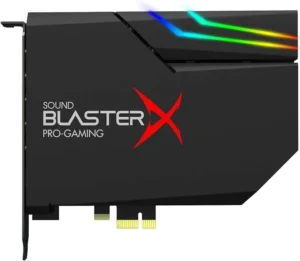
A sound card, also called an audio card or audio interface, is the hardware component that manages audio processing in your computer. It converts digital audio data into analog signals your speakers or headphones can reproduce, and it converts analog inputs (like a microphone) back into digital data the computer can process.
Most modern motherboards include an integrated sound chip that handles basic audio needs perfectly well. However, for music producers, content creators, audiophiles, streamers, and podcasters, a dedicated sound card or external audio interface makes a significant difference in audio quality, recording capability, and overall sound performance.
Key Functions of a Sound Card
- Digital to Analog Conversion (DAC) — Converts the digital audio data from your computer into analog signals that drive your speakers or headphones. The quality of the DAC determines how clean and detailed the audio output sounds.
- Analog to Digital Conversion (ADC) — Converts analog microphone or instrument input into digital data for recording. Higher quality ADCs capture cleaner, more accurate recordings with lower noise floors.
- Signal-to-Noise Ratio (SNR) — Measures how much useful audio signal exists compared to background noise. A higher SNR (measured in dB) means cleaner, quieter audio with less hiss and interference.
- Sample Rate and Bit Depth — Higher sample rates (96kHz, 192kHz) and bit depths (24-bit, 32-bit) capture more audio detail, which matters for professional music production and mastering.
- Microphone Preamps — External audio interfaces include preamps that boost microphone signals cleanly. This is critical for recording vocals, instruments, and podcasts with clarity.
Types of Sound Solutions
- Integrated Onboard Audio — Built into the motherboard. Good enough for gaming, streaming, and everyday listening. Uses shared PCB space which can introduce electrical interference and noise.
- Dedicated Internal Sound Card — A PCIe card installed inside the desktop. Provides better SNR than onboard audio, dedicated amplification for headphones, and sometimes virtual surround sound processing.
- External Audio Interface — A USB or Thunderbolt device that sits on your desk. Provides the cleanest audio quality, professional XLR microphone inputs, instrument inputs, and studio-grade headphone amplification. The professional standard for music production, podcasting, and streaming.
| Pros | Cons |
|---|---|
| Dedicated sound cards deliver noticeably cleaner audio with higher SNR than onboard audio | Onboard audio on modern motherboards is adequate for most everyday users |
| External audio interfaces provide studio-quality recording for professional use | Good external audio interfaces are significantly more expensive than onboard audio |
| Reduces electrical interference and noise that onboard audio picks up from the motherboard | Internal PCIe sound cards take up an expansion slot that could be used for other hardware |
| Dedicated headphone amplifiers drive high-impedance audiophile headphones properly | External interfaces add another device to power and connect via USB or Thunderbolt |
| Essential for content creators, musicians, and podcasters who need professional audio quality | For gaming and casual listening, a dedicated sound card offers minimal benefit over onboard audio |
| Provides multiple input and output options not available on standard motherboard audio jacks | Setup and driver configuration can be complex compared to plug-and-play onboard audio |
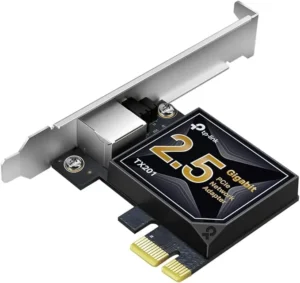
A Network Interface Card (NIC), also known as a network adapter or Ethernet card, is the hardware component that connects your computer to a network. It handles all communication between your device and the internet or a local area network (LAN) — whether through a wired Ethernet connection or wirelessly via Wi-Fi.
Almost all modern motherboards include an integrated NIC for both wired Ethernet and Wi-Fi. A dedicated NIC is added when you need higher speeds, more reliable wireless, or your motherboard lacks built-in connectivity.
Key Functions of a NIC
- Network Connectivity — Establishes and maintains your connection to the internet router, switch, or local network.
- Data Conversion — Converts digital data from your computer into electrical signals (for wired) or radio waves (for wireless) and back again on the receiving end.
- Speed and Bandwidth — Modern wired NICs support 1Gbps Ethernet as standard. High-end NICs support 2.5Gbps, 5Gbps, or 10Gbps for demanding applications. Wi-Fi NICs now support Wi-Fi 6 and Wi-Fi 6E for faster and more reliable wireless.
- MAC Address — Each NIC has a unique hardware identifier called a MAC address that identifies your device on the network.
- Full-Duplex Communication — Modern NICs support full-duplex mode, allowing simultaneous sending and receiving of data without interference.
Types of NIC
- Integrated NIC — Built directly into the motherboard. Standard on virtually all modern desktop and laptop motherboards. Handles everyday Ethernet and Wi-Fi needs well.
- PCIe NIC — A dedicated card installed in a PCIe slot. Used to add higher-speed Ethernet (2.5GbE, 10GbE), better Wi-Fi (Wi-Fi 6E, Wi-Fi 7), or to replace a failed integrated network adapter.
- USB Network Adapter — A small USB device that adds wired Ethernet or Wi-Fi to devices that lack built-in connectivity. Convenient but limited in speed and reliability compared to PCIe solutions.
| Pros | Cons |
|---|---|
| Wired Ethernet NICs provide the most stable, low-latency network connection available | Wired connections require running an Ethernet cable to your router or switch |
| 2.5GbE and 10GbE NICs dramatically speed up large file transfers on local networks | Wireless NICs are subject to interference from walls, other devices, and distance |
| Wi-Fi 6 and 6E NICs offer faster speeds and better performance in crowded wireless environments | USB network adapters are slower and less reliable than PCIe alternatives |
| Easy to add or replace in desktop systems via PCIe or USB | High-speed 10GbE NICs and routers require significant investment in networking infrastructure |
| Dedicated Wi-Fi NICs with external antennas improve range and signal quality | Integrated NICs cannot always be disabled or replaced without BIOS changes |
| Modern NICs support features like Wake-on-LAN and network boot (PXE) | Wi-Fi performance degrades significantly with physical distance from the router |
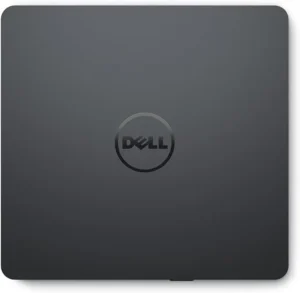
An optical drive is a hardware device that reads and writes data on optical discs, CDs, DVDs, and Blu-rays. It works by using a laser to detect microscopic pits and lands on the surface of the disc, interpreting them as digital data. Once a standard feature in every PC, optical drives have become optional in modern builds as digital distribution has replaced physical media for most software, games, and movies.
Despite being less common, optical drives still serve specific and legitimate purposes — particularly for Blu-ray movie playback, archiving important data on physical media, and accessing older software or media collections.
Key Functions of an Optical Drive
- Reading Discs — Reads data from CDs, DVDs, and Blu-rays for software installation, movie playback, and data access.
- Writing Discs — Writes data to writable discs (CD-R, DVD-R, BD-R) for backups, sharing files, or creating physical copies.
- Media Playback — Plays audio CDs, DVD movies, and Blu-ray films directly through connected speakers and displays.
- Software Installation — Some enterprise and legacy software is still distributed on physical discs and requires an optical drive to install.
- Archival Storage — Burned discs (especially M-DISC, which is rated for 1,000 years) provide very long-term physical backups that are not subject to power requirements or electronic failure.
Types of Optical Discs
- CD (Compact Disc) — The oldest format. Stores up to 700MB of data or 80 minutes of audio. Used for music, basic data, and legacy software.
- DVD (Digital Versatile Disc) — Stores up to 4.7GB (single layer) or 8.5GB (dual layer). Common for movies, older games, and software installation.
- Blu-ray Disc — Stores 25GB (single layer) up to 100GB (BDXL). Used for HD and 4K movies, large game installations, and high-capacity data archiving.
| Pros | Cons |
|---|---|
| Still required for Blu-ray movie playback, which streaming services cannot match in quality | Most modern PCs and laptops no longer include an optical drive as standard |
| Physical discs provide long-term archival storage not dependent on internet or cloud services | Discs are fragile and can be scratched, cracked, or degraded over time |
| M-DISC Blu-rays offer archival-grade storage rated for centuries without data loss | Optical drives are bulky and take up a drive bay or require an external USB enclosure |
| Allows access to legacy software, music, and games stored on physical media | Read and write speeds are very slow compared to SSDs and USB drives |
| External USB optical drives provide the function without permanent installation | Digital downloads and streaming have eliminated the need for optical drives for most users |
| Some region-specific software and media are still only available on physical disc | Writable Blu-ray discs and drives are more expensive than USB flash drives of similar capacity |
An operating system (OS) is the foundational software that manages every aspect of your computer. It sits between the hardware and everything you do on the PC — controlling the CPU, memory, storage, input devices, and display while providing the environment where all your applications run.
Without an operating system, your computer hardware has no instructions to follow. The OS handles resource allocation, file management, security, user interface, and device communication automatically in the background so you can focus on what you actually want to do.
Key Functions of an Operating System
- Hardware Management — The OS controls the CPU, memory, storage drives, GPU, and all connected peripherals through device drivers. It decides which hardware resource gets used, when, and by which application.
- Memory Management — Allocates RAM to running applications, manages virtual memory (using storage as overflow RAM when needed), and frees memory when apps are closed.
- File System Management — Organizes all data on storage drives into a structured file system (NTFS on Windows, APFS on macOS, ext4 on Linux). Controls how files are saved, named, retrieved, and deleted.
- Process Management — Runs multiple applications simultaneously by scheduling CPU time between them. Handles foreground and background tasks, priority levels, and multithreading.
- Security and Access Control — Manages user accounts, permissions, encryption, firewalls, and system updates to protect against unauthorized access and malware.
- User Interface — Provides either a Graphical User Interface (GUI) — the desktop, windows, icons, and menus most users interact with — or a Command-Line Interface (CLI) for advanced users who prefer text-based control.
- Device Communication — Manages drivers that allow the OS to communicate with keyboards, mice, monitors, printers, external drives, and every other connected device.
Popular Operating Systems
- Windows — The most widely used desktop OS in the world. Runs on virtually all PC hardware. Offers the broadest software and game compatibility. Windows 11 is the current version, with strong gaming support through DirectX 12 and integration with Xbox Game Pass.
- macOS — Apple’s operating system, exclusive to Mac hardware. Known for its polished design, tight hardware-software integration, excellent performance on Apple Silicon (M-series chips), and strong creative software ecosystem including Final Cut Pro and Logic Pro.
- Linux — A free, open-source operating system with many distributions (Ubuntu, Fedora, Arch, Debian). Highly customizable, lightweight, and very secure. Preferred by developers, system administrators, and privacy-conscious users. Gaming support has improved dramatically through Proton and Steam Deck compatibility.
- Chrome OS — Google’s lightweight operating system built around the Chrome browser. Designed for simplicity, web-based workflows, and low-cost Chromebook hardware. Limited offline software capability but excellent for education and basic productivity.
| OS | Pros | Cons |
|---|---|---|
| Windows | Widest software and game compatibility | Most vulnerable to malware and viruses |
| Windows | Familiar interface for the majority of users | Requires regular maintenance and updates |
| Windows | Supports the broadest range of hardware | Background processes consume more RAM and resources |
| macOS | Outstanding performance and efficiency on Apple Silicon | Only runs on Apple hardware — no build flexibility |
| macOS | Strong security and excellent privacy features | Premium hardware cost is very high |
| macOS | Tight integration between hardware, OS, and Apple apps | Limited customization compared to Windows or Linux |
| Linux | Completely free and open-source | Steeper learning curve, especially for beginners |
| Linux | Extremely secure with very low malware risk | Some software and games are not natively available |
| Linux | Lightweight distributions run well on older hardware | Driver support can be inconsistent for some hardware |
| Chrome OS | Simple, secure, and fast for web-based work | Very limited offline functionality and local app support |
| Chrome OS | Affordable hardware options | Not suitable for gaming, professional software, or heavy workloads |
Conclusion
Having a clear understanding of PC components is essential for building or upgrading a computer that meets your needs with reliable and efficient performance. Each component plays a vital role: the CPU processes data, the motherboard connects all hardware for smooth operation, the GPU delivers high-quality graphics, and RAM speeds up multitasking. Storage devices like SSDs and HDDs secure your data, while the PSU ensures a steady power supply. Proper cooling solutions help maintain optimal temperatures and extend hardware lifespan. Whether you are a beginner opting for PC component bundles or a mini PC enthusiast selecting compact parts, knowing these fundamentals empowers you to create a powerful, customized system designed for durability and speed.
Frequently Asked Questions
What are the best PC components for building a custom computer?
The best PC components for a custom build include a powerful CPU like the AMD Ryzen 7, a compatible motherboard, at least 16GB of RAM for smooth multitasking, a fast NVMe SSD for quick data access, and a reliable GPU such as the NVIDIA GeForce RTX 3060 to ensure optimal performance across tasks.
What are the top PC components for gaming?
For gaming, focus on a high-performance CPU like the Intel Core i7, a dedicated graphics card such as the NVIDIA GeForce RTX 3080, at least 16GB of RAM, and a 1TB SSD. These components help deliver faster load times, higher frame rates, and an overall immersive gaming experience.
How can I save money when building a PC?
You can save money by purchasing bundled components, like a CPU and motherboard combo, which often come at discounted prices from popular retailers. Additionally, consider opting for slightly older models or refurbished parts to maximize savings without sacrificing performance.
What are mini PC components?
Mini PC components are smaller, compact parts designed specifically for building small form factor computers. Popular mini PC options include Intel NUC and ASUS VivoMini, which are ideal for space-saving setups like home theaters, small offices, or portable workstations.
Do I need water-cooling components?
Water cooling components are recommended if you plan to overclock your CPU or GPU, as they offer superior cooling compared to traditional air coolers. High-quality water cooling systems like the Corsair H100i or NZXT Kraken series improve thermal performance and help keep your PC running smoothly under heavy loads.
