
How to Turn On G-Sync or FreeSync (Step-by-Step): Stop Screen Tearing for Good
Screen tearing, that jagged line that splits the picture when your GPU and monitor fall out of sync, is one of the most distracting problems in PC gaming. G-Sync (NVIDIA) and FreeSync (AMD) fix it by matching your monitor’s refresh rate to your graphics card’s frame rate in real time, with none of the input lag that traditional VSync adds.
There’s one catch: owning a compatible monitor isn’t enough. You have to switch the feature on in two places, in the right order: first in your monitor’s on-screen menu (OSD), then in your GPU driver (NVIDIA Control Panel or AMD Software). Skip either one, and variable refresh rate stays silently off.
In this guide, you’ll learn:
- The common mistakes that leave G-Sync or FreeSync off without any warning
- The two steps in the correct order, for both G-Sync and FreeSync
- How to confirm variable refresh rate is actually working
Quick answer
- Step 1 — monitor first: open the monitor’s on-screen menu (OSD) and enable FreeSync, G-Sync, or Adaptive-Sync. The exact name varies by manufacturer — check your manual. [VERIFY]
- Step 2 — then the driver: enable G-SYNC in NVIDIA Control Panel, or FreeSync in AMD Software. [VERIFY]
- Use DisplayPort — on many monitors, variable refresh is only offered over DisplayPort.
- Confirm it’s active with the driver’s indicator overlay before trusting the toggles.
What VRR Actually Does
Screen tearing happens when the GPU sends a new frame while the monitor is halfway through drawing the old one — you see a visible horizontal split, usually when turning the camera in a game. VSync fixes tearing by making the GPU wait for the monitor, which adds input lag. Variable refresh rate (VRR) fixes it the smart way: the monitor simply redraws whenever the GPU has a frame ready. Same smoothness, no waiting, no lag.
What You Need
- A monitor that supports FreeSync, G-Sync, or “G-Sync Compatible” (check the box or manual)
- An NVIDIA or AMD graphics card with current drivers
- A DisplayPort cable connecting them (recommended — explained below)
- A few minutes, with the monitor’s manual handy for the on-screen menu path
Before You Start
Close any running games — display-mode changes can minimize or blank fullscreen apps. Note which GPU brand you have, because the driver steps differ. And don’t force any cable; display connectors only fit one way.
The Steps to Enable G-Sync or FreeSync (4 Simple Steps)
Follow these four steps to get variable refresh rate working on your monitor and stop screen tearing without VSync’s input lag.
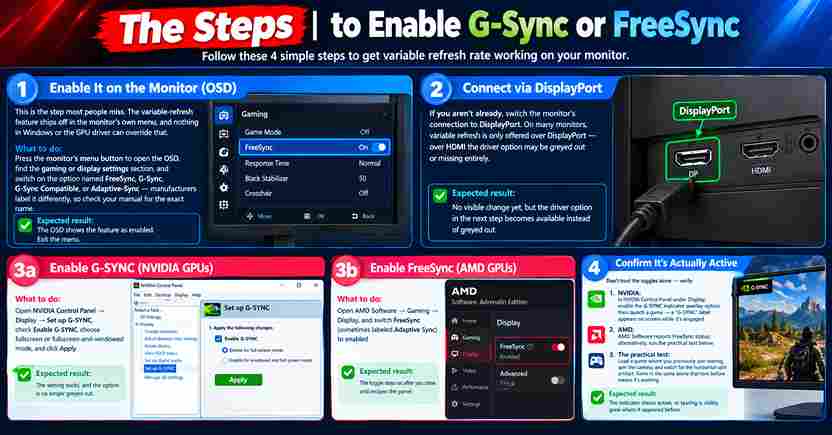
Step 1: Enable G-Sync or FreeSync in the Monitor Menu (OSD)
This is the step most people miss. Variable refresh rate ships switched off in the monitor’s own menu, and nothing in Windows or your GPU driver can override that.
What to do: Press the monitor’s menu button to open the OSD (on-screen display). Find the Gaming or display settings section and turn on the option named FreeSync, G-Sync, G-Sync Compatible, or Adaptive-Sync. Manufacturers label it differently, so check your manual for the exact name.
Expected result: The OSD shows the feature as On. Exit the menu.
Step 2: Connect Your Monitor via DisplayPort
If you aren’t already, switch your connection to DisplayPort. On many monitors, variable refresh rate is only offered over DisplayPort. Over HDMI, the driver option may be greyed out or missing entirely.
Expected result: No visible change yet, but the driver option in the next step becomes available instead of greyed out.
Step 3a: Enable G-Sync in NVIDIA Control Panel (NVIDIA GPUs)
What to do: Open NVIDIA Control Panel → Display → Set up G-SYNC. Check Enable G-SYNC, choose fullscreen or fullscreen and windowed mode, then click Apply.
Expected result: The setting sticks, and the option is no longer greyed out.
Step 3b: Enable FreeSync in AMD Software (AMD GPUs)
What to do: Open AMD Software → Gaming → Display and switch FreeSync (sometimes labeled Adaptive Sync) to Enabled.
Expected result: The toggle stays on after you close and reopen the panel.
Follow only Step 3a or 3b, whichever matches your graphics card.
Step 4: Confirm G-Sync or FreeSync Is Actually Active
Don’t trust the toggles alone. Verify it:
- NVIDIA: In NVIDIA Control Panel, under Display, enable the G-SYNC indicator overlay, then launch a game. A G-SYNC label appears on screen while it’s engaged.
- AMD: AMD Software reports your FreeSync status for the connected display.
- The practical test: Load a game where you previously saw tearing, spin the camera, and watch for the horizontal split. If it’s gone in the same scene that tore before, it’s working.
Expected result: The indicator shows active, or tearing is visibly gone where it appeared before.
Common Mistakes
- Only enabling it in the driver. If the monitor’s OSD setting is still off, the driver toggle does nothing. Monitor first, driver second — always in that order.
- Using HDMI and wondering why the option is missing. Many monitors only expose variable refresh over DisplayPort. Our HDMI vs DisplayPort guide (planned) explains the difference.
- Leaving in-game VSync on. With VRR active, turn the game’s VSync setting off and let variable refresh handle tearing — stacking both can reintroduce lag or stutter.
- Expecting higher FPS. VRR doesn’t make your GPU faster; it makes the frames you already get look smoother. Low frame rates are still low frame rates.
- Assuming every “compatible” monitor behaves identically. “G-Sync Compatible” (validated by NVIDIA) and generic Adaptive-Sync panels can differ in quality — flicker or a narrow VRR range happens on some panels. If yours flickers with VRR on, see our monitor flicker guide (planned).
Limitations and Risks
- VRR works within the monitor’s supported refresh range. At very low frame rates — below the bottom of that range — it can’t help; that’s a GPU performance issue, not a VRR failure.
- It eliminates tearing, not all stutter. Stutter from asset loading or CPU hitches is a different problem with different fixes.
- Changing display settings with games open can minimize or crash them — do this from the desktop.
- There’s no risk to the monitor or GPU: variable refresh is an intended operating mode, not an overclock.
Quick Checklist
- [ ] Monitor confirmed VRR-capable (box/manual: FreeSync, G-Sync, or Adaptive-Sync)
- [ ] Feature enabled in the monitor’s OSD menu (exact name checked in the manual)
- [ ] Connected via DisplayPort
- [ ] Enabled in the GPU driver (NVIDIA Control Panel or AMD Software) [VERIFY]
- [ ] In-game VSync turned off
- [ ] Confirmed active via the indicator overlay or a tearing test in-game
Conclusion
Enable two toggles in the right order, monitor first and graphics driver second, and screen tearing disappears without adding noticeable input lag. Variable refresh rate (VRR) syncs your monitor to your GPU’s frame rate, so games stay smooth whether you’re running 60 FPS or 144 FPS.
Quick recap:
- Turn on G-Sync or FreeSync in your monitor’s on-screen menu (OSD).
- Enable it in the NVIDIA Control Panel or AMD Software and apply it to your display.
Driver option greyed out? Check your cable first. DisplayPort fixes most of these cases, since many HDMI cables and ports don’t support VRR at full refresh rate. Still on HDMI? Read our HDMI vs DisplayPort: Which Cable Gets Full Refresh Rate guide.
Still seeing tearing? Variable refresh can’t fix every case, such as frame rates outside your monitor’s VRR range. Our screen tearing fix guide covers what to do next.
Frequently Asked Questions
What’s the difference between G-Sync and FreeSync?
G-Sync is NVIDIA’s variable-refresh technology; FreeSync is AMD’s. Many modern monitors support both (often labeled “G-Sync Compatible”), so the practical difference for most buyers is small.
Do I need a matching-brand GPU?
Mostly. Native G-Sync monitors pair with NVIDIA cards and FreeSync with AMD, but many FreeSync/Adaptive-Sync monitors now work with NVIDIA cards under the “G-Sync Compatible” label. Check your monitor’s specifications.
Should VSync be on or off with G-Sync/FreeSync?
Off in the game’s settings. Variable refresh already prevents tearing; leaving VSync on top of it can add lag or cause stutter.
Why is the G-Sync/FreeSync option greyed out in the driver?
The usual causes, in order: the feature is still off in the monitor’s OSD menu, you’re connected over HDMI on a DisplayPort-only-VRR monitor, or the GPU driver needs updating.
Does variable refresh work over HDMI?
On some newer monitors, yes — but DisplayPort is the reliable path. If the driver option is missing over HDMI, switch to DisplayPort before troubleshooting further.
Will it fix stuttering in games?
It fixes tearing. Stuttering caused by low frame rates, shader compilation, or asset streaming is a different issue that variable refresh can’t solve.
Does G-Sync/FreeSync add input lag?
No — that’s its main advantage over VSync. The monitor adapts to the GPU instead of making the GPU wait for the monitor.
