
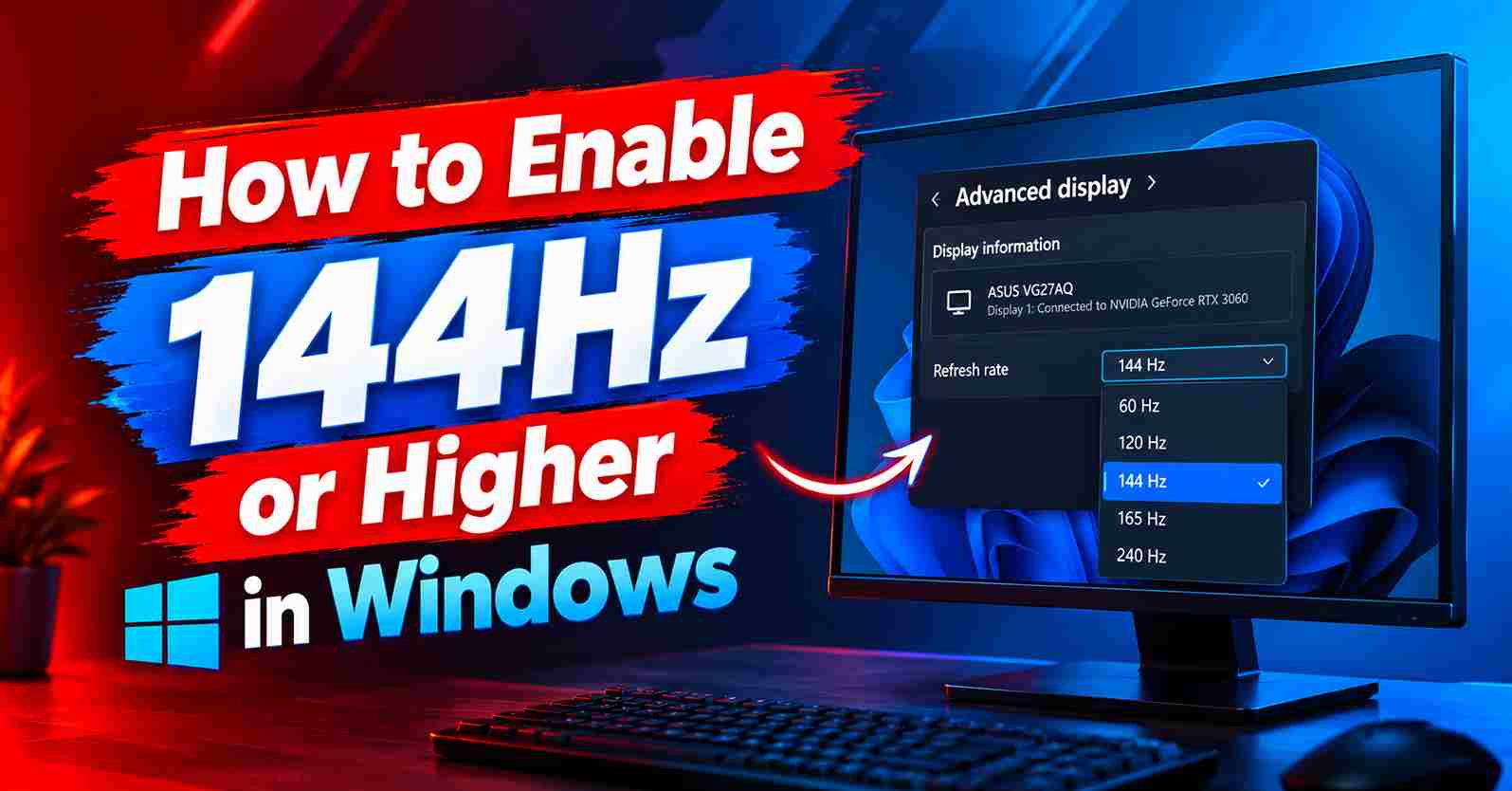
Windows sets most new monitors to 60Hz by default, even a 144Hz, 165Hz, or 240Hz gaming panel. Until you change it, you’re paying for smoothness you aren’t getting. The fix takes under two minutes: open Display settings, select your monitor, and choose the highest refresh rate from the list.
In this guide, you’ll learn:
- The exact steps to change your refresh rate in Windows 11 and Windows 10
- How to set the refresh rate per monitor on multi-display setups
- What to check if the higher refresh rate doesn’t appear, including cable, port, and driver fixes
Follow along and your next game, scroll, and mouse movement will feel noticeably smoother.
Quick Answer: How to Change Refresh Rate in Windows
- Go to Settings → System → Display → Advanced display.
- Select your monitor, then open the Choose a refresh rate dropdown.
- Pick the highest value listed (144Hz, 165Hz, 240Hz) and click Keep changes.
The setting is per monitor, so repeat it for each display. If the higher rate isn’t listed, the cause is usually the cable, port, or GPU driver, not Windows.
What You Need Before You Start
You don’t need to buy anything. You only need your monitor connected to your PC (ideally with DisplayPort, explained below) and about two minutes.
- Know your monitor’s maximum refresh rate. Check the box, product page, or manual so you know which number to look for.
- Close any running games. Changing the refresh rate can minimize or briefly blank fullscreen apps.
- Never force a cable. Display connectors only fit one way.
Why Windows Defaults to 60Hz
Refresh rate, measured in hertz (Hz), is how many times per second your monitor redraws the image. At 60Hz the screen refreshes 60 times per second, and at 144Hz it refreshes 144 times. Higher rates make motion such as the mouse cursor, scrolling, and gameplay look far smoother.
Windows plays it safe with new displays and picks 60Hz, a rate every monitor supports. It won’t switch to your panel’s maximum on its own. You make that choice once, and Windows remembers it.
How to Change Your Monitor’s Refresh Rate in Windows (4 Steps)
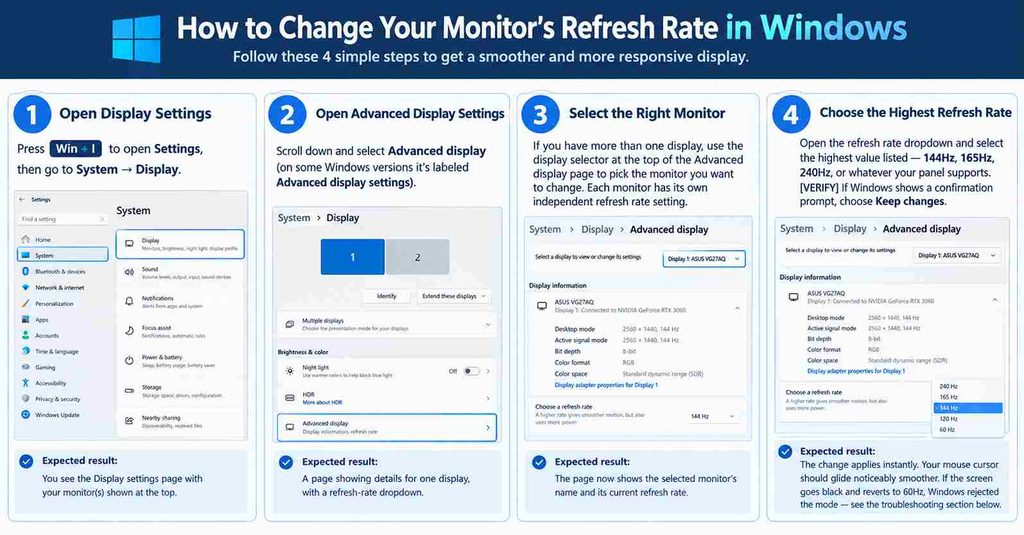
Step 1: Open Display Settings
Press Win + I to open Settings, then go to System → Display.
Expected result: You see the Display settings page with your monitor(s) shown at the top.
Step 2: Open Advanced Display Settings
Scroll down and select Advanced display. On some Windows versions it’s labeled Advanced display settings.
Expected result: A page showing details for one display, with a refresh rate dropdown.
Step 3: Select the Right Monitor
If you have more than one display, use the display selector at the top of the Advanced display page to pick the monitor you want to change. Each monitor has its own independent refresh rate setting.
Expected result: The page shows the selected monitor’s name and its current refresh rate.
Step 4: Choose the Highest Refresh Rate
Open the Choose a refresh rate dropdown and select the highest value listed: 144Hz, 165Hz, 240Hz, or whatever your panel supports. If Windows shows a confirmation prompt, choose Keep changes.
Expected result: The change applies instantly, and your mouse cursor should glide noticeably smoother. If the screen goes black for a few seconds and reverts to 60Hz, Windows rejected the mode. See the troubleshooting section below.
Windows Advanced display settings page with the Choose a refresh rate dropdown open and 144 Hz selected
Using Windows 10? The steps are nearly identical, but the refresh rate sits one level deeper: Settings → System → Display → Advanced display settings → Display adapter properties → Monitor tab → Screen refresh rate.
How to Confirm Your Refresh Rate Worked
- Reopen Settings. The dropdown should still show your target rate (for example, 144Hz).
- Test the motion. Drag a window around the desktop and compare it to how it felt before.
- Check the monitor’s on-screen menu (OSD). Many monitors have an information page showing the current refresh rate. If it reports 144Hz, the whole chain from GPU to panel is working.
Monitor OSD information page showing a 144Hz refresh rate
Refresh Rate Not Showing? How to Fix a Missing 144Hz Option
Windows only offers refresh rates that the monitor, cable, port, and GPU driver all support. If your panel’s maximum is missing, work through these fixes in order:
- Check the cable and port first. This is the most common cause. DisplayPort is the reliable choice for high refresh rates, while some HDMI cables and ports top out at 60Hz. Read our HDMI vs DisplayPort: Which Cable Gets Full Refresh Rate guide for the full comparison.
- Check the monitor’s own menu. Some gaming monitors hide their top refresh rate behind an OSD setting, sometimes labeled “overclock” mode. Enable it, then recheck Windows.
- Update your graphics driver. A missing or generic “Microsoft Basic Display Adapter” driver can hide refresh rates. Install the proper driver from NVIDIA’s or AMD’s website.
- Try the monitor’s other port. If it has two DisplayPort inputs, switch to the other one.
Still stuck? Our Monitor Stuck at 60Hz? Cable, Port and Driver Fixes guide covers these problems in depth.
Common Refresh Rate Mistakes
- Changing the wrong display. On a laptop plus external monitor, it’s easy to set 144Hz on the laptop screen instead of the external one. Double-check the selector in Step 3.
- Assuming the cable doesn’t matter. An old HDMI cable from a drawer is the classic reason the higher rate never appears.
- Looking for the setting inside a game. Refresh rate is a Windows-level setting. Set it in Windows first, and games will then offer it in their video options.
- Confusing “no picture” with “wrong refresh rate.” A black screen or “No Signal” is a different fault. See PC Turns On But No Display? 9 Fixes in Order.
Limitations and Risks
- You can only select rates your monitor, cable, port, and driver jointly support, which also means you can’t damage the monitor this way.
- On laptops, running the built-in display at its maximum refresh rate uses more battery. Windows may drop to 60Hz in battery saver mode, which is normal.
- Changing the refresh rate during a fullscreen game can minimize or crash it, so make the change from the desktop.
Quick Checklist
- Monitor’s maximum refresh rate known
- Connected via DisplayPort or a known-good HDMI cable
- Settings → System → Display → Advanced display opened
- Correct monitor selected (multi-display setups)
- Highest refresh rate chosen and kept
- Confirmed through smoother motion or the monitor’s OSD info page
- If missing: cable, monitor OSD setting, and GPU driver checked
Conclusion:
That’s the whole job: one dropdown, under two minutes, and your monitor finally runs at the speed you paid for. If the higher rate wasn’t listed, the cable and port checks above resolve most cases.
Next, make sure you’re using the right cable with our HDMI vs DisplayPort guide. If your monitor supports variable refresh, our G-Sync and FreeSync setup guide shows how to switch that on too.
Frequently Asked Questions
Why is my 144Hz monitor only showing 60Hz?
Windows defaults every new display to 60Hz. Open Advanced display settings and pick the higher rate manually. If it isn’t listed, the cable, port, or GPU driver is the limiter, not Windows.
Do I need a special cable for 144Hz?
Usually the cable that came with your monitor works. If you’re buying one, DisplayPort is the safest choice for high refresh rates on PC.
Will this work on a laptop’s external monitor?
Yes, if the laptop’s port, the cable, and the monitor all support the rate. Set it per monitor, since the laptop screen and external monitor are adjusted separately.
Can a higher refresh rate damage my monitor?
No. The monitor is rated for its maximum refresh rate, and Windows only offers modes the monitor reports as supported.
My screen went black after changing it, then returned to 60Hz. Why?
Windows tried the mode, it didn’t take, and the confirmation timer expired, so it reverted automatically. This usually points to the cable or port.
Does a higher refresh rate increase my FPS?
No. Your GPU produces FPS, while refresh rate is how many of those frames your monitor can display per second. A 144Hz monitor shows more of the frames your PC already renders, making motion smoother without making the GPU faster.
Should I always use the highest refresh rate?
On a desktop monitor, yes, because there’s no downside. On a laptop running on battery, 60Hz can save power.
