
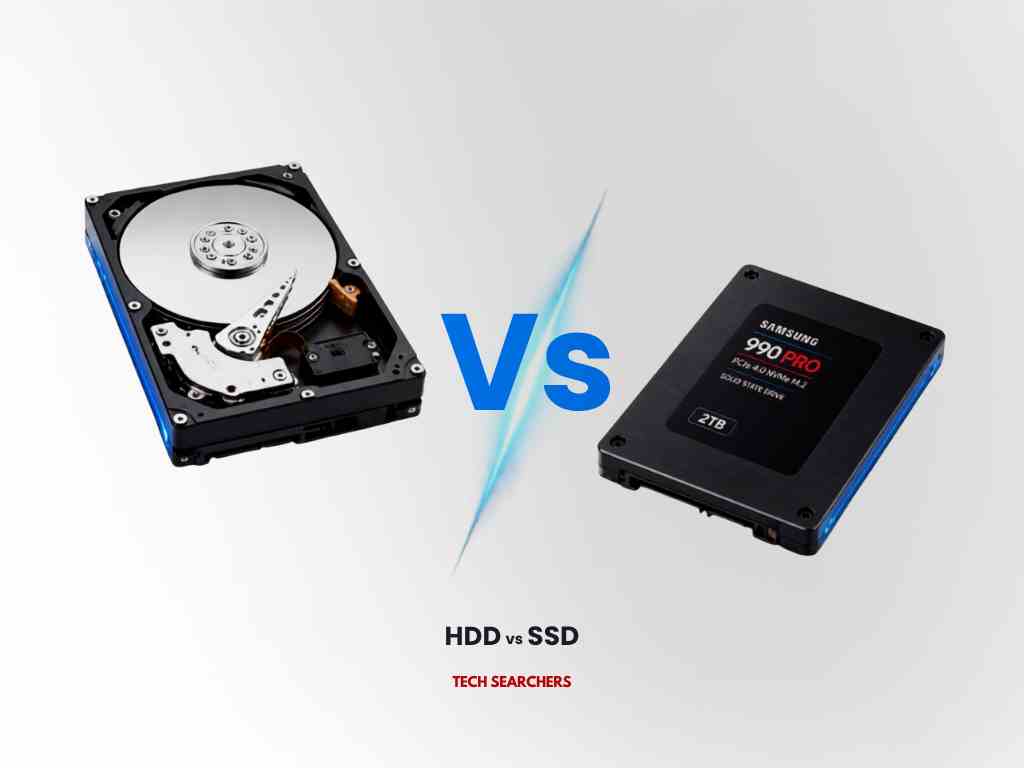
You open a file and wait. You boot your PC and go make coffee. You install a game and watch a progress bar crawl for twenty minutes. Most people blame the processor or upgrade the RAM — and nothing changes. That’s because the real bottleneck is almost always the storage drive.
Every file you save, every program you launch, every game you load has to pass through your storage drive first. If that drive is slow, everything downstream feels slow — no matter how powerful the rest of your machine is. Choosing between an HDD (Hard Disk Drive) and an SSD (Solid State Drive) is one of the highest-impact decisions you’ll make when buying or upgrading a computer, yet most buyers make it based on price alone, without understanding what they’re trading away.
This guide breaks down exactly what separates the two, how each one actually works, and how to pick the right drive for your budget, workload, and long-term needs, whether you’re a gamer, a video editor, a business buying fleet laptops, or someone just trying to make an old PC feel new again.
 30-Second Answer: Which One Should You Buy?
| If you need… | Choose |
|---|---|
| Fastest boot & load times | SSD |
| Lowest cost per GB | HDD |
| A gaming PC | SSD (NVMe if budget allows) |
| Video/photo archive (4TB+) | HDD |
| A laptop that lasts on battery | SSD |
| Security camera / surveillance storage | HDD |
| Best of both worlds | SSD (OS + apps) + HDD (bulk storage) |
Still not sure? Keep reading — the full breakdown below explains exactly why.
What Is an HDD vs SSD?
An HDD (Hard Disk Drive) stores data magnetically on spinning metal platters, using a mechanical arm to read and write information — similar in principle to a record player. It’s the storage technology that has powered computers since the 1950s, refined over decades into a cheap, high-capacity workhorse.
An SSD (Solid State Drive) stores data electronically on flash memory chips, with no moving parts at all. Instead of a spinning disk and a mechanical arm, an SSD accesses data almost instantly through electrical signals — the same core technology used in USB drives and smartphone storage, scaled up for full computing use.
The difference isn’t just technical trivia. It determines how fast your computer boots, how long your battery lasts, how much noise your PC makes, and how much you’ll pay per gigabyte.
Key Features That Separate HDD and SSD
- Read/Write Speed: SSDs transfer data at 500 MB/s to over 7,000 MB/s (NVMe models); traditional HDDs typically max out around 80–160 MB/s.
- Mechanism: HDDs rely on spinning magnetic platters and a moving read/write head; SSDs use flash memory chips with zero moving parts.
- Durability: SSDs resist shock, drops, and vibration far better since there’s nothing physical to knock out of alignment.
- Power Consumption: SSDs draw less power, which directly improves laptop battery life.
- Noise: HDDs produce an audible hum and clicking during heavy use; SSDs run completely silent.
- Price per GB: HDDs remain significantly cheaper for bulk storage, especially past 2TB.
- Lifespan Pattern: HDDs tend to fail gradually with warning signs (noise, slowdowns); SSDs tend to fail suddenly once they reach their write-cycle limit.
- Form Factor: SSDs come in compact 2.5-inch, M.2, and NVMe formats that fit thinner laptops; HDDs are bulkier and heavier.
How Storage Drives Work: Step-by-Step
1. Data Request Initiated When you open a file or program, your operating system sends a request to the storage drive asking for that specific data.
2. Locating the Data On an HDD, the read/write arm physically moves across the spinning platter to find the data’s location — this mechanical movement is called “seek time.” On an SSD, the controller chip electronically locates the data across flash memory cells almost instantly, with no physical movement involved.
3. Reading the Data The HDD head reads magnetic patterns off the platter as it spins beneath it. The SSD controller reads electrical charge states stored in its memory cells.
4. Transferring Data to Memory The retrieved data is sent to your system’s RAM, where the CPU can access and process it.
5. Writing Data Back When you save a file, the same process runs in reverse, the HDD arm magnetizes specific spots on the platter, while the SSD controller sets the charge state in available memory cells.
6. Wear Management (SSD-specific) SSDs use a background process called wear-leveling to spread write operations evenly across memory cells, extending the drive’s usable lifespan.
Industries and Use Cases
- Gaming: SSDs cut game load times dramatically and eliminate texture pop-in, making them the industry standard for modern gaming rigs and consoles.
- Video & Photo Editing: Large 4K/8K files demand the sustained high transfer speeds only SSDs (especially NVMe) can deliver smoothly.
- Business & Enterprise IT: Companies use SSDs in laptops for fast boot times and durability during travel, while relying on HDDs for cheap, high-capacity backup and archival servers.
- Data Centers & Cloud Storage: A hybrid approach is standard — SSDs handle frequently accessed (“hot”) data, while HDDs store rarely accessed (“cold”) data at lower cost.
- Everyday Home Users: SSDs are increasingly the default for general browsing, office work, and streaming, since responsiveness matters more than raw capacity for most people.
- Surveillance & Media Archiving: HDDs remain the go-to for storing large volumes of security footage or media libraries where speed is less critical than capacity and cost.
Benefits of Each Drive Type
- Faster Everyday Performance (SSD) Boot times drop from over a minute to under 15 seconds. Applications open almost instantly, and multitasking feels noticeably smoother.
- Lower Cost Per Gigabyte (HDD) For users who need 4TB, 8TB, or more, HDDs deliver far more raw storage for the same budget — ideal for archives, backups, and media libraries.
- Improved Durability and Reliability (SSD) With no moving parts, SSDs handle drops, bumps, and vibration far better, making them the safer choice for laptops and portable devices.
- Proven Long-Term Storage Stability (HDD) When kept powered periodically, HDDs have a long track record of reliably retaining data over many years, which is why they’re still trusted for long-term archival storage.
- Energy Efficiency (SSD) Lower power draw means better battery life on laptops and reduced electricity costs in large-scale deployments like data centers.
- Silent, Vibration-Free Operation (SSD) No spinning parts means no operational noise, a meaningful upgrade for anyone working in a quiet space or running a home studio setup.
Choosing the Right Storage Drive for You
- Budget: If cost per gigabyte is your top priority and you need bulk storage, an HDD stretches your money further.
- Performance Needs: If speed, responsiveness, and load times matter most, an SSD is worth the premium.
- Portability: Laptop or mobile device users should prioritize SSDs for their shock resistance and lower power draw.
- Storage Capacity Required: Users needing 4TB+ for media libraries or backups will find HDDs far more cost-effective.
- Workload Type: Gaming, editing, and software development benefit heavily from SSD speed; passive storage and backups do not need it.
- Noise Sensitivity: If you work in a quiet environment, the silent operation of an SSD is a meaningful quality-of-life upgrade.
- Longevity Expectations: Consider how the drive will be used over time — SSDs excel with active use, HDDs are proven for long-term, low-access archival storage.
A hybrid setup — a smaller SSD for your operating system and active programs, paired with a larger HDD for bulk storage — is often the smartest choice for buyers who want both speed and capacity without overspending.
Related reading: [NVMe vs SATA SSD: Which Is Right for You?] · [How Much Storage Do You Actually Need?] · [SSD Buying Guide by Use Case]
| Drive | Type | Speed | Best For |
|---|---|---|---|
| SanDisk Optimus 5100 1TB | SSD | Up to 7,100 MB/s | General upgrade, gaming |
| fanxiang PCIe 5.0 NVMe 1TB | SSD | Up to 14,000 MB/s | 8K editing, AI training |
| Crucial P310 1TB/2TB | SSD | Up to 7,100 MB/s | Best value pick |
| WD Black SN7100 2TB | SSD | High sustained R/W | PS5, gaming rigs |
| Crucial T700 2TB | SSD | ~12,400 MB/s | Content creation + gaming |
| Bestoss 120GB SATA III | SSD | Up to 550 MB/s | Budget SATA upgrade, older laptops |
| Seagate BarraCuda 24TB | HDD | ~180 MB/s | Best value per GB |
| Seagate BarraCuda 8TB | HDD | ~210 MB/s | NAS storage |
| WD Elements Portable 5TB | HDD | USB 3.0 | Budget external backup |
| Seagate BarraCuda 8TB | HDD | ~190 MB/s | Desktop bulk storage |
| Toshiba X300 12–18TB | HDD | ~250 MB/s | Desktop/archival |
Storage Drive Maintenance Checklist
- Keep at least 10–15% of your drive’s capacity free to maintain optimal performance.
- Run manufacturer diagnostic tools periodically to check drive health (e.g., CrystalDiskInfo, manufacturer SSD toolboxes).
- Back up important data regularly regardless of drive type — no storage medium is failure-proof.
- For HDDs, avoid physical shocks and excessive heat exposure.
- For SSDs, ensure your system firmware and drivers are updated to support TRIM commands, which maintain long-term write performance.
- Avoid letting an unpowered SSD sit idle for extremely long periods (over a year), as data retention can degrade without power.
- Monitor drive temperature, especially for high-performance NVMe SSDs, which can throttle under sustained heavy use.
Conclusion:
There’s no universal “best” drive, only the best drive for your specific needs. If speed, responsiveness, and durability matter most, an SSD is the clear upgrade. If your priority is maximum storage at the lowest possible cost, an HDD still holds its ground. Many of the fastest, most efficient setups today use both — an SSD for speed where it counts, and an HDD for capacity where it’s needed.
Still unsure which drive fits your setup? Our team has helped thousands of buyers match the right storage to their exact workload, whether that’s a gaming rig, a video editing bay, or a budget-friendly upgrade. Browse our full range of HDDs and SSDs, backed by [manufacturer warranties / price-match / free shipping — insert your actual policy] and expert support if you get stuck. Your PC’s biggest bottleneck is one click away from being fixed.
Frequently Asked Questions
1. Is an SSD always better than an HDD?
Not always — SSDs are faster and more durable, but HDDs remain the better choice when you need large amounts of storage at the lowest possible cost, such as for backups or media archives.
2. Can I use both an HDD and an SSD in the same computer?
Yes. A common and cost-effective setup uses an SSD for your operating system and frequently used programs, paired with an HDD for bulk file storage.
3. How long do SSDs and HDDs typically last?
Both generally last 3–5 years under normal use, though this varies. SSDs are rated by total data written (TBW), while HDDs are more affected by mechanical wear and usage hours.
4. Is a 500GB SSD better than a 1TB HDD?
It depends on your priority. If speed and responsiveness matter most, the 500GB SSD will feel significantly faster. If you need more storage space, the 1TB HDD offers greater capacity for the same or lower price.
5. Do SSDs need any special maintenance?
Not much, just ensure TRIM is enabled (usually automatic on modern systems) and avoid filling the drive completely, as SSDs perform best with some free space reserved
