
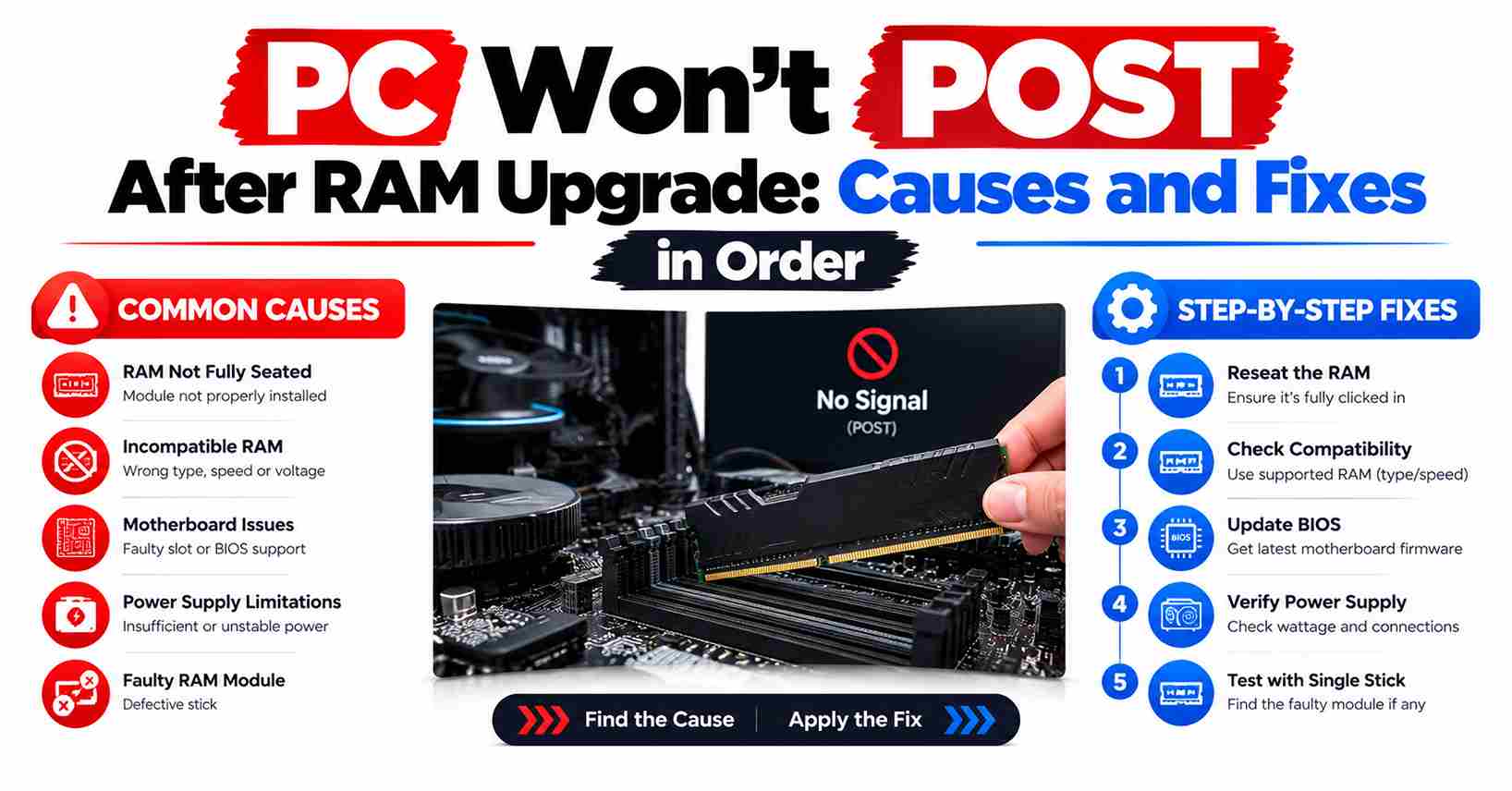
Quick Answer: Most PCs that fail after a RAM change fail for a simple reason: a stick is not fully seated, it is in the wrong slots, or old settings do not suit the new kit. Wait for memory training, reseat the sticks, test one stick in the recommended slot, then clear CMOS.
You changed one thing — the RAM — and now the PC will not complete POST (power-on self-test, the checks the board runs before anything appears on screen). Fans may spin, lights may come on, and you get a RAM upgrade with no display result, or the PC restarts in a loop. Because the machine worked before the change, work the RAM first, in order, before suspecting anything else.
Plain-English version: POST is the board checking its own parts before it starts. Memory training is part of that check after a RAM change: the board tests the new sticks and finds settings they can run at. On some systems, that first check takes minutes, with a blank screen the whole time. A blank screen for a few minutes is not always a dead PC.
Safety before you touch anything inside
Every step below that involves opening the case starts the same way:
- Shut the PC down, switch the power supply off if it has a switch, and unplug the power cord. ASUS says to make sure the power cord is removed before installing or removing memory.
- Press the case power button once while the PC is unplugged. MSI’s CMOS guide gives the same step: pressing the power button drains leftover charge.
- Touch a bare metal part of the case to ground yourself before handling a stick, as Crucial advises.
- Never force a stick. ASUS says to match the notch on the stick with the notch in the slot and push straight down. If a stick needs force to line up, it is the wrong way round or the wrong generation — see the DDR4 and DDR5 note below.
Why won’t my PC POST after I changed the RAM?
These are the causes specific to an upgrade, roughly in the order people meet them:
- A stick is not fully seated. This is the most common cause. A stick can look straight and still not be down far enough for the slot clips to lock. Crucial notes that desktops need firm pressure for a module to fully seat, and that the locking clips rotate into place when it does. On boards with a clip at each end, both clips should click.
- Wrong slots for a two-stick kit. Most four-slot boards want two sticks in the second and fourth slots from the CPU, labelled A2 and B2. ASUS states this directly: one stick in DIMM_A2, two sticks in DIMM_A2 and DIMM_B2. Sticks in A1 and B1 can fail to train at speed, or fail to POST at all.
- Mixing the old kit and the new kit. Crucial warns that testing one module at a time can show that old and new modules simply are not compatible when mixed together. Kingston makes the same point for combining two high-speed kits: all modules must run at one shared speed, and the result can be disappointing or unstable.
- An XMP or EXPO profile the new setup cannot hold. XMP (Extreme Memory Profile, Intel’s name) and EXPO (Extended Profiles for Overclocking, AMD’s name) are one-click profiles that run memory faster than standard speeds. A profile that suited the old kit, or that was set for two sticks, may not train with the new kit or with four sticks.
- Four sticks at full rated speed. Filling all four slots puts more load on the memory controller, and the officially supported speed drops. Kingston’s population rules list, for example, an AM5 board at 5,200 MT/s with one stick per channel and 3,600 MT/s with two sticks per channel at standard settings. A four-stick kit that will not POST at its rated speed may POST at a lower standard speed.
- A BIOS too old for the new modules. Crucial notes that a BIOS or firmware update might be required to add support for memory upgrades or higher memory totals, especially for parts made after the computer was released. ASUS gives the same advice when a kit on its QVL (Qualified Vendor List, the board maker’s tested-memory list) still gives trouble: update to the latest BIOS.
- AM5 memory training mistaken for a dead PC. On AMD AM5 boards, the first boot with new memory can pause for a long time with a blank screen while training runs. ASUS’s guide to RAM memory training AM5 systems says the process can take anywhere from 5 to 15 minutes depending on the memory configuration, and tells users to wait and not interrupt it.
- Per-slot capacity limits. A board has a maximum capacity per slot and in total, and a stick above that limit may not be recognised. Check the limits in your board manual or on its specification page before assuming a large new stick is faulty. Kingston also notes that maximum capacity per module differs by generation — up to 32GB per desktop stick for DDR4 and up to 64GB for DDR5.
- The wrong generation entirely. DDR4 and DDR5 sticks both have 288 pins, but Kingston confirms they have different key notches, different electrical specifications, and are not interchangeable. A DDR5 stick will not fit a DDR4 slot, and the other way round. If a stick will not line up with the slot key, stop — it is the wrong type for that board.
The fix list: work through it in order
Do the steps in this order. Each one is more work than the last, and the early steps fix a new RAM PC won’t boot problem most often. After each step, power on and give the board a full minute — longer on AM5, as step 1 explains. Success at any step looks the same: the board finishes POST, and you see the board logo or BIOS screen, or Windows starts.
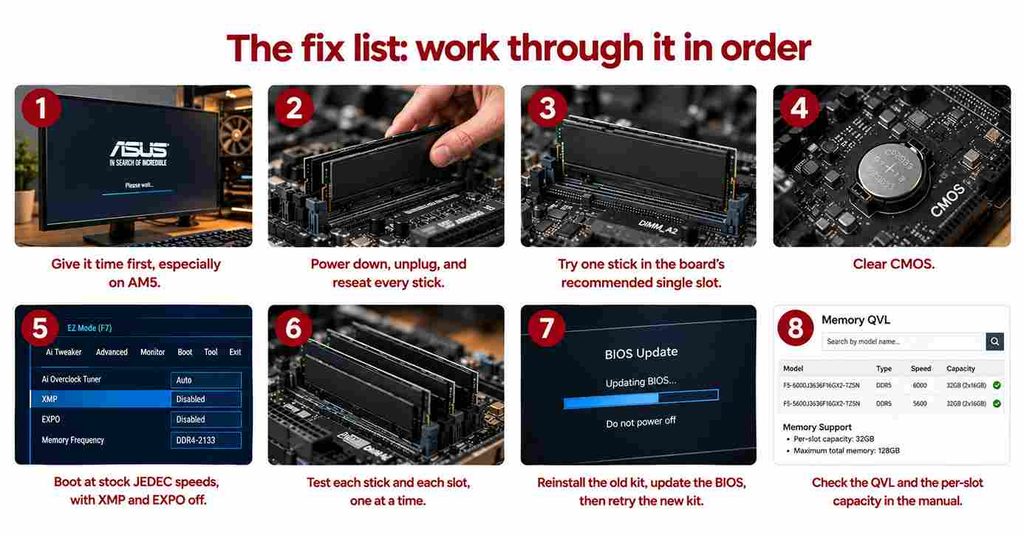
- Give it time first, especially on AM5. Power on, then wait without touching anything. ASUS says first-boot memory training on AM5 can take 5 to 15 minutes, with a blank screen while it runs, and that interrupting it causes unnecessary troubleshooting. Success: the display wakes up on its own and boot continues normally. Only move on if nothing has happened after 15 minutes, or the PC is clearly restarting in a loop rather than sitting still.
- Power down, unplug, and reseat every stick. This is how to reseat RAM correctly: unplug, press the power button to discharge, open both slot clips, pull each stick straight out, then push it straight back down with even pressure on both ends until the clips click and lock. On boards with clips at both ends, both clips must click. Success: the PC completes POST on the next power-on.
- Try one stick in the board’s recommended single slot. Remove all sticks, then fit just one stick from the new kit in the slot your manual names for a single stick — DIMM_A2 on ASUS boards, and the same A2 position on most four-slot boards. Check your own manual, because the label is what counts, not the position you guess. Success: the PC POSTs with one stick, which tells you the kit itself can work, and the problem is a slot, a second stick, or a setting.
- Clear CMOS. CMOS is the small store of BIOS settings the board keeps between restarts; clearing it returns every setting, including memory settings, to defaults. With the PC off and unplugged, follow your manual: MSI describes moving the clear-CMOS jumper (JBAT1 on many MSI boards) or pressing a clear-CMOS button if your board has one, after disconnecting power and pressing the power button to drain charge. Crucial describes an alternative used on many boards: remove the round CMOS battery, wait, then refit it. Use the method your manual shows. Success: the PC POSTs and offers to enter BIOS setup, with all settings back at defaults.
- Boot at stock JEDEC speeds, with XMP and EXPO off. JEDEC is the industry body that sets memory standards, and JEDEC speeds are the standard, non-overclocked speeds for a generation — up to 3,200 MT/s for DDR4 and starting at 4,800 MT/s for DDR5, per Kingston. If the PC now reaches the BIOS, leave XMP and EXPO off, save, and boot into Windows once at those standard speeds. Success: a stable boot at standard speed. That points to the profile, not the sticks, as the cause — you can try enabling the profile again later, one change at a time.
- Test each stick and each slot, one at a time. With the PC unplugged between changes, boot with one stick in the recommended slot, then swap in the next stick in the same slot, then test a known-good stick in each other slot you plan to use. Crucial recommends exactly this: testing one module at a time, and switching sockets, shows whether the fault follows a stick or stays with a slot. Write down the results as you go. Success: you can name the one stick or the one slot that fails, instead of guessing.
- Reinstall the old kit, update the BIOS, then retry the new kit. If the new kit still fails, put the old kit back in exactly as it was. If the PC boots on the old kit, the board, CPU, and slots are working — the new kit, its settings, or BIOS support is the problem. Now update the BIOS using the board maker’s own instructions, because Crucial and ASUS both note that updates can add support for newer memory. Then shut down, fit the new kit on its own, and start again from step 1. Success: the new kit POSTs after the update. If you are not confident doing a BIOS update, skip to the stop point below — a shop can do this step safely.
- Check the QVL and the per-slot capacity in the manual. Look up your exact board on the maker’s support site and open its memory QVL. ASUS explains that its QVL is the list it has verified for the best stability and compatibility, and shows how to search it by the kit’s full model name. Also confirm in the manual that each stick is within the board’s per-slot capacity and that your total is within its maximum. Success: either your kit is on the list, and you have a clear support case if it still fails, or it is not on the list — which does not prove it cannot work, but makes it the first suspect, and a matched kit from the list is the reliable replacement.
What about beep codes and debug LEDs?
Many boards report where POST stopped, using beeps, a small two-digit display, or labelled LEDs. There is no universal code table: the same beep pattern or number can mean different things on different boards, and even on different models from the same maker. Read the code your board shows, then look up that exact code in your own motherboard manual or on the maker’s support page for your model. As one maker-specific example, ASUS says its ROG AM5 boards can show a code during memory training — that meaning applies to those boards, not to every board. Do not act on a code list written for a different board.
Stop and get professional help if…
Stop working through the list and take the PC to a repair shop, or contact the board or system maker, if any of these apply:
- You smell burning, or see scorch marks, a cracked stick, damaged slot contacts, or any visible damage.
- You suspect bent CPU socket pins, or any damage you are not equipped to assess. Do not try to straighten pins yourself.
- A debug code, beep pattern, or DRAM light is still showing after you have completed every step above.
- The PC is under warranty. Opening it further, or updating firmware outside the maker’s process, may void that warranty — check the warranty terms first and let the maker handle it.
- You reached the BIOS-update step (step 7) and are not confident doing it. A shop can flash the BIOS safely, and an interrupted update can leave a board unable to start at all.
- The old kit no longer boots either, in its original slots. That means the problem is no longer just the new RAM, and it needs diagnosis with spare parts.
Conclusion
A PC that won’t POST after a RAM upgrade can usually be fixed with a few simple steps, done in this order:
- Wait for memory training. On AMD AM5 systems, the first boot after a RAM change can take several minutes with a blank screen. Wait a full 15 minutes before assuming something is wrong.
- Reseat the RAM. Press each stick firmly until both clips click into place.
- Test one stick in slot A2. Boot with a single module in the slot your motherboard manual recommends (usually A2) to rule out a bad stick or slot.
- Clear the CMOS. This resets the BIOS settings that may be blocking boot.
- Boot at default JEDEC speeds. Turn off XMP or EXPO profiles until the system starts reliably, then re-enable them.
Your next step: power on your PC and wait the full 15 minutes. Only open the case and work through steps 2 to 5 if the wait changes nothing.
Frequently Asked Questions
How long should I wait for memory training on an AM5 PC?
ASUS says the first boot after a memory change on AM5 can take 5 to 15 minutes, depending on the configuration, with a blank screen while training runs during POST. Wait the full time without powering off. If the screen is still blank after 15 minutes, or the fans keep restarting in a loop, move to the reseat step.
Why does my PC boot with the old RAM but not the new RAM?
That result is useful: the board, processor, and slots work, so the cause sits with the new kit or its settings. The usual reasons are a stick not fully seated, the kit not being on the board’s QVL, a BIOS too old to support it, or an XMP or EXPO profile it cannot train at. Work steps 2 to 8 in order.
Can I mix my old and new RAM kits to get more capacity?
Sometimes it works, but it is a common cause of a no-POST after an upgrade. All sticks must run at one shared speed and timing set, and Crucial notes that old and new modules may simply not be compatible when mixed. Test the new kit on its own first. If it only fails when the old kit is added, the mix is the problem.
Does clearing CMOS remove my BIOS update?
No. MSI’s guide states that clearing CMOS restores the default settings in all BIOS menus, and does not restore the original BIOS code — your BIOS version stays where it was. That is why the clear CMOS after RAM upgrade step is safe to try early: it removes old memory settings, including XMP or EXPO, without undoing an update.
Why won’t four sticks run at the speed printed on the box?
The speed on the box is the kit’s rated profile speed, not a guarantee for every board and processor. With four sticks, the memory controller carries more load, and the officially supported standard speed falls — Kingston’s population rules list AM5 at 5,200 MT/s with two sticks and 3,600 MT/s with four. Boot at JEDEC speeds first, then raise speed in small steps if you want to.
What does the beep code or debug LED on my board mean?
There is no single meaning that fits all boards. Beep patterns, debug numbers, and LED labels are set by each board maker, and they can differ between models from the same maker. Note the exact code or which LED stays lit, then look it up in your own motherboard manual or on the maker’s support page for your exact model before changing anything else.
