
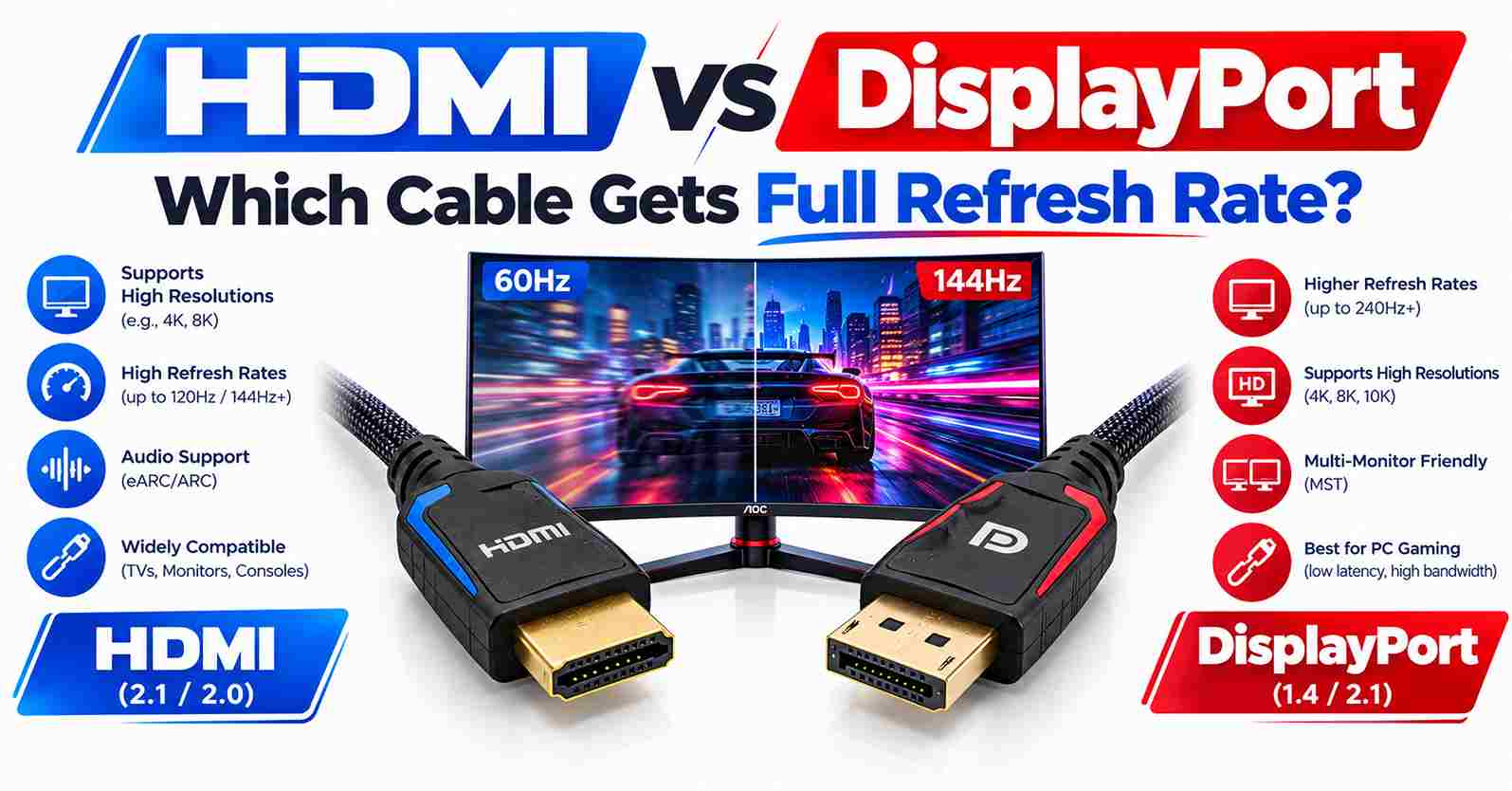
You paid for a 144Hz, 165Hz, or even 240Hz monitor, but Windows only offers 60Hz. Before you blame the panel or the graphics card, check the cable. It is one of the most common causes, and also one of the cheapest to fix.
The short answer: for PC gaming at 144Hz and above, DisplayPort is the safer choice. It handles high refresh rates at 1080p, 1440p, and 4K more reliably, and it supports G-Sync and FreeSync on nearly every gaming monitor. HDMI can work just as well, but only when the HDMI version on your monitor, your graphics card, and your cable all support the resolution and refresh rate you want. The weakest link sets the limit, so one older port or cheap cable can quietly cap you at 60Hz.
In this guide, you’ll learn how to:
- Identify the ports and cable you actually have, including HDMI 2.0 vs 2.1 and DisplayPort 1.2 vs 1.4
- Spot the bottlenecks that limit refresh rate, such as the wrong port, an old cable, or adapters
- Choose the right connection for your resolution and refresh rate
No spec sheets required. Just a quick look at the labels on your ports and cable.
Quick answer
- Default choice on a PC: DisplayPort — it handles high refresh rates with the fewest surprises.
- HDMI works, but older versions and cheap cables can cap you at 60Hz — check both ends of the chain.
- Use the cable that came with your monitor — the manufacturer bundled one that supports its headline specs.
- Avoid adapter chains (DP-to-HDMI dongles) on your main gaming monitor.
Why the Cable Matters
Your cable is a bottleneck like any other: the GPU can render 165 frames per second and the monitor can display them, but if the cable in between can’t carry that signal, Windows simply won’t offer the higher refresh rate. It’s one of the most common reasons a new high-refresh monitor “doesn’t work” — and one of the cheapest problems to fix.
DisplayPort vs HDMI at a Glance
| DisplayPort | HDMI | |
|---|---|---|
| Best pick for high refresh on PC | Yes — the default choice | Can work; version matters |
| Variable refresh (G-Sync/FreeSync) | Widely supported | Supported on newer versions |
| Carries audio | Yes | Yes |
| Common on laptops | Less common (adapters exist) | Very common |
| What to remember | Fewest surprises at 144Hz+ | Check the version on both ends |
Reading the table: for a desktop gaming PC, reach for DisplayPort first. HDMI is perfectly fine for TVs, consoles, and office monitors — it just needs more checking when refresh rate matters.
How to Check What You Have
Step 1: Identify the Ports
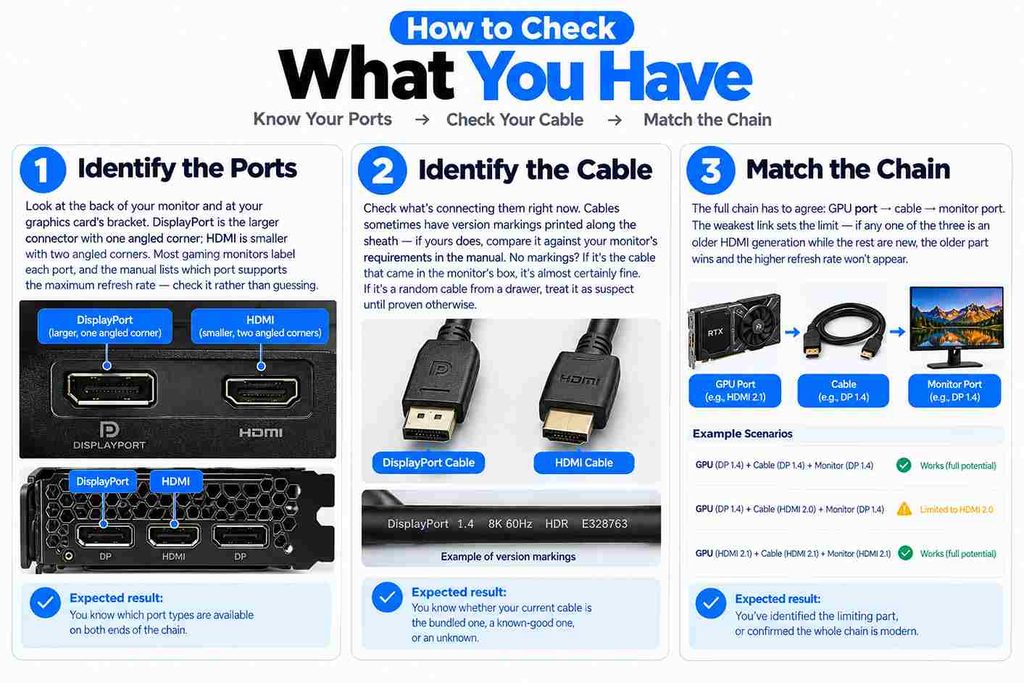
Look at the back of your monitor and at your graphics card’s bracket. DisplayPort is the larger connector with one angled corner; HDMI is smaller with two angled corners. Most gaming monitors label each port, and the manual lists which port supports the maximum refresh rate — check it rather than guessing.
Expected result: you know which port types are available on both ends of the chain.
Step 2: Identify the Cable
Check what’s connecting them right now. Cables sometimes have version markings printed along the sheath — if yours does, compare it against your monitor’s requirements in the manual. No markings? If it’s the cable that came in the monitor’s box, it’s almost certainly fine. If it’s a random cable from a drawer, treat it as suspect until proven otherwise.
Expected result: you know whether your current cable is the bundled one, a known-good one, or an unknown.
Step 3: Match the Chain
The full chain has to agree: GPU port → cable → monitor port. The weakest link sets the limit — if any one of the three is an older HDMI generation while the rest are new, the older part wins and the higher refresh rate won’t appear.
Expected result: you’ve identified the limiting part, or confirmed the whole chain is modern.
Red Flags
- A mystery cable from a drawer. Unmarked, unknown age, unknown version — the classic 60Hz trap.
- Adapter chains. A DisplayPort-to-HDMI adapter or dongle sitting between PC and monitor can silently cap the refresh rate. Plug the cable directly into both ends.
- Dock or hub video output. Laptop docks and USB-C hubs vary a great deal in what refresh rates their video outputs support — check the dock’s specifications, and test with a direct cable to isolate it.
- Very long cheap cables. Long, thin, unbranded cables are more likely to be flaky at high bandwidth. Shorter and sturdier is better.
How to Choose
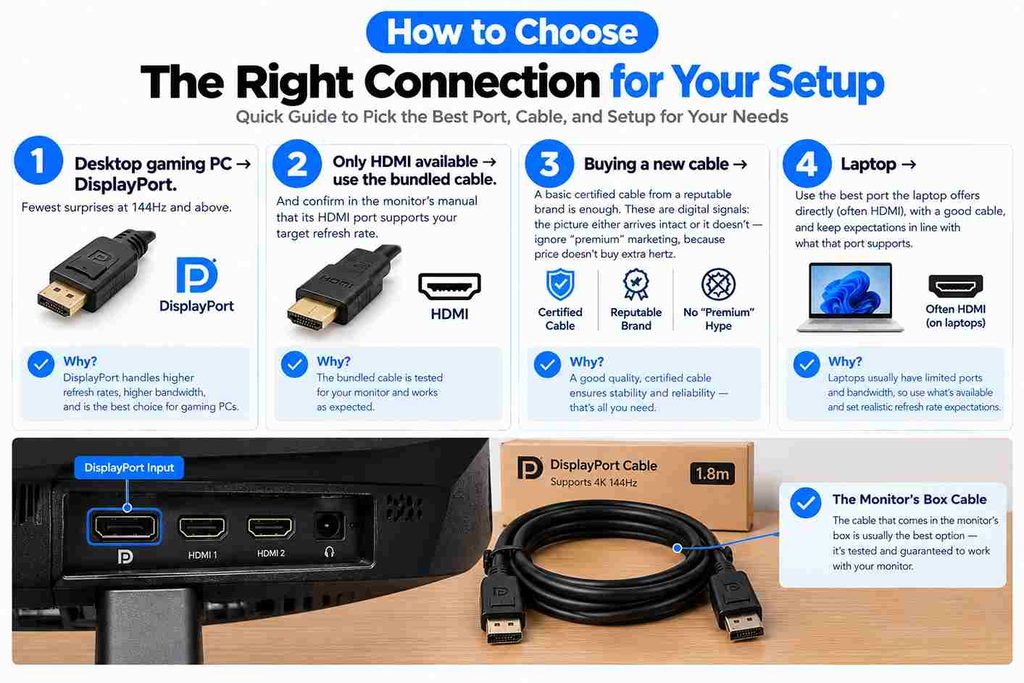
- Desktop gaming PC → DisplayPort. Fewest surprises at 144Hz and above.
- Only HDMI available → use the bundled cable, and confirm in the monitor’s manual that its HDMI port supports your target refresh rate.
- Buying a new cable → a basic certified cable from a reputable brand is enough. These are digital signals: the picture either arrives intact or it doesn’t — ignore “premium” marketing, because price doesn’t buy extra hertz.
- Laptop → use the best port the laptop offers directly (often HDMI), with a good cable, and keep expectations in line with what that port supports.
Practical Checklist
- [ ] Monitor’s maximum refresh rate known (box or manual)
- [ ] Ports identified on GPU and monitor (DisplayPort vs HDMI)
- [ ] Using the bundled cable, or a known-good one — not a mystery cable
- [ ] Cable plugged directly into both ends, no adapters or dongles in the chain
- [ ] Monitor manual checked for which port reaches the maximum rate
- [ ] Refresh rate set in Windows afterward (see our 144Hz guide)
Limitations and Risks
- A better cable can’t unlock anything your monitor or GPU doesn’t support — it only removes the cable as the bottleneck.
- Cable version markings aren’t standardized, so an unmarked cable is genuinely unknowable. When in doubt, replace it rather than guess.
- Don’t force connectors. DisplayPort has a small retention latch — press it when unplugging, never yank.
Conclusion
For most PC gamers, the answer is simple: use DisplayPort, connect it directly to your graphics card, and stick with the cable that came in the box. It is the most reliable way to get 144Hz, 165Hz, or 240Hz without guessing about versions or adapters.
When HDMI is the better fit:
- TVs and consoles, where HDMI 2.1 is the standard connection
- Second monitors that don’t need a high refresh rate
- Any setup where DisplayPort isn’t available, as long as you verify the HDMI version on your monitor, graphics card, and cable before expecting full refresh rate
Next steps once your cable is right:
- Set the refresh rate in Windows. Windows often defaults to 60Hz even on a high-refresh monitor, so follow our How to Enable 144Hz in Windows guide.
- Turn on variable refresh rate. If your monitor supports it, our G-Sync and FreeSync setup guide shows how to remove screen tearing and keep gameplay smooth.
Get the cable right first, and everything else falls into place.
Frequently Asked Questions
Is DisplayPort better than HDMI for gaming?
On a PC at high refresh rates, generally yes — it’s the path of fewest surprises. For 60Hz desktop use, TVs, and consoles, HDMI is equally good.
Can HDMI do 144Hz?
Yes, provided the HDMI version on the GPU, the cable, and the monitor’s HDMI port all support it. Check your monitor’s manual — it lists what each port can do.
Will an expensive cable give me a better picture?
No. HDMI and DisplayPort are digital: the picture either arrives perfectly or it doesn’t. A basic certified cable performs identically to a luxury one.
Can I use a DisplayPort-to-HDMI adapter?
For a secondary 60Hz monitor, usually fine. For your main high-refresh gaming monitor, avoid it — adapters can cap the refresh rate or break variable refresh.
Why does my monitor have both DisplayPort and HDMI?
Flexibility — DisplayPort for your PC, HDMI for a console, laptop, or second device. Use DisplayPort for the PC when high refresh matters.
Does the cable affect G-Sync or FreeSync?
It can. On many monitors, variable refresh is only offered over DisplayPort, so the cable choice decides whether the feature is even available.
The cable came with my monitor. Is it good enough?
Almost always yes. Manufacturers bundle a cable that supports the monitor’s headline specs — it’s the random replacement cables that cause trouble.

2 Comments
Pingback: How to Enable 144Hz (or Higher) Refresh Rate in Windows
Pingback: How to Turn On G-Sync or FreeSync the Right Way