
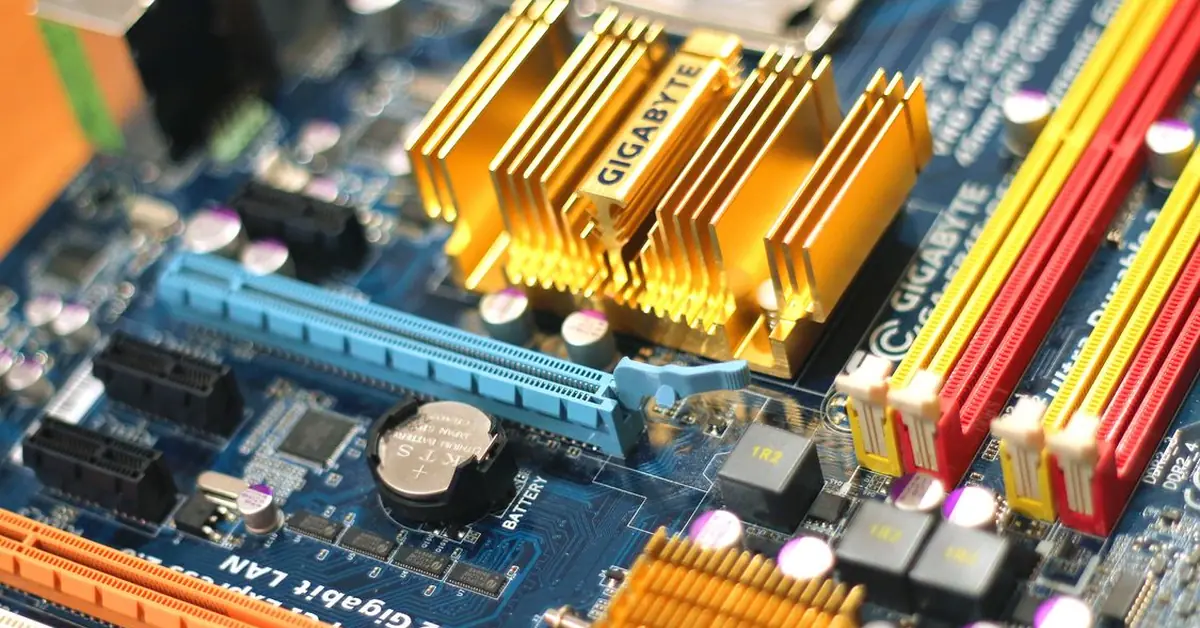
You’ve picked a CPU, a motherboard, a shiny new graphics card, and a power supply — and then the motherboard refuses to boot because the RAM is the wrong generation, the GPU is two centimeters too long for the case, or the PSU doesn’t have the cable the card needs. Ordering incompatible PC parts is one of the most common and most expensive mistakes a builder can make: it costs you return shipping, restocking fees, weeks of waiting, and sometimes a damaged component.
This PC build compatibility checklist walks you through every critical match point — CPU, motherboard, RAM, GPU, PSU, cooler, storage, and case — in the order you should verify them when planning a build. No hardware-lab testing here, just documented, principle-based checks you can run against manufacturer spec sheets before you spend a dollar.
What Is PC Build Compatibility?
PC build compatibility means every component you buy physically fits, electrically connects, and is supported by the other parts in your system. It’s not one thing — it’s a chain of matches:
- The CPU must fit the motherboard’s socket and be supported by its chipset.
- The RAM must be the memory generation (DDR4 or DDR5) the motherboard supports.
- The graphics card must fit inside the case (GPU clearance) and be fed by the right PSU wattage and connectors.
- The CPU cooler must clear the case’s maximum CPU cooler height and fit the CPU socket.
- The storage drives must match the motherboard’s interfaces (SATA or M.2 NVMe).
- The motherboard form factor must match what the case supports.
Get every link in the chain right and the build posts on the first try. Miss one and you get a machine that won’t boot — or parts that never fit together at all.
Key Compatibility Checkpoints for PC Parts Compatibility
Run through each of these checkpoints before ordering. Every bullet is a single pass/fail question your parts list must answer.
- CPU–motherboard socket match. The processor’s socket must exactly match the motherboard’s socket. An AMD CPU will not fit an Intel socket and vice versa; the physical dimensions and pin layouts are different (Checked: 2026-10-06). Always check the motherboard’s CPU support list, not just the socket name, since some boards need a BIOS update for newer chips on the same socket.
- Motherboard chipset and CPU generation. Even when the socket matches, the chipset determines which CPU generations the board supports. Check the manufacturer’s CPU support list before buying.
- RAM generation: DDR4 vs DDR5. Motherboards support either DDR4 or DDR5 — never both. Both generations use 288 pins, but the notch (keying) position is different, the voltage differs (DDR4 is typically 1.2 V, DDR5 typically 1.1 V), and DDR5 uses a different signaling protocol with an on-module power management chip. Forcing the wrong generation into a slot can damage the module and the motherboard (Checked: 2026-10-06). Buy the generation printed on the motherboard’s spec sheet.
- RAM capacity and speed limits. Check the motherboard’s maximum total memory, maximum per-slot capacity, and supported speeds. Faster kits than the board officially supports usually still work but may be capped or require manual tuning.
- GPU–case clearance. Graphics cards have grown long and tall. Compare the card’s length, height, and thickness (in slots) against the case manufacturer’s stated maximum GPU length and clearance. A card that’s too long simply won’t fit — and even one that “fits” can block drive bays or front-panel cables.
- PSU wattage. Add up the power draw of your parts — CPU and GPU dominate — then choose a PSU with comfortable headroom above that total. Headroom keeps the supply in its efficient range, handles brief power spikes from modern GPUs, and leaves room for upgrades. TechSearchers’ PSU calculator can help you size this step.
- PSU connectors. Check the graphics card’s power connector type and count, and confirm the PSU includes those exact cables. Modern high-end GPUs moved to the 16-pin 12VHPWR connector, which PCI-SIG has revised into the 12V-2×6 standard (marked H++, part of ATX 3.1) — the revision is backward compatible with 12VHPWR, but you still need the right cable in the box (Checked: 2026-10-06). Don’t forget the CPU’s 8-pin (or 4+4-pin) motherboard power cable.
- CPU cooler height vs. case. Case spec sheets list a maximum CPU cooler height. Measure your air cooler’s height (or radiator thickness plus fan for liquid coolers) against it. Also verify the cooler includes mounting hardware for your CPU socket.
- Motherboard form factor vs. case. ATX, Micro-ATX, and Mini-ITX boards each need a case that supports that form factor. A Mini-ITX board fits in an ATX case, but an ATX board will not fit in a Mini-ITX case — check the case’s supported form factors list.
- PSU form factor vs. case. Standard ATX PSUs fit most ATX cases, but small-form-factor builds typically need SFX or SFX-L units. Check the case’s PSU support list. See the ATX vs SFX PSU comparison if you’re building small.
- Storage interface match. M.2 slots are not universal: some accept only SATA M.2 drives, some only PCIe/NVMe drives, and some accept both — the keying differs, and using the wrong slot type means the drive won’t work (Checked: 2026-10-06). Check the motherboard manual for which M.2 slots support NVMe, and note that populating some M.2 slots can disable shared SATA ports or PCIe slots. For 2.5-inch SATA SSDs, confirm you have enough SATA ports and that the PSU has enough SATA power cables.
- PCIe slot availability. The graphics card needs a full-length PCIe x16 slot with enough lanes wired to it. On most boards the top slot is the one — check the manual if you also plan multiple M.2 drives or expansion cards, since lanes can be shared.
How Compatibility Checking Works
Follow these steps in order when planning a build. The order matters: each step’s output constrains the next.
- Choose the CPU first. Everything else keys off this choice — socket, RAM generation options, and power draw.
- Pick a motherboard with a matching socket and confirm your exact CPU model appears on the board’s official CPU support list. Note the board’s RAM generation (DDR4 vs DDR5), memory limits, M.2 slot types, and form factor.
- Choose RAM of the correct generation for the board, at or under its supported speeds and capacity limits, and check whether you want two sticks (typical dual-channel setups) or a full kit.
- Choose the GPU based on your performance target and monitor, then record its length, height, slot thickness, and power connector requirements. Compare candidate cards in a GPU comparison tool to see connector and size details side by side.
- Size the PSU from the combined draw of your chosen parts with headroom, confirm it has the GPU’s required connectors and the CPU power cable, and confirm its form factor fits the case. This is where a PSU calculator earns its keep.
- Pick the CPU cooler that fits your CPU’s thermal needs, your socket’s mounting, and the case’s maximum cooler height.
- Choose storage matched to the motherboard’s interfaces — NVMe only in NVMe-capable M.2 slots, SATA drives where you have free ports and power cables.
- Pick the case last (or alongside the motherboard) to fit the motherboard form factor, GPU length, cooler height, PSU form factor, and radiator mounting if you’re water-cooling.
- Run the final checklist below against spec sheets, then run the whole list through a build compatibility checker as a second opinion before ordering.
Use Cases: Who Needs a Compatibility Checklist?
- First-time builders. You’re buying everything at once and have no spare parts to fall back on. A checklist catches the classic first-build mistakes — wrong RAM generation, PSU without the GPU’s cables — before they cost you return shipping.
- Upgraders. Adding a new GPU to an older build is the riskiest upgrade: the card may be too long for the case, draw more power than the PSU can deliver, or need a 16-pin cable the PSU doesn’t include. Check GPU clearance and PSU wattage and connectors before ordering.
- Small-form-factor builders. Mini-ITX cases leave millimeters of tolerance. Motherboard form factor, SFX vs. ATX PSU, GPU length, and CPU cooler height all have to be verified against the case spec sheet — there’s no “make it fit” in an ITX build.
- Budget builders. Returns and restocking fees hit tight budgets hardest. Verifying PC parts compatibility on paper costs nothing and protects the one part you can least afford to replace.
- Prebuilt and refurbished buyers. Even buying prebuilt, knowing the compatibility chain helps you judge upgrade headroom: can this machine take a bigger GPU later, or is the PSU too small and the case too short?
Benefits of Checking Compatibility Before You Buy
Fewer returns and RMA headaches
Incompatible parts mean printing return labels, waiting on shipping, and sometimes paying restocking fees. A twenty-minute compatibility check against manufacturer spec sheets prevents most of these problems entirely.
No damaged components
Physical incompatibilities can go beyond inconvenience. DDR4 forced toward a DDR5 slot, a GPU connector that’s only half-seated, or a cooler mounted with the wrong hardware can bend pins, crack slots, or damage boards. Paper-checking first keeps force out of the equation.
You buy the right PSU the first time
The PSU is the part people under-buy most often. Checking wattage and connectors against your actual parts list — not against a guess — means the supply you buy has the cables your GPU needs and headroom for spikes. For more on sizing, see the gaming PC PSU guide.
Cleaner builds with room to grow
When the motherboard, case, and PSU are chosen with compatibility verified, cable routing is easier, airflow is better, and there’s documented headroom for a future GPU or storage upgrade. Compatibility checking is also upgrade planning.
Confidence when ordering
A checklist turns an anxious cart full of expensive parts into a verified plan. You order once, build once, and boot once — that’s the whole point.
Choosing Compatible Parts
Use these factors as a quick reference when comparing options at each step:
- Start from the CPU. Socket, chipset support, RAM generation options, and power draw all flow from this one decision.
- Trust the manufacturer’s spec sheet. Socket lists, CPU support lists, memory QVLs, GPU dimensions, PSU cable lists, and case clearances are documented by the makers — that documentation is the compatibility authority.
- Watch shared resources. M.2 slots that share lanes with SATA ports or PCIe slots can disable one when the other is populated. Read the motherboard manual’s slot-sharing table.
- Measure twice for physical fit. GPU length, cooler height, radiator thickness, PSU depth in small cases — compare every dimension against the case’s stated limits, not against photos.
- Leave headroom on power and space. A PSU sized with headroom and a case with extra clearance cost little and save you from replacing them at the next upgrade.
- Check connectors, not just wattage. A 750 W PSU without the cable your GPU needs is still the wrong PSU. Count cables: GPU power, CPU 8-pin, SATA power, and motherboard 24-pin.
- Use a build compatibility checker as backup. Automated checkers catch obvious mismatches, but they lag behind new releases and miss edge cases — always confirm against spec sheets yourself.
Pre-Purchase Compatibility Checklist
Run this list one final time before you click “buy”:
- [ ] CPU socket matches the motherboard socket, and the exact CPU model is on the board’s support list
- [ ] RAM generation (DDR4 vs DDR5) matches the motherboard; capacity and speeds within the board’s limits
- [ ] GPU length, height, and thickness fit the case’s stated clearances
- [ ] PSU wattage covers your parts with headroom, and the PSU includes the GPU’s exact power connectors plus the CPU power cable
- [ ] CPU cooler height fits the case’s maximum; mounting hardware supports your socket
- [ ] Motherboard form factor is supported by the case
- [ ] PSU form factor (ATX/SFX) is supported by the case
- [ ] M.2 drives go in slots that support their interface (SATA vs NVMe); slot-sharing conflicts checked in the manual
- [ ] Enough SATA ports and PSU SATA power cables for 2.5-inch drives
- [ ] GPU has a full-length PCIe x16 slot with adequate lanes available
- [ ] Case has the front-panel, fan, and radiator mounting you need
- [ ] Full parts list run through a build compatibility checker as a second pass
Conclusion
Compatibility isn’t exciting, but it’s the difference between a build that posts on the first try and a pile of parts going back in the mail. Match the socket, match the RAM generation, verify GPU clearance, confirm PSU wattage and connectors, check cooler height and storage interfaces — and verify it all against manufacturer spec sheets, not memory.
If sizing the power supply is the part you’re least sure about, start with the TechSearchers PSU calculator — it turns your parts list into a wattage number you can shop against with confidence. Pair it with the checklist above and you’ll order once, build once, and boot once.
Frequently Asked Questions
- Do I need to check compatibility if I buy all parts from the same brand?
Yes. Same-brand parts aren’t automatically compatible — a motherboard and RAM from the same brand still need matching generations (DDR4 vs DDR5), and a same-brand PSU still needs the right GPU connectors. Brand doesn’t override socket, slot, and cable requirements. - Can I use DDR4 RAM on a DDR5 motherboard, or vice versa?
No. DDR4 and DDR5 modules are physically keyed differently — the notch position doesn’t line up — and they use different voltages and signaling. The wrong generation won’t seat in the slot, and forcing it can damage the module and the motherboard (Checked: 2026-10-06). - How much PSU headroom should I leave?
A common principle is to choose a PSU rated comfortably above your parts’ combined draw rather than exactly at it. Headroom keeps the supply efficient, absorbs brief power spikes from modern GPUs, and leaves room for upgrades. A PSU calculator gives you a concrete number to work from. - Will any graphics card work in any motherboard with a PCIe slot?
Electrically, most modern GPUs work in any board with a full-length PCIe x16 slot, since PCIe generations are backward compatible. The real compatibility questions are physical (GPU clearance in the case) and electrical (whether the PSU has the wattage and the connectors the card needs). - My M.2 drive doesn’t show up — is it a compatibility problem?
Possibly. Some M.2 slots accept only SATA drives, some only NVMe drives, and some accept both — check your motherboard manual for each slot’s supported interface (Checked: 2026-10-06). Also check whether the slot shares bandwidth with a SATA port or PCIe slot that got disabled when you populated it. - Can I mix RAM kits from different brands?
It’s not recommended. Even if both kits are the same generation and speed, mismatched kits can cause instability or fail to run at advertised speeds. For the fewest headaches, buy RAM as a single matched kit in the capacity you need. - What’s the single most common compatibility mistake?
Buying the wrong RAM generation for the motherboard, or a PSU that lacks the GPU’s power cables. Both are completely avoidable: check the motherboard’s spec sheet for DDR4 vs DDR5, and check the PSU’s included-cable list against the graphics card’s connector requirements before ordering.
