
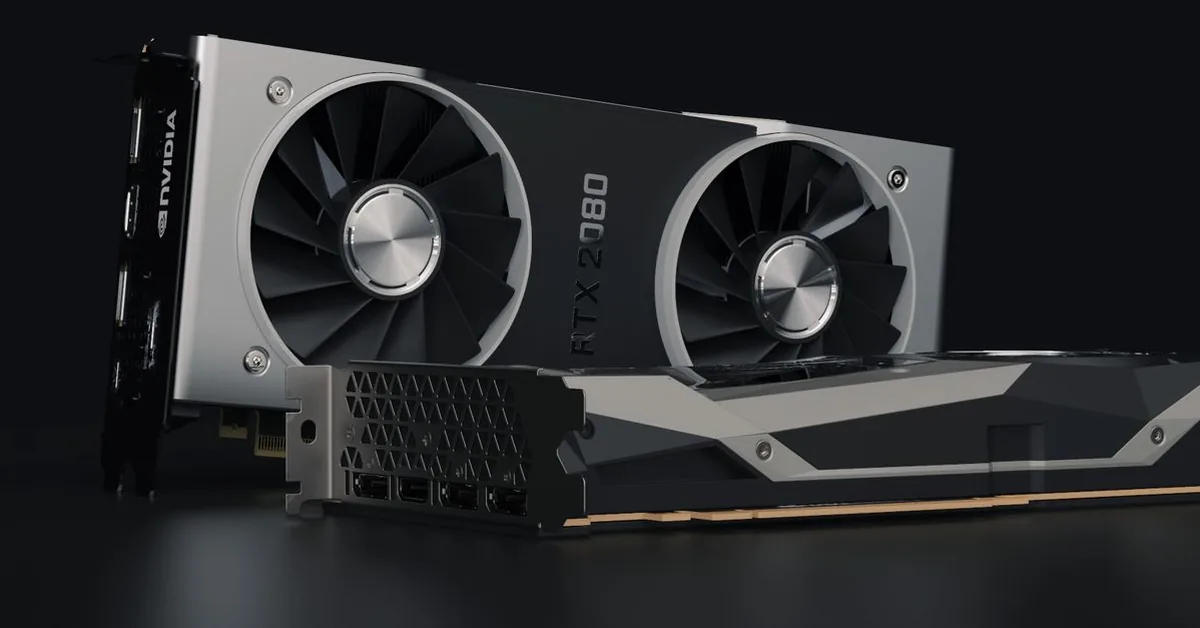
The graphics card is usually the most expensive single part in a gaming PC — and the part buyers get wrong most often. Spend too much and you pay for performance your monitor cannot display; spend too little and the card bottlenecks an otherwise strong build. A good GPU buying guide starts not with a product ranking, but with your monitor, your power supply, and your case — because the right card fits all three.
This guide covers how to choose a graphics card step by step: what a video card does, the features that matter, and how to match a card to your resolution, refresh rate, budget, and build constraints. No product rankings or model recommendations — just a decision framework you can reuse for every build.
What Is a Graphics Card?
A graphics card — also called a video card or GPU — is a dedicated processor built to render images, video, and 3D scenes far faster than your CPU could alone. It combines a graphics processing unit (the GPU chip) with its own high-speed memory (VRAM), power circuitry, and cooling, all on a board that installs into your motherboard’s PCIe x16 slot.
When you launch a game or edit video, the CPU hands the heavy visual work to the graphics card. The GPU calculates millions of pixels per frame, applies lighting and texture detail, and sends the finished image to your monitor through its display outputs. Everything else in this guide — VRAM, graphics card power consumption, size, and cooling — follows from that one job.
Key Features of a Graphics Card
Learn the features that actually separate cards before comparing any two of them.
- VRAM (video memory): Dedicated memory that holds textures, frame data, and scene assets. Higher resolutions and more detailed textures benefit from more VRAM, since the GPU can keep what it needs close instead of waiting on slower system memory.
- GPU chip and architecture: The graphics processor determines the card’s overall performance tier. Cards from the same generation scale with the chip inside — a larger chip with more processing units handles heavier workloads.
- Graphics card power consumption: Every card’s power draw must be covered by your PSU. The PCIe x16 slot supplies up to 75 W (Checked: 2026-10-06); beyond that, cards draw from supplementary connectors — a 6-pin PCIe connector adds up to 75 W, an 8-pin adds up to 150 W (Checked: 2026-10-06), and the newer 16-pin 12V-2×6 connector supports up to 600 W on high-end cards (Checked: 2026-10-06).
- Display outputs: The ports on the card’s back bracket — typically a mix of DisplayPort and HDMI — decide which monitors you can connect and at what resolution and refresh rate. Modern cards use DisplayPort 2.1 and HDMI 2.1 (Checked: 2026-10-06).
- Physical size: Cards are measured by length, width (slot thickness), and height. A card too long for your case or too thick for your motherboard layout will not fit — GPU length clearance is a hard limit, not a suggestion.
- Cooling design: Most cards use two or three axial fans over a finned heatsink; smaller or passively cooled cards exist for low-power builds. Larger coolers generally run quieter at the same power draw.
- PCIe interface: Cards plug into a PCIe x16 slot and are backward compatible across PCIe generations — a newer card works in an older slot and vice versa. Generation differences in bandwidth rarely limit real-world gaming performance.
How a Graphics Card Works
The basics explain why specs like VRAM and memory bandwidth matter — and why raw clock speed alone tells you little.
- The CPU delegates the frame. Your game or application sends rendering instructions — geometry, textures, lighting data — to the card over the PCIe x16 slot.
- The GPU processes in parallel. Thousands of small cores work on different parts of the image simultaneously, which is why graphics cards excel at the repetitive math of rendering.
- VRAM feeds the cores. Textures and intermediate results sit in VRAM for instant access. If VRAM runs short, the GPU fetches data from much slower system memory, causing stuttering.
- The image is assembled. The GPU applies shading, lighting, and effects, then combines everything into a finished frame.
- Frames reach your monitor. The finished frame travels out through DisplayPort or HDMI, dozens or hundreds of times per second depending on your refresh rate.
GPU Use Cases: Who Needs What Level of Card?
Match the tier to the workload:
- Everyday and office PCs: Integrated graphics or an entry-level card is plenty for browsing, office work, and streaming. A discrete GPU adds little here.
- 1080p gaming and esports: A mid-range card handles competitive titles at high refresh rates and demanding single-player games smoothly — the sweet spot for most builders.
- 1440p high-refresh gaming: Higher resolution and refresh rate demand a stronger card with more VRAM and higher power draw, where PSU headroom and cooling matter more.
- 4K gaming and creative work: High-end cards target 4K displays and heavy workloads like 3D rendering and video editing. They need the most power, the most case clearance, and the most careful PSU sizing.
- Compact and quiet builds: Small-form-factor cases limit card length and thickness, so shorter dual-fan or low-profile cards are the practical choice.
A card built for 4K is wasted on a 1080p 60 Hz monitor, and an entry-level card guarantees disappointment on a 4K display. The use case decides the tier — not the marketing.
Benefits of Choosing the Right Graphics Card
No wasted budget on unusable performance.
A card matched to your monitor’s resolution and refresh rate delivers exactly the frames you can see. Every dollar above that buys performance that never reaches your eyes.
Smoother, more consistent gameplay.
The right card holds steady frame rates at your target settings instead of swinging between smooth and stuttery. Consistency matters more than peak numbers.
A balanced build with no bottleneck.
GPU and CPU should finish their work at roughly the same pace. An overpowered card paired with a weak processor idles; an underpowered card starves a strong processor.
A longer useful life.
A card with comfortable VRAM and performance headroom stays relevant through years of new releases, while a card bought at the bare minimum ages out faster.
A cleaner upgrade path.
Choosing a card your PSU and case already support — with connector and clearance headroom — makes your next upgrade a simple swap instead of a cascading rebuild.
Choosing the Right Graphics Card
Work through these factors in order. Each eliminates cards that would cause problems, leaving a short list of genuinely compatible options — the core of any GPU buying guide.
- Resolution and refresh-rate goals: Start with your monitor. A 1080p 60 Hz display needs far less GPU than a 1440p 165 Hz or 4K 144 Hz panel. Define the target first — it sets the performance tier and VRAM to look for.
- VRAM needs: Higher resolutions, detailed textures, and creative workloads increase VRAM demand. Buy more VRAM than today’s games require if you plan to keep the card for years — it cannot be upgraded later.
- PSU headroom: Add the card’s power draw to the rest of your system and leave comfortable headroom — a PSU near its limit runs louder, hotter, and less efficiently. Our gaming PC PSU guide walks through sizing step by step, and the PSU calculator estimates total system draw.
- Case fit and GPU length clearance: Measure the maximum card length your case supports and compare it against the card’s published dimensions, accounting for front fans or radiators. Confirm a free full-length PCIe x16 slot, and check slot thickness — a 3-slot card can block adjacent slots.
- CPU balance: A mid-range CPU pairs well with a mid-range GPU; extremes in either direction waste one component’s potential.
- Display outputs and refresh rate: Verify the card has the right ports — DisplayPort for high-refresh PC monitors, HDMI 2.1 for 4K TVs — and enough of them for multi-monitor setups.
- Power connectors: Check that your PSU has the exact connectors the card needs: 6-pin, 8-pin, or the 16-pin 12V-2×6 on newer high-end cards. Native cables are always preferable to adapters.
- Warranty and board partner: The same GPU chip is sold by multiple board partners with different coolers, warranties, and support. A longer warranty and a cooler that fits your case are worth more than a small factory overclock.
Graphics Card Maintenance Checklist
A graphics card needs little upkeep, but these habits keep it fast and reliable for years:
- [ ] Update drivers regularly — install new GPU drivers from the manufacturer’s official site or app; updates routinely fix bugs and improve performance in new games.
- [ ] Keep it dust-free — every few months, power down and clear dust from the fans and heatsink with compressed air. Dust raises temperatures and fan noise.
- [ ] Watch thermals under load — check GPU temperatures during gaming with free monitoring software. Sustained high temperatures with loud fans signal dust, poor case airflow, or aging thermal paste.
- [ ] Maintain case airflow — keep intake and exhaust fans unobstructed and oriented correctly. A card cannot cool itself in a case with no fresh air.
- [ ] Check power connections — after moving the PC or opening the case, confirm PCIe power cables are fully seated. Loose connectors are a classic cause of crashes under load.
- [ ] Plug the monitor into the GPU — connect display cables to the graphics card’s outputs, not the motherboard’s. A monitor on the motherboard bypasses the discrete GPU entirely.
- [ ] Update the motherboard BIOS occasionally — newer BIOS versions improve PCIe device compatibility and can resolve detection issues with newer cards.
- [ ] Tune the fan curve if noise bothers you — manufacturer software lets you soften the fan curve, trading a few degrees for noticeably quieter operation.
Conclusion
Choosing a graphics card comes down to fit — fit for your monitor’s resolution and refresh rate, fit for your power supply’s capacity and connectors, and literal fit inside your case. Work through those three constraints before looking at any product list, and the right tier picks itself. Once you know your tier and want to compare specific cards on specs side by side, try the GPU comparison tool — it lays out the numbers so you can match a card to the requirements you just defined.
Frequently Asked Questions
1. How much should I spend on a graphics card relative to my total build?
As a rule of thumb, the GPU typically accounts for roughly a third to half of a gaming PC’s budget, since it drives gaming performance more than any other part. Adjust up if gaming is the PC’s main purpose — but never cut the power supply budget to afford a bigger card.
2. Is more VRAM always better?
More VRAM helps when the workload can use it — high resolutions, detailed textures, and creative applications. Beyond that point it adds cost without visible benefit, and more VRAM does not automatically mean a faster card.
3. Will any graphics card work with my motherboard?
Nearly all modern motherboards include a PCIe x16 slot that accepts any modern card, and PCIe generations are backward compatible. The real compatibility questions are physical — card length, slot thickness, and case clearance — plus whether your PSU has the right power connectors.
4. Do I need to upgrade my power supply for a new GPU?
Often, yes — the graphics card is usually the hungriest component in the system. Check the card’s power draw and required connectors against your PSU’s wattage and available cables, leaving headroom. Size up rather than down when in doubt; an undersized PSU causes crashes under load.
5. What is the difference between the GPU chip makers and the card brands?
A small number of companies design the GPU chips, while many board partners manufacture the actual cards with their own coolers, power delivery, warranties, and pricing. Compare cooler design and warranty terms, not just the chip name.
6. Can I use a new graphics card with an older CPU?
Yes, but balance matters: a very fast card paired with an older CPU will often wait on the processor, leaving performance on the table. A mid-range card usually delivers better value with an older CPU.
Sources
- PCI-SIG — PCI Express standards body: https://pcisig.com/
- TechSpot — “How much power can a PCIe x16 graphics card draw from the motherboard alone?” (75 W slot limit; 6-pin 75 W, 8-pin 150 W supplementary power): https://www.techspot.com/trivia/27-how-much-power-can-pcie-x16-graphics-card/
- TechPowerUp — “12VHPWR Connector Said to be Replaced by 12V-2×6 Connector” (PCI-SIG 16-pin connector, up to 600 W, part of ATX 3.1 / PCIe CEM 5.1): https://www.techpowerup.com/310761/12vhpwr-connector-said-to-be-replaced-by-12v-2×6-connector?amp
- Fix My PC Store — “HDMI vs DisplayPort for a Gaming Monitor: Which Should You Use?” (DisplayPort 1.4/2.1 vs HDMI 2.1 bandwidth and refresh-rate support): https://fixmypcstore.com/blog/hdmi-vs-displayport-gaming-monitor
- Tech Insider — “DisplayPort 2.1 vs HDMI 2.2 for Gaming (2026)” (current GPUs ship DisplayPort 2.1 and HDMI 2.1 outputs): https://tech-insider.org/displayport-2-1-vs-hdmi-2-2-gaming-2026/
- MS Codes — “How to Install a PCIe x16 Graphics Card” (PCIe x16 slot installation; 6-pin and 8-pin PCIe power connectors): https://ms.codes/en-gb/blogs/computer-hardware/how-to-install-a-pcie-x16-graphics-card-1
