

RAM (Random Access Memory) is your computer’s short-term working memory. It temporarily holds the data your CPU is actively using so programs open fast, tabs don’t crash, and your system doesn’t freeze. The moment you shut down, RAM clears completely.
RAM (Random Access Memory) is the temporary memory of your computer, allowing quick access to data while your system is running. When you open an application, the data loads into RAM so the CPU (Central Processing Unit) can process it instantly, ensuring smooth performance. Unlike storage drives, RAM is volatile memory, meaning it resets when powered off. First introduced in 1947 by Freddie Williams and Tom Kilburn, RAM has evolved from early magnetic-core memory to modern DDR4, DDR5, and LPDDR used in laptops and desktops. Higher RAM capacity and speed enhance multitasking, gaming, and efficiency. This guide covers RAM’s history, types, and speeds and how to choose the best one for your needs.
1. What is RAM, Exactly?
RAM stands for Random Access Memory. It is the fast, temporary workspace your computer uses to run everything — your browser, your game, your video editor, your operating system.
When you click to open an app, your computer copies that app’s data from your storage drive (SSD or HDD) into RAM. Your CPU then reads and writes to RAM thousands of times per second. Because RAM is made of silicon chips (not spinning disks or flash cells), this process happens almost instantly.
The word random in the name means the CPU can jump directly to any location in RAM without reading everything before it — unlike older storage types that had to be read sequentially.
Key fact: RAM is volatile. Cut the power, and everything in RAM disappears. That is why you save files to a hard drive, not to RAM.
2. How Does RAM Work?
Here is the exact sequence every time you use your computer:
- You open a program (e.g., Chrome, Photoshop, a game).
- Your operating system copies that program’s data from storage into RAM.
- Your CPU reads and modifies that data in RAM at very high speed.
- When you save a file, data is written back to permanent storage.
- When you close the program, RAM is freed for other tasks.
The more RAM you have, the more programs can live in that fast workspace at once. When RAM runs out, Windows or macOS starts using a portion of your SSD as “virtual memory” (also called a page file or swap). This is dramatically slower — which is exactly why a low-RAM computer feels sluggish when multitasking.
Analogy that actually makes sense: Think of your desk at work. RAM is the surface of the desk — the bigger it is, the more documents you can have open at once. Your SSD is the filing cabinet across the room. Getting something from the filing cabinet takes real time. Working from your desk is instant.
3. RAM vs. Storage (SSD/HDD) — What’s the Difference?
People frequently confuse RAM with storage. They are completely different.
| Feature | RAM | SSD / HDD |
|---|---|---|
| Purpose | Active, working memory | Long-term file storage |
| Speed | Nanoseconds (ns) access | Microseconds to milliseconds |
| Volatile? | Yes — clears on shutdown | No — data persists |
| Typical size | 8GB – 64GB | 256GB – 8TB |
| Stores | Running programs, open files | Your OS, apps, photos, documents |
If your computer is slow to open programs, you may need a faster SSD. If it is slow while running programs, you likely need more RAM.
4. RAM vs. ROM — Not the Same Thing
ROM (Read-Only Memory) is a completely different type of chip.
- ROM stores your computer’s firmware — the permanent instructions that tell hardware how to start up (your BIOS/UEFI).
- ROM is non-volatile — it keeps its data even without power.
- ROM is not user-writable in normal operation (with some exceptions like EEPROM/Flash ROM).
- ROM is typically very small (a few MB), while RAM is measured in gigabytes.
In short: ROM boots your computer. RAM runs your computer.
5. Types of RAM Explained
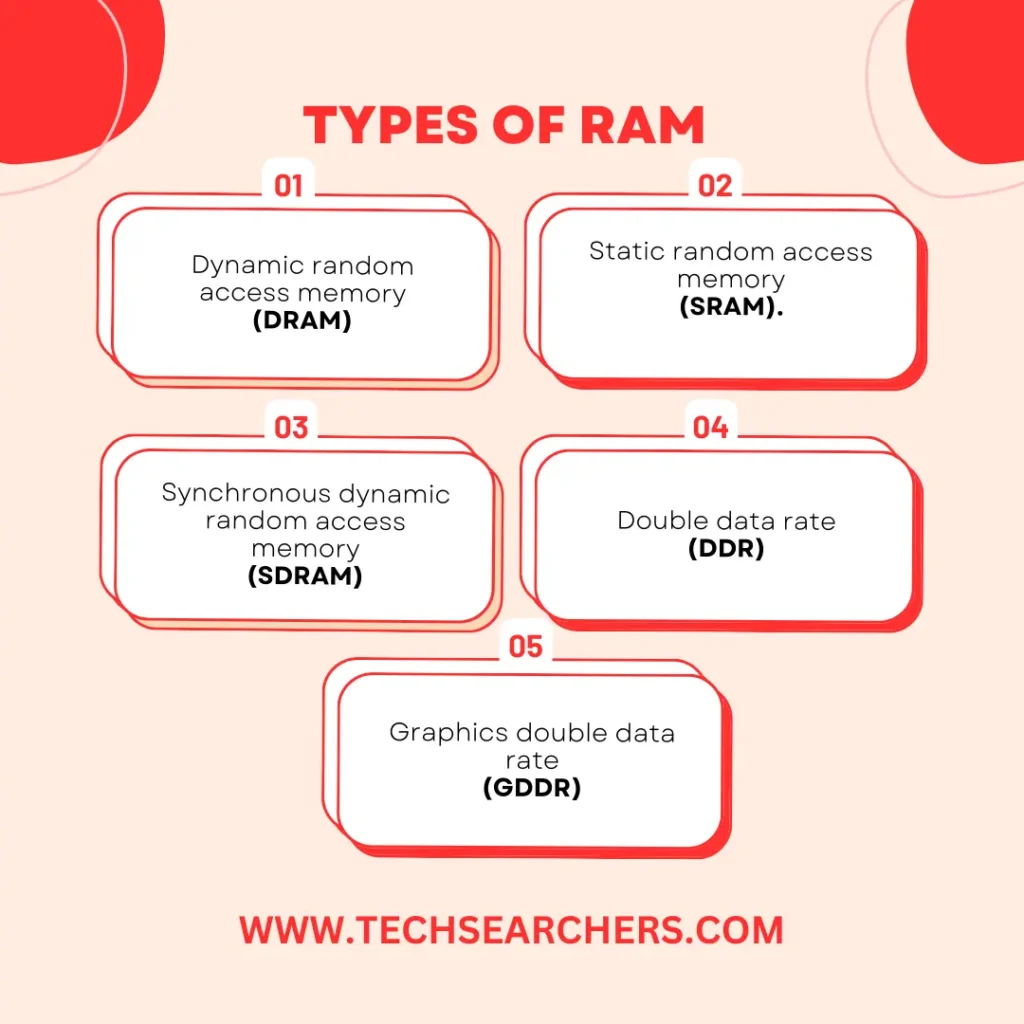
DRAM (Dynamic RAM)
The most common type in computers today. DRAM stores each bit of data in a tiny capacitor that constantly leaks charge and must be refreshed thousands of times per second — hence “dynamic.” It is dense, cheap, and fast enough for everyday computing. Nearly all the RAM in your desktop, laptop, or phone is a form of DRAM.
SRAM (Static RAM)
SRAM uses flip-flop circuits instead of capacitors, so it does not need refreshing. This makes it significantly faster and more reliable — but also far more expensive and physically larger per bit. Because of this, SRAM is used for CPU cache (L1, L2, L3 cache), not main system memory. You will never buy a stick of SRAM — it lives inside your processor.
SDRAM (Synchronous DRAM)
An improvement over older DRAM that synchronizes with the CPU’s clock signal. All modern consumer RAM (DDR3, DDR4, DDR5) is a form of SDRAM.
DDR SDRAM (Double Data Rate)
The standard for all modern computers. DDR transfers data on both the rising and falling edge of each clock cycle — effectively doubling bandwidth. The current generations are DDR4 and DDR5 (covered in detail below).
LPDDR (Low Power DDR)
The same DDR technology but designed for mobile and thin devices — laptops, tablets, smartphones. LPDDR5 is found in high-end phones like recent Samsung and Pixel flagships. It uses less voltage to preserve battery life.
GDDR (Graphics DDR)
RAM specifically engineered for GPUs. GDDR6 and GDDR6X are found on modern gaming graphics cards (RTX 4000 and 5000 series). GDDR prioritizes raw memory bandwidth over the latency optimization that system RAM targets — because GPUs need to push massive amounts of pixel and shader data, not react to unpredictable user inputs.
HBM (High Bandwidth Memory)
A stacked chip design used in professional AI accelerators (NVIDIA H100, AMD Instinct MI300X). HBM stacks multiple DRAM dies vertically and connects them with thousands of tiny wires, achieving extreme bandwidth in a small physical space. It is not found in consumer PCs.
NVDIMM (Non-Volatile DIMM)
Enterprise-grade RAM that adds a flash storage backup and a battery, so data in RAM survives a power outage. Used in servers and data centers where data integrity is critical.
6. DDR3 vs. DDR4 vs. DDR5 — Which Do You Need?
| Generation | Speed Range | Voltage | Status in 2026 |
|---|---|---|---|
| DDR3 | 800 – 2133 MT/s | 1.5V | Legacy — old PCs only |
| DDR4 | 2133 – 3200 MT/s (up to 5000+ OC) | 1.2V | Still widely used, very affordable |
| DDR5 | 4800 – 8400+ MT/s | 1.1V | Current standard for new builds |
DDR5 offers roughly double the raw bandwidth of DDR4, improved power efficiency, and on-die ECC (error correction). However, early DDR5 had higher latency, and the price premium is narrowing — making it the clear choice for any new PC build in 2026.
Important: DDR versions are not interchangeable. A DDR5 stick will not physically fit in a DDR4 slot. Always check your motherboard’s memory compatibility before buying.
7. How Much RAM Do You Actually Need in 2026?
16GB is the sweet spot in 2025, with sources consistently showing it as the new baseline for most people, while 32GB suits heavier creative and gaming workflows. Here is an honest breakdown:
8GB
- Suitable for: Light web browsing, email, basic document editing, Chromebooks
- Reality in 2026: Windows 11 alone uses 3–4GB at idle. With a browser open, 8GB fills up fast. Acceptable for budget laptops but not recommended for new builds.
16GB
- Suitable for: General use, everyday gaming, programming, streaming, most office work
- The honest recommendation: This is the minimum for a comfortable Windows or macOS experience in 2026. It handles 20+ browser tabs, background apps, and most games without hitting virtual memory.
32GB
- Suitable for: Gaming with streaming/recording, video editing (1080p–4K), software development with multiple environments, heavy multitasking
- Future-proof pick: Aiming for 32GB DDR5 is a smart move to handle upcoming software demands.
64GB+
- Suitable for: Professional video production (RAW 4K/8K), 3D modeling and rendering, machine learning training, virtual machines, large database work
- Who needs it: Professionals only. Average users will never saturate 64GB.
RAM for Specific Use Cases
| Use Case | Recommended RAM |
|---|---|
| Basic laptop / school work | 8GB (minimum), 16GB preferred |
| Gaming (1080p/1440p) | 16GB DDR4 or DDR5 |
| Gaming (4K / competitive) | 32GB |
| Video editing (1080p–4K) | 32GB |
| 3D rendering / VFX | 64GB |
| AI / ML development | 64GB – 128GB |
| Basic laptop/school work | 128GB – 1TB+ |
8. RAM Speed and Frequency — Does It Matter?
RAM speed is measured in MT/s (megatransfers per second) — you will also see it listed as MHz (technically incorrect but universally used in marketing).
Does faster RAM actually help? It depends on the workload:
- For Intel CPUs (most desktops): Faster RAM gives modest gains in most tasks. The difference between DDR4-3200 and DDR4-3600 in gaming is typically 2–5% FPS.
- For AMD Ryzen CPUs: More noticeable, because Ryzen’s Infinity Fabric runs in sync with RAM frequency. DDR4-3600 is the traditional sweet spot for Ryzen.
- For Apple Silicon (M-series Macs): RAM is unified memory on the chip. Apple controls the entire stack, so standard frequency comparisons do not apply the same way.
- For content creation / rendering: Bandwidth matters more — faster RAM or dual-channel configurations help here.
Dual channel vs. single channel: Installing two RAM sticks instead of one (in the correct slots) enables dual-channel mode, effectively doubling memory bandwidth. This is almost always worth doing. A 2×8GB kit consistently outperforms a single 16GB stick.
9. Signs Your RAM Is Too Low
Watch for these symptoms:
- Apps take noticeably longer to open than they used to
- System freezes or stutters when switching between programs
- Browser tabs reload when you switch back to them (common on low-RAM laptops)
- Windows Task Manager or macOS Activity Monitor shows memory pressure consistently in the red
- Games stutter, especially during level loads or open-world traversal
- Your PC’s hard drive or SSD runs at 100% constantly, even when doing light tasks (virtual memory thrashing)
If you see these signs regularly, your system is using virtual memory — and a RAM upgrade will make an immediate, noticeable difference.
10. How to Check Your RAM {#how-to-check-ram}
Windows:
- Press
Ctrl + Shift + Escto open Task Manager - Click the Performance tab → Memory
- You will see total RAM, current usage, speed, slots used, and form factor
Or press Win + R, type dxdiag, and click the System tab.
macOS:
- Click the Apple menu → About This Mac
- Click More Info → scroll to the Memory section
Or open Activity Monitor → Memory tab to see live memory pressure.
Linux:
bash
free -hOr use htop for a visual breakdown.
What to look for: Total installed RAM, how many slots are used, current speed, and whether you are in single- or dual-channel mode.
11. Can You Upgrade RAM?
In many cases, yes. But there are important exceptions:
- Desktop PCs: Almost always upgradeable. Usually, there are 2–4 DIMM slots on the motherboard. RAM is the easiest component to upgrade.
- Older laptops: Many have 1–2 SO-DIMM slots. Check whether the RAM is soldered first (use Crucial’s System Scanner or check the specs on your manufacturer’s website).
- Modern thin laptops (MacBook, many ultrabooks): RAM is often soldered directly to the motherboard. Not upgradeable after purchase. This makes buying the right spec at purchase critical.
- Apple Silicon Macs (M1, M2, M3, M4): RAM is unified memory built into the SoC. Cannot be upgraded. Choose wisely when ordering.
Before buying RAM:
- Check your motherboard/laptop’s maximum supported RAM
- Confirm the DDR generation (DDR4 vs DDR5 — not compatible)
- Check the number of available slots
- Buy in matched pairs for dual-channel
Conclusion
RAM is one of the most impactful upgrades you can make to any computer. Understanding what it does, how much you need, and which generation fits your build takes the guesswork out of buying or upgrading.
To recap the essentials: 16GB DDR5 is the smart baseline for any new build in 2026. 32GB is the right call if you game seriously, edit video, or run heavy creative software. Anything below 8GB will feel the strain of modern operating systems and browsers within months.
But RAM does not work in isolation. A well-balanced PC needs every component pulling its weight — and that starts with making sure your Power Supply Unit (PSU) can reliably handle everything you install. If you are building or upgrading a system, use the PSU Calculator to calculate the exact wattage your components need before you buy. Pairing the right RAM with a properly sized PSU is the foundation of a stable, high-performance build.
As software demands grow, driven by AI tools, higher-resolution gaming, and heavier operating systems, investing in the right memory today means your system stays relevant longer. Choose wisely, match your RAM to your real workload, and your computer will reward you with speed and stability for years to come.
Frequently Asked Questions
Does more RAM make your computer faster?
It depends. If your current RAM is a bottleneck (you are regularly hitting the limit), more RAM will make a significant difference. If you already have enough headroom for your tasks, adding more RAM will not speed things up — you would benefit more from a faster CPU or SSD.
Is RAM the same as storage?
No. RAM is temporary, fast working memory that empties when power is off. Storage (SSD/HDD) is permanent, slower, and holds your files and installed apps long-term.
What happens if you run out of RAM?
Your OS uses virtual memory — a reserved section of your SSD or HDD — as overflow. This works but is dramatically slower. It causes the stuttering and sluggishness people associate with “slow computers.”
Can mismatched RAM cause problems?
Yes. Mixing DDR4 and DDR5 is physically impossible. Mixing speeds (e.g., 3200MHz + 2666MHz) will typically work but both sticks will run at the lower speed. Mixing brands is generally fine if the specs match.
Is 8GB still enough in 2026?
For very basic use, light browsing, document editing, video streaming — yes. For anything more demanding, including Windows 11 as a daily driver, 16GB is the realistic minimum for comfortable use in 2026.
What is ECC RAM?
ECC (Error-Correcting Code) RAM can detect and fix single-bit memory errors automatically. It is used in servers and workstations where data integrity is critical. Consumer motherboards typically do not support ECC.
What is the difference between RAM and a graphics card’s VRAM?
VRAM (Video RAM) is dedicated memory on your GPU, used specifically for storing textures, frame buffers, and rendering data. It is separate from system RAM. For gaming at 1440p or 4K, 12GB+ VRAM is increasingly important. VRAM and system RAM do not substitute for each other.
