
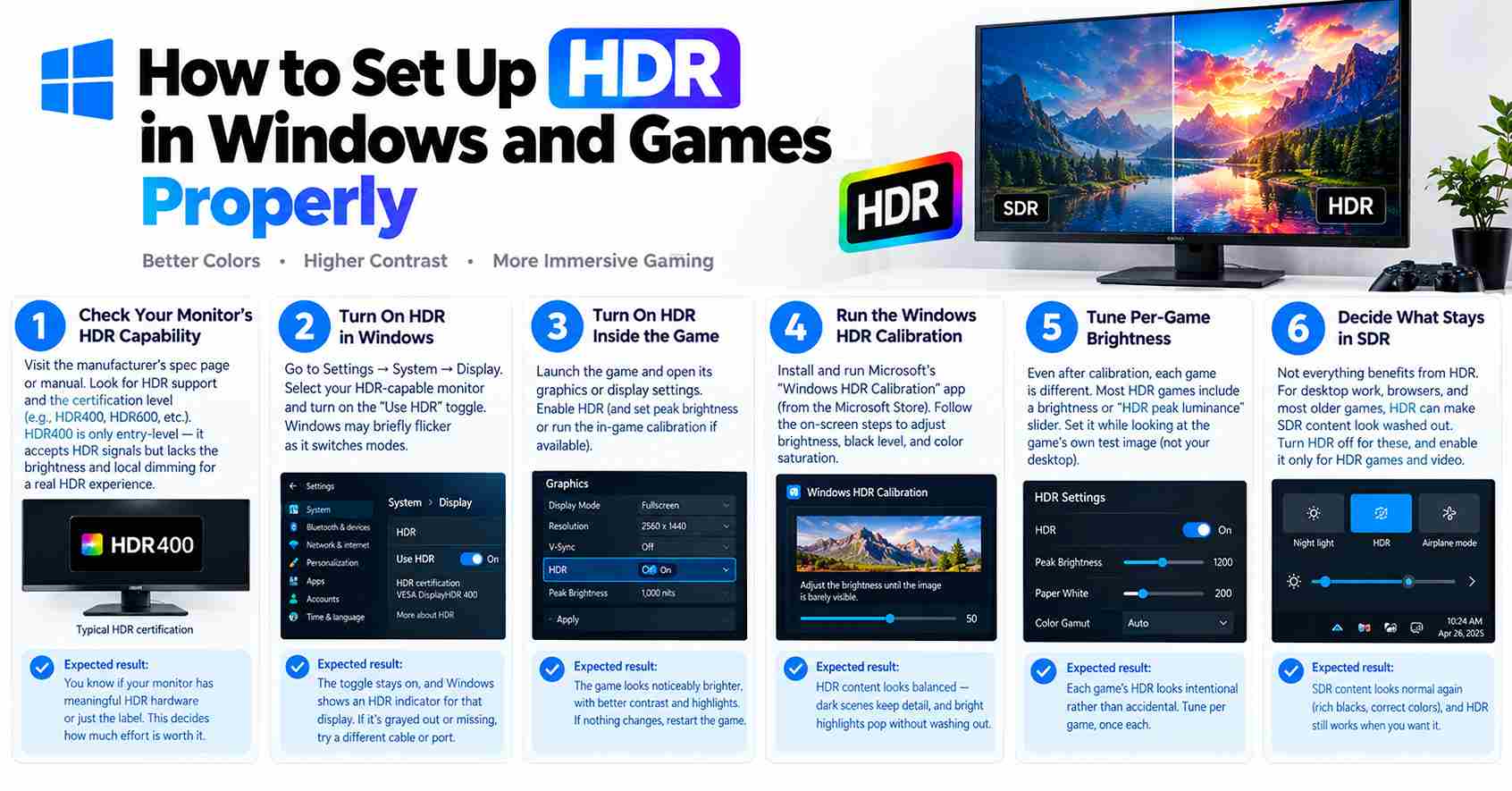
HDR (High Dynamic Range) lets a monitor show brighter highlights and deeper shadows at the same time — when it works. On PC it’s finicky: HDR that’s dim, washed out, or gray almost always means one of two switches is off, or the monitor’s HDR is weaker than the marketing suggested.
In this guide you’ll learn the two toggles that must both be on, how to calibrate once, why HDR often looks worse than SDR, and when the honest answer is to leave HDR off.
Quick answer
- Two switches, both on: the HDR toggle in Windows display settings and the HDR option inside each game. One without the other gives you the worst of both worlds.
- Washed out? That’s usually SDR content shown in HDR mode — or a budget “HDR400” monitor whose HDR is more of a label than a feature.
- Calibrate once: Microsoft’s Windows HDR Calibration app walks you through brightness and color setup. [VERIFY]
- Leave it off when: browsing, working, or playing SDR-only games — HDR adds nothing there and often looks worse.
What You Need
- A monitor that actually accepts an HDR signal — check the manufacturer’s spec page for HDR support. Be honest with yourself here: basic “HDR400”-class monitors accept HDR but can’t show much of it (more below).
- A DisplayPort or HDMI cable connected to your graphics card — either works for HDR at common resolutions.
- An up-to-date GPU driver from NVIDIA, AMD, or Intel — HDR behavior improves with driver updates.
Before You Start: Set Expectations
HDR on PC is not plug-and-play the way it is on a TV. Windows mixes HDR and SDR content on the same desktop, games implement HDR with wildly varying quality, and monitor HDR capabilities range from “genuinely impressive” to “technically accepts the signal.” If you’ve heard HDR on PC is a mess that’s only a slight exaggeration. The steps below get you the best your hardware can actually deliver.
The 6 Steps
Step 1: Confirm the Monitor’s HDR Capability
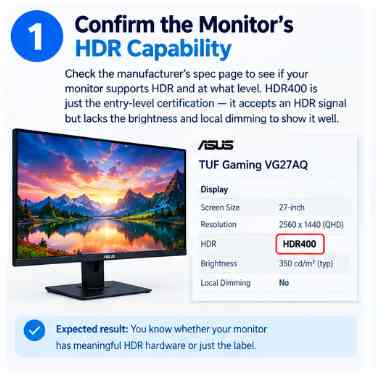
Before toggling anything, check what your monitor can really do. Look up the manufacturer’s spec page: does it list HDR support, and at what level? Monitors marketed as HDR400 meet only the entry-level certification — they accept an HDR signal but lack the brightness and local dimming to show it convincingly.
Expected result: you know whether your monitor has meaningful HDR hardware or just the label. This decides how much effort the rest is worth — on a basic HDR400 panel, perfect setup still looks only slightly better than SDR.
Step 2: Turn On HDR in Windows
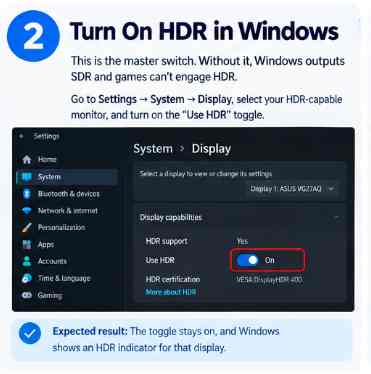
This is the master switch. Without it, Windows outputs SDR and games can’t engage HDR at all.
What to do: open Settings → System → Display, select your HDR-capable monitor, and turn on the “Use HDR” toggle [VERIFY]. Windows may briefly flicker as it switches modes.
Expected result: the toggle stays on, and Windows shows an HDR indicator for that display. If the toggle is grayed out or missing, the monitor isn’t reporting HDR support over the current cable/port — try a different cable or port before anything else.
Step 3: Turn On HDR Inside the Game
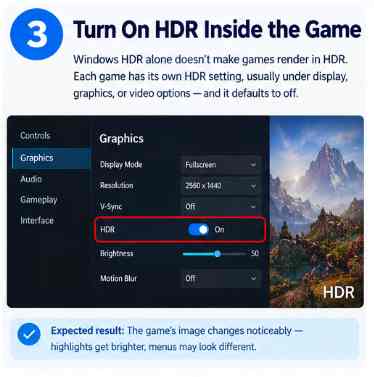
Windows HDR alone doesn’t make games render in HDR. Each game has its own HDR setting, usually under display, graphics, or video options — and it defaults to off.
What to do: launch the game, open its graphics/display settings, and enable its HDR option. Some games also ask you to set peak brightness or run a small HDR calibration the first time — do it.
Expected result: the game’s image changes noticeably — highlights get brighter, menus may look different. If nothing changes, the game may need a restart after enabling HDR.
Step 4: Run the Windows HDR Calibration
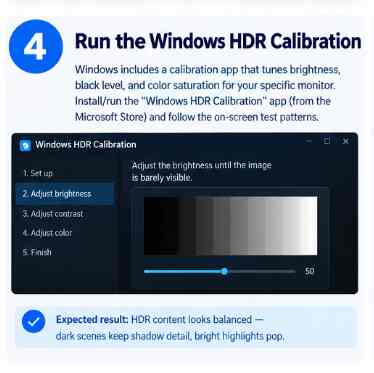
Windows includes a calibration app that tunes brightness, black level, and color saturation for your specific monitor. It’s worth the five minutes.
What to do: install/run Microsoft’s “Windows HDR Calibration” app (from the Microsoft Store) [VERIFY] and follow its on-screen test patterns — it asks you to adjust until sample images look right at each step.
Expected result: HDR content looks balanced instead of crushed or bleached: dark scenes keep shadow detail, bright highlights pop without blowing out.
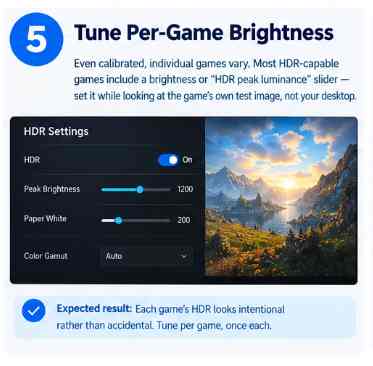
Step 5: Tune Per-Game Brightness
Even calibrated, individual games vary. Most HDR-capable games include a brightness or “HDR peak luminance” slider — set it while looking at the game’s own test image, not your desktop.
Expected result: each game’s HDR looks intentional rather than accidental. There’s no universal value; tune per game, once each.
Step 6: Decide What Stays in SDR
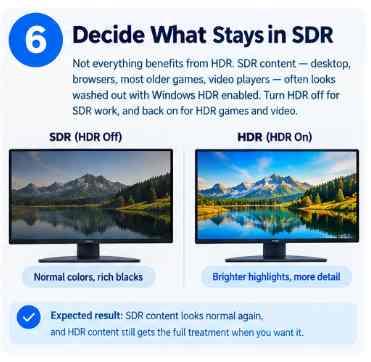
Not everything benefits from HDR mode being on. SDR content — the desktop, browsers, most older games, video players — viewed with Windows HDR enabled often looks washed out or slightly gray, because Windows is tone-mapping SDR into an HDR container.
What to do: for desktop work, browsing, and SDR-only games, turn the Windows HDR toggle off. Turn it back on for HDR games and HDR video. Yes, it’s annoying. Some people leave it on and accept the washed-out desktop; some toggle per session.
Expected result: SDR content looks normal again (rich blacks, correct colors), and HDR content still gets the full treatment when you want it.
How to Confirm It Worked
Play an HDR-supported game with both toggles on after calibration: bright elements (sun, explosions, neon) should be visibly brighter than the rest of the scene without the whole image looking gray, and dark areas should keep detail instead of crushing to black. Toggle Windows HDR off and on while looking at the desktop — SDR content should look better with it off. That contrast tells you the setup is doing its job.
Why HDR Looks Bad: The Honest Breakdown
If HDR disappoints you, it’s almost always one of these — none of them are your fault:
- Only one toggle is on. Windows HDR without in-game HDR (or vice versa) produces a dull, wrong-looking image. Both, always.
- SDR content in HDR mode. The desktop and most apps are SDR. Forcing them through HDR tone-mapping washes them out. This is expected behavior, not a bug.
- Weak monitor HDR. Entry-level HDR monitors can’t get bright enough or dim locally enough to show real HDR. The image looks marginally different from SDR at best. No setting fixes hardware limits.
- Bad game implementation. Some games’ HDR modes are simply poor — wrong gamma, raised blacks, no calibration. If one game looks great and another looks terrible with identical settings, blame the game.
- Wrong expectations from TV HDR. A good HDR TV in a dark room sets a bar most monitors can’t reach. Judge your monitor against SDR on the same monitor, not against your living room.
Common Mistakes
- Turning on Windows HDR and expecting games to follow. The in-game toggle is separate and defaults to off. Every game, every time.
- Calibrating with the room lights blasting. HDR calibration is brightness-sensitive — do it in your normal viewing lighting.
- Judging HDR by the desktop. The desktop is SDR. It will look worse with HDR on. Judge by actual HDR content.
- Buying “HDR” as a monitor feature at the budget end. At the entry level, panel quality, contrast, and color accuracy matter far more than the HDR checkbox.
- Leaving HDR on for everything out of principle. SDR games and desktop work genuinely look better with it off.
Limitations and Risks
- No calibration can give a monitor HDR hardware it doesn’t have — dim panels stay dim.
- HDR increases GPU workload slightly and can raise idle power draw on some configurations.
- Some games’ HDR implementations are broken regardless of settings; community fixes exist for popular titles but that’s beyond this guide.
- Screenshots and screen recordings of HDR content often look wrong (washed out or oversaturated) because capture tools grab the tone-mapped output — don’t judge HDR from someone else’s screenshot.
- App and menu text in the calibration tool [VERIFY] may differ by Windows version — the steps describe the current layout.
Quick Checklist
- [ ] Monitor’s real HDR capability checked on the manufacturer’s spec page
- [ ] Windows “Use HDR” toggle ON for the HDR monitor
- [ ] In-game HDR option enabled (per game)
- [ ] Windows HDR Calibration app run once [VERIFY]
- [ ] Per-game brightness slider tuned to the game’s test image
- [ ] Windows HDR toggle OFF for desktop work and SDR-only games
Conclusion
HDR on PC looks great when you enable it correctly, calibrate it, and turn it off when idle. Get it wrong and you get the washed-out desktop that gives HDR its bad reputation.
Do this:
- Turn on HDR in Windows Display settings and your monitor’s menu.
- Run the Windows HDR Calibration app to match your display’s real peak brightness and black levels.
- Disable HDR for desktop work; use it only for games and movies.
Judge it honestly. Test with real HDR content, and remember a monitor with low peak brightness or no local dimming can’t deliver dramatic highlights.
HDR option missing? Check your cable and port first, then read Monitor Stuck at 60Hz? Cable, Port and Driver Fixes or HDMI vs DisplayPort: Which Cable Gets Full Refresh Rate.
Frequently Asked Questions
Why does everything look washed out with HDR on?
Because the desktop and most apps are SDR, and Windows tone-maps them into HDR mode — which washes them out. Turn Windows HDR off for desktop use and on only for HDR games and video. That’s normal behavior, not a defect.
Do I need HDR on in Windows AND in the game?
Yes — both. Windows HDR enables the HDR output path; the game’s HDR setting makes it actually render in HDR. With only one on, you get a dull, incorrect image.
Is HDR400 “real” HDR?
It accepts a real HDR signal, but entry-level HDR monitors lack the brightness and local dimming to display it convincingly. Expect a subtle difference from SDR at best — panel quality matters more than the HDR label at this tier.
Why does HDR look amazing in one game and terrible in another?
Game implementations vary enormously. Some studios nail HDR calibration; others ship broken tone mapping. If settings are identical and one game looks great, the other game’s implementation is the problem.
Should I leave HDR on all the time?
No. SDR content — desktop, browsers, older games — looks better with Windows HDR off. Toggle it on for HDR games and HDR video, off for everything else.
Does HDR hurt gaming performance?
Slightly — rendering in HDR adds a small GPU cost, and some configurations draw a bit more power at idle with HDR on. It’s minor compared to resolution or ray tracing, not something to worry about.
My monitor supports HDR but Windows has no toggle. Why?
Windows only shows the toggle when the monitor reports HDR support over the current connection. Try a different cable and a different GPU port, and update the GPU driver. If it still doesn’t appear, the monitor may only accept HDR on specific inputs — check its manual.
