
It sits on your desk every day. You use it without thinking. But do you actually know what a computer mouse is, how it works, or why it matters which one you buy?
Whether you’re a first-time computer user trying to understand the basics, a student writing about input devices, or someone shopping for a new mouse and completely overwhelmed by specs like DPI, polling rate, and sensor types — this guide covers everything clearly and practically.
We’ll start from the very beginning — what a computer mouse is, what it does, and who invented it — and work through how it tracks your movement, the different types available, what every spec means in plain English, and how to choose the right mouse for your exact use case.
No jargon left unexplained. No assumptions about your experience level.
Quick answer: A computer mouse is an input device that lets you control the cursor on your screen by moving it across a surface. It translates your physical hand movements into on-screen actions — clicking, selecting, scrolling, dragging — and is one of the primary ways humans interact with computers.
Quick Navigation
Jump to the section you need:
| 📖 What Is a Computer Mouse? | 🖱️ Parts of a Mouse |
| 🕰️ Who Invented It? | ✅ What Is It Used For? |
| ⚙️ How Does It Work? | 📊 Understanding Specs (DPI, Polling Rate) |
| 🗂️ Types of Mice | ✋ Grip Styles |
| 🔌 Connection Types | 🛒 How to Choose |
| 🏆 Top Recommendations | 🔧 Troubleshooting |
| 💻 Laptops & Mobile | ❓ FAQ |
New to computers? Start at the top and read through. Buying a new mouse? Jump straight to Types of Mice, Grip Styles, and Top Recommendations.
What Is a Computer Mouse?
A computer mouse is a handheld input device connected to a computer that controls the position of the cursor on the screen. When you move the mouse across a surface, the cursor mirrors that movement on your display. When you press its buttons, you interact with whatever the cursor is pointing at.
The computer mouse definition in technical terms: a pointing device that detects two-dimensional motion relative to a surface and translates that motion into cursor movement, with buttons and a scroll wheel for interaction.
In everyday terms: it’s the hand of your computer. Your keyboard tells the computer what to do, but the mouse tells it where to do it.
Who Invented the Computer Mouse?
The computer mouse was invented by Douglas Engelbart, an American engineer and inventor, along with his colleague Bill English, in 1964 at the Stanford Research Institute (SRI) in California, United States.
Engelbart’s original prototype was a simple wooden block with two perpendicular metal wheels underneath and a single button on top. A cord emerged from the back of the device — resembling the tail of a small rodent — and the name “mouse” was born informally among the team. It was never officially trademarked or formally named; it just stuck.
The mouse had its historic public debut on December 9, 1968, at what became known as “The Mother of All Demos” — a landmark technology demonstration in San Francisco where Engelbart showed not only the mouse, but also video conferencing, collaborative real-time editing, and hypertext links, all decades before they became mainstream. The audience was astonished.
Despite inventing one of the most important input devices in computing history, Engelbart received very little financial reward — his patent expired before the mouse became a commercial product. It was Xerox PARC that first incorporated the mouse into a commercial workstation in the 1970s, and Apple that brought it to mainstream consumers with the Apple Macintosh in 1984, fundamentally changing how the world interacted with computers.
Engelbart passed away in 2013. His invention is used by billions of people every day.
Evolution of the Computer Mouse
| Era | Key Development |
|---|---|
| 1964 | First prototype — wooden shell, two metal wheels, one button, cord “tail” |
| 1970s | Ball mouse introduced — rubber ball replaced wheels for smoother movement |
| 1980s | Apple Macintosh brings the mouse to mainstream home users |
| 1990s | Optical mouse replaces the ball — no moving parts, no cleaning required |
| 2000s | Wireless mice go mainstream; laser sensors arrive; scroll wheels become standard |
| 2010s | Gaming mice emerge — high-DPI sensors, programmable buttons, ultra-low latency |
| 2020s | Ultra-lightweight mice (40–60g), 4000–8000Hz polling rates, AI-optimized sensors |
What Are the Parts of a Computer Mouse?
Before diving into how a mouse works, it helps to know what you’re looking at. Here’s every part of a standard computer mouse and what each one does — explained simply for any level of user.
┌─────────────────────────────────┐
│  LEFT BUTTON   │  RIGHT BUTTON  │  ← Primary click / Context menu
│                │                │
│         SCROLL WHEEL            │  ← Scroll + middle-click
│                                 │
│         [DPI BUTTON]            │  ← Sensitivity switch (gaming mice)
│                                 │
│  [SIDE BUTTON] [SIDE BUTTON]    │  ← Back/forward or programmable
│                                 │
└─────────────────────────────────┘
         │ CABLE / WIRELESS MODULE │
         └─────────────────────────┘
              [SENSOR ON BOTTOM]     ← Tracks surface movement
              [MOUSE FEET / SKATES]  ← PTFE pads for smooth glide
Left Button
The primary button — used for almost everything. Single-click selects an item; double-click opens it; click-and-drag moves or selects multiple items.
Right Button
Opens a context menu — a list of relevant options for whatever you’re pointing at (open, copy, paste, delete, properties, etc.). One of the fastest ways to access shortcuts on a desktop computer.
Scroll Wheel (Middle Button)
Rotates to scroll up and down through pages and documents. Also functions as a clickable button — middle-clicking a link opens it in a new tab; middle-clicking a tab closes it. On premium mice, the wheel tilts left/right for horizontal scrolling and switches between ratcheted and free-spin modes.
Side Buttons (Thumb Buttons)
Found on most gaming and productivity mice. By default, these navigate back and forward in browsers and file explorers. On gaming mice, they’re fully programmable for macros, abilities, or any custom action.
DPI Button
A small button (usually near the scroll wheel or on the bottom) that cycles through preset sensitivity levels. Lets you switch from slow/precise to fast/sweeping without opening any software.
Sensor (Bottom)
The optical or laser tracking system. This is the most important internal component for performance — it determines tracking accuracy, maximum speed, and consistency. The sensor reads the surface below and translates movement into cursor data.
Mouse Feet (Skates)
Small PTFE (Teflon) pads on the bottom that allow the mouse to glide smoothly across surfaces. They wear down over time and can be replaced — aftermarket mouse feet are a popular upgrade for gamers seeking smoother movement.
Cable or Wireless Module
Wired mice use a USB cable to transmit data and receive power. Wireless mice contain a battery and a radio transmitter (2.4GHz or Bluetooth). Some mice support both modes, switching between wired charging and wireless use.
Circuit Board (Internal)
The brain of the mouse. It processes all input — sensor data, button presses, scroll events — and communicates everything to the computer. High-end gaming mice store custom profiles directly on the circuit board’s onboard memory, so your settings travel with the mouse even without software installed.
What Is a Computer Mouse Used For?
Here is a complete, scannable list of everything a computer mouse lets you do — from the most basic to the most advanced:
- Pointing — Move the cursor anywhere on screen to highlight or hover over elements
- Single-clicking — Select files, buttons, links, and interface items
- Double-clicking — Open files, folders, and applications
- Right-clicking — Access context menus with shortcuts: copy, paste, open, delete, rename, properties
- Scrolling — Move up/down (or left/right) through pages, documents, and lists using the scroll wheel
- Dragging and dropping — Move files between folders, reposition windows, rearrange items
- Selecting text — Click and drag to highlight text for copying, cutting, or formatting
- Selecting multiple files — Click and drag a selection box, or Ctrl+click individual items
- Zooming in and out — Ctrl + scroll wheel zooms in most applications, browsers, and maps
- Copying and pasting — Right-click to copy; right-click to paste at cursor location
- Opening and closing files — Double-click to open; middle-click a tab to close
- Navigating menus — Move through application menus, toolbars, and settings panels
- Accessing taskbar and system tray — Right-click on system elements for quick options
- Drawing and sketching — Used in design software for freehand drawing and precision editing
- Editing images and video — Precise selections, timeline scrubbing, and adjustment handles
- Gaming controls — Aim, camera movement, ability targeting, item interaction
- CAD and 3D navigation — Rotate, pan, and zoom in 3D software environments
- Resizing windows — Drag window edges and corners to resize
- Clicking hyperlinks — Navigate between web pages with a single click
- Middle-click scrolling — Click the scroll wheel and move to auto-scroll through long documents
How Does a Computer Mouse Work?
Understanding how a mouse tracks your movement is directly useful when choosing one — because it explains why optical and laser mice behave differently, and why sensor quality matters.
The Optical Sensor: A Camera Under Your Mouse
Modern mice (both optical and laser) work like a tiny high-speed camera pointed at the surface below:
- A light source (LED for optical, infrared laser for laser mice) illuminates the surface beneath the mouse
- The sensor captures thousands of micro-images per second — over 6,000 frames per second on a modern gaming sensor
- A built-in Digital Signal Processor (DSP) compares consecutive images to calculate how far and in what direction the mouse moved
- That movement data is converted into cursor coordinates and sent to your computer
The DSP is the intelligence of the mouse — it processes this image stream in real time, calculating velocity, direction, and distance every millisecond while you move. The quality of both the sensor and the DSP determines how accurately the mouse translates your movement.
Optical vs Laser: What’s the Real Difference?
| Optical Mouse | Laser Mouse | |
|---|---|---|
| Light source | LED (visible red light) | Infrared laser |
| Surface compatibility | Best on matte, non-reflective surfaces | Works on almost any surface including glass |
| Tracking accuracy | Very accurate, minimal noise | Can over-read surface texture at high sensitivity |
| Best for | Gaming, everyday use, most users | Flexible surface use (unusual desks, glass) |
| Recommended | ✅ Most users, especially gamers | Specific surface needs only |
The practical verdict: Optical wins for most users. Laser mice work on more surfaces but introduce slight tracking noise at high sensitivity — which is why most premium gaming mice today use optical sensors exclusively.
Ball Mouse
Before optical sensors existed, mice used a rubber ball that rolled against two perpendicular rollers as it moved across a surface. The rollers detected rotation and calculated movement direction. Ball mice worked, but required regular cleaning as dust clogged the rollers over time — a maintenance issue optical mice completely eliminated when they became mainstream in the late 1990s.
Understanding Mouse Specifications
If you’ve ever looked at a mouse listing and seen numbers like “26,000 DPI” or “8000Hz polling rate,” here’s exactly what all of it means — and what actually matters for your use case.
DPI (Dots Per Inch)
DPI measures how many pixels the cursor moves on screen for every inch the mouse physically moves.
- 800 DPI = the cursor moves 800 pixels for every inch of hand movement
- 3200 DPI = the cursor moves 3200 pixels per inch — 4× faster
Higher DPI = faster, more sensitive cursor. Lower DPI = slower, more controlled.
The most important misconception about DPI: Higher DPI does NOT mean more accurate. DPI is a sensitivity setting only — it has nothing to do with tracking precision. A mouse with a mediocre sensor at 16,000 DPI tracks worse than a quality sensor at 800 DPI.
| Use Case | Recommended DPI |
|---|---|
| Office / everyday computing | 800 – 1200 DPI |
| Graphic design / photo editing | 600 – 1200 DPI |
| FPS gaming (CS2, Valorant) | 400 – 800 DPI |
| MOBA / RTS gaming | 1000 – 1600 DPI |
| 4K or multi-monitor setup | 1600 – 3200 DPI |
Why do professional FPS players use 400–800 DPI? Low DPI forces larger hand movements to aim — reducing the effect of small tremors and providing more consistent precision. Most professional esports players pair low DPI with a large mousepad (40–50cm wide) for full-arm aiming.
Polling Rate (Hz) — Responsiveness
Polling rate is how often per second the mouse reports its position to your computer.
| Polling Rate | Update Interval | Who It’s For |
|---|---|---|
| 125 Hz | Every 8ms | Budget mice, basic office use |
| 500 Hz | Every 2ms | General use |
| 1000 Hz | Every 1ms | Standard for gaming |
| 4000–8000 Hz | Every 0.125–0.25ms | Competitive / esports |
Higher polling rate = more frequent updates = smoother, more responsive cursor. For competitive gaming on a high-refresh-rate monitor (144Hz+), 1000 Hz is the recommended minimum. Above 1000 Hz is meaningful only for the most demanding competitive scenarios — and requires a capable PC to run without performance penalties.
IPS (Inches Per Second) — Maximum Tracking Speed
IPS measures the top speed at which the sensor can track accurately. Beyond this speed, the sensor loses tracking and the cursor jumps. A rating of 400 IPS (standard on quality gaming mice) covers any realistic hand movement speed. For everyday use, IPS is not a practical concern.
Lift-Off Distance (LOD)
LOD is how high the mouse must be lifted before tracking stops. A low LOD (1–2mm) is preferred by gamers who frequently lift and reposition the mouse — it prevents the cursor from jumping during repositioning. For office use, LOD rarely matters.
📖 Part 1 Complete — You now understand what a mouse is, how it works, and what every spec means.
🛒 Part 2 below covers: Types of mice, grip styles, how to choose, top picks, and troubleshooting.
Types of Computer Mice — Explained by Use Case
Wired Mouse
Connected via USB cable. Zero latency, never needs charging, 100% reliable — no interference, no battery anxiety. Modern wired gaming mice use ultra-flexible braided cables that create virtually no drag. Most professional esports players still prefer wired for this reason.
Best for: Competitive gaming, reliability-first setups, budget builds
Wireless Mouse (2.4GHz RF)
Uses a small USB receiver (dongle). Modern premium 2.4GHz wireless mice achieve latency indistinguishable from wired in real-world use. Battery life ranges from weeks to several months depending on polling rate and usage patterns.
Best for: Clean desk setups, everyday use, gamers who want cable-free freedom without sacrificing performance
Bluetooth Mouse
Connects directly via Bluetooth — no receiver needed. Maximum convenience for laptops and tablets, and easy multi-device pairing. Trade-off: higher latency than 2.4GHz (typically 8ms or more), as Bluetooth polling rates max around 125Hz.
Best for: Laptop users, tablet users, office workers pairing to multiple devices
Wired vs Wireless — The Honest Comparison
| Factor | Wired | Wireless 2.4GHz | Bluetooth |
|---|---|---|---|
| Latency | Lowest | Near-identical (premium) | Higher (~8ms) |
| Reliability | 100% | Excellent | Good, occasional drops |
| Battery | Not needed | Weeks–months | Weeks–months |
| Cable clutter | Yes | No | No |
| USB port used | 1 | 1 (receiver) | 0 |
| Competitive gaming | ✅ Best | ✅ Equal (premium) | ❌ Not recommended |
Gaming Mouse
Built for precision, speed, and customization. Features high-precision optical sensors, adjustable DPI, 1000Hz+ polling rates, programmable buttons, low-latency switches, and lightweight construction (often 40–80g). Designed to match specific grip styles.
Key specs to check: Sensor model, polling rate, weight, button count, shape/grip compatibility
Ergonomic Mouse
Shaped specifically to reduce hand and wrist strain during long sessions. Available in standard ergonomic and vertical designs. If you experience wrist pain, forearm fatigue, or early signs of RSI, an ergonomic mouse is a meaningful health investment.
Vertical Mouse
Positions the hand in a “handshake” orientation — thumb pointing upward, palm vertical. This eliminates the forearm pronation (twisting) that causes most mouse-related wrist injuries. Takes 1–2 weeks to adapt but provides significant long-term comfort benefits.
Best for: Users with wrist pain, anyone using a mouse 6+ hours daily, RSI prevention
Trackball Mouse
Stationary base with a ball rotated by thumb or fingers — the mouse body never moves. Requires zero desk space and eliminates arm movement entirely. Precise once mastered, though the learning curve is steeper than a standard mouse.
Best for: Limited desk space, users with limited arm mobility, CAD and design professionals
3D Mouse
Specialized input device for navigating three-dimensional software environments. The 3Dconnexion SpaceMouse is the industry standard for CAD, SolidWorks, Blender, and architectural software. Used alongside a regular mouse, not instead of one.
Touchpad
Built into every laptop. Supports multi-finger gestures (scroll, pinch-to-zoom, swipe). Convenient for portability but significantly slower and less precise than a physical mouse for extended work sessions.
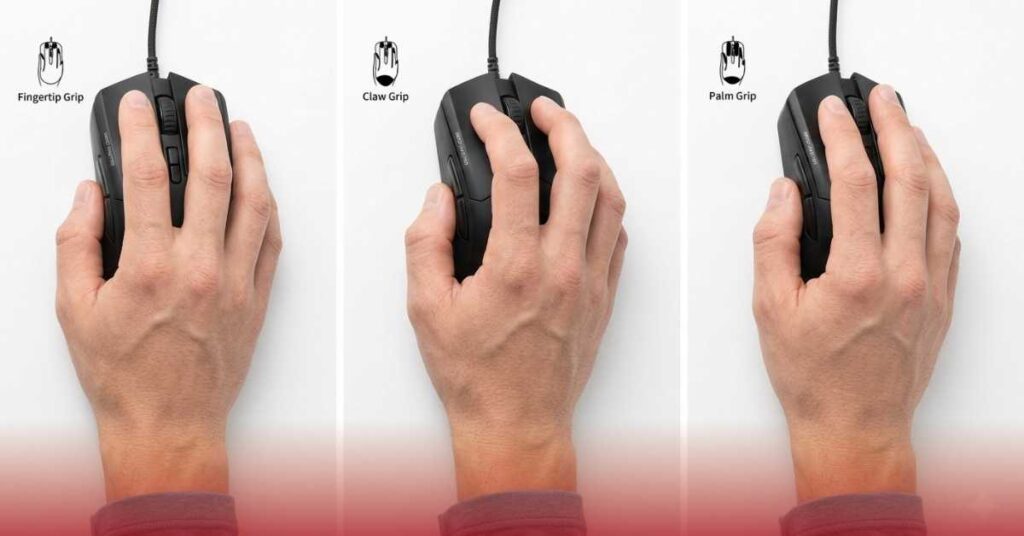
Mouse Grip Styles — Why They Matter as Much as Specs
If you’re buying a gaming or performance mouse, your grip style is the single most important factor in comfort and performance. The wrong shape makes even the best specs feel wrong.
Palm Grip
The entire palm rests flat on the mouse. Fingers lie flat on the buttons. The most relaxed, natural position — excellent for long sessions and large hands. Slightly slower reaction time for gaming due to the full contact reducing button mobility.
Best mouse shape: Large, high-profile, curved mice (12cm+ length)
Claw Grip
Palm heel rests on the back of the mouse; fingers arch upward like claws. A faster, more active grip — popular with FPS gamers for quick button actuation. Good balance of speed and stability.
Best mouse shape: Medium mice with a defined arch at the back
Fingertip Grip
Only fingertips contact the mouse — the palm floats. Maximum speed, mobility, and precision at high velocities. Preferred by most high-level competitive FPS players. More tiring for extended sessions.
Best mouse shape: Small, flat, lightweight mice (60–70g, under 11cm length)
| Grip Style | Hand Contact | Speed | Comfort | Typical Users |
|---|---|---|---|---|
| Palm | Full palm + fingers flat | Moderate | Highest | Office, casual, MMO gamers |
| Claw | Palm heel + arched fingers | Fast | Medium | FPS gamers, competitive players |
| Fingertip | Fingertips only | Fastest | Lower | Esports, high-level FPS |
How Mice Connect to Computers — All Connection Types Explained
USB (Universal Serial Bus) — Current Standard
The dominant connection for wired mice. Plug-and-play: connect and it works immediately, no restart required. USB-A is the most common; USB-C is increasingly used on newer gaming mice. Provides both data transmission and power.
2.4GHz Wireless (RF Dongle)
A small USB receiver plugs into your computer; the mouse communicates wirelessly via radio frequency. This is the technology behind Logitech LIGHTSPEED, Razer HyperSpeed, and SteelSeries Quantum Wireless — all achieving near-zero latency.
Bluetooth
Built-in wireless standard. No receiver needed — connects directly to any Bluetooth-enabled device. Convenient for laptops, tablets, and multi-device workflows. The maximum polling rate is limited by the Bluetooth protocol, resulting in higher latency than 2.4GHz.
PS/2 Port (Legacy)
The older round purple port found on computers from the 1980s through mid-2000s. Completely obsolete — no modern computer or mouse uses PS/2. Mentioned here only for historical context and older hardware reference.
Serial Port (Legacy)
A rectangular 9-pin connector used for mice in the 1980s and early 1990s. Transmits data sequentially at very low speeds. Entirely obsolete — included here for completeness only.
Infrared (IR) — Legacy Wireless
An early wireless technology required line-of-sight between the mouse and receiver. Replaced entirely by 2.4GHz RF and Bluetooth for being unreliable, directionally limited, and easily interrupted.
Quick Reference
| Connection | Modern? | Latency | Requires USB Port? | Best For |
|---|---|---|---|---|
| USB-A (wired) | ✅ Current | ~1ms | Yes | Gaming, reliability |
| USB-C (wired) | ✅ Current | ~1ms | Yes (C port) | New devices |
| 2.4GHz RF | ✅ Current | ~1ms | Yes (receiver) | Wireless gaming, clean setups |
| Bluetooth | ✅ Current | ~8ms | No | Laptops, multi-device |
| PS/2 | ❌ Obsolete | — | No | Legacy systems only |
| Serial | ❌ Obsolete | — | No | Historical reference |
| Infrared | ❌ Obsolete | — | No | Historical reference |
How to Choose the Right Computer Mouse
Step 1 — Identify Your Primary Use Case
| Use Case | What to Prioritize |
|---|---|
| Office / everyday computing | Comfort, wireless convenience, scroll wheel quality |
| Gaming (casual) | Optical sensor, 1000Hz polling, 6-button layout |
| Gaming (competitive FPS) | Lightweight under 80g, optical sensor, grip-matched shape |
| Gaming (MMO / strategy) | 12+ programmable buttons, comfortable for long sessions |
| Graphic design / creative work | High-precision sensor, smooth glide, comfort for extended use |
| Wrist pain / RSI | Vertical or ergonomic mouse — non-negotiable |
| Laptop / travel | Compact wireless, Bluetooth, long battery life |
| Small desk / limited space | Trackball or compact wireless |
Step 2 — Wired or Wireless?
- Competitive gaming → Wired or premium 2.4GHz wireless
- Office/productivity → 2.4GHz or Bluetooth wireless for a clean desk
- Budget → Wired always provides better performance per dollar
Step 3 — Match Shape to Grip Style
Palm → large, high-profile | Claw → medium with arch | Fingertip → small, flat, lightweight
Step 4 — DPI and Polling Rate
- Office → 800–1600 DPI, 125–500 Hz
- Gaming → 400–3200 DPI adjustable, 1000 Hz
- Competitive → Quality optical sensor, 1000–8000 Hz
Step 5 — Weight and Ergonomics
Gaming sweet spot: 60–80g. Heavier mice cause arm fatigue in long sessions. For office use, shape and button placement matter more than weight. If you use a mouse all day professionally, never compromise on ergonomics.
Top Mouse Recommendations (Across All Major Brands)
These are the current category leaders across multiple brands. Check current pricing at time of purchase — performance rankings are what matter.
| Category | Mouse | Key Features | Best For |
|---|---|---|---|
| 🏆 Competitive Gaming | Logitech G Pro X Superlight 2 | 60g, HERO 2 sensor, LIGHTSPEED wireless, 95h battery, symmetrical | FPS, esports, claw/fingertip grip |
| ⚔️ Gaming Alternative | Razer DeathAdder V3 HyperSpeed | Focus Pro sensor, 90h battery, ergonomic right-hand | Palm/claw grip, Razer ecosystem, ergonomic gaming |
| 🎯 Budget Gaming | SteelSeries Rival 3 Wired | TrueMove Core sensor, 6 buttons, lightweight, wired | First gaming mouse, budget-friendly |
| 🖱️ Office / Productivity | Logitech MX Master 3S | MagSpeed scroll, ergonomic, USB-C, multi-device, customizable | Office work, programmers, heavy desk use |
| 💼 Office Alternative | Microsoft Arc Mouse | Ultra-thin, foldable, Bluetooth, silent clicks | Travel, Microsoft users, minimalist setups |
| 🤝 Ergonomic / Vertical | Logitech MX Vertical | 57° angle, reduces forearm rotation 70%, USB-C wireless | Wrist pain, RSI prevention, and long use |
| 🔵 Ergonomic Alternative | Anker Vertical Ergonomic Mouse | Budget, wired, adjustable DPI, wrist-neutral | Try a vertical mouse, budget users |
| Best Trackball | Logitech MX ERGO | Adjustable base, thumb ball, wireless | Small desks, limited arm mobility, CAD |
| 🔵 Trackball Alternative | Kensington Expert Mouse | Finger ball, scroll ring, dual wireless | CAD, data analysis, finger-controlled |
| 💻 Travel | Razer Orochi V2 | Ultra-compact, Bluetooth+RF, 950h battery, Focus Pro sensor | Travel, laptop, gaming on the go |
Troubleshooting Common Mouse Problems
Cursor Jumping or Skipping
Cause: Dirty sensor, incompatible tracking surface (glass, high-gloss, or irregular texture), or low battery on wireless mice. Fix: Clean the sensor with a dry cotton swab. Place a matte mousepad under the mouse. Replace or charge the battery. Avoid using on glass — optical and laser mice both struggle on reflective surfaces.
Wireless Mouse Keeps Disconnecting
Cause: 2.4GHz interference from Wi-Fi routers or other wireless devices, USB receiver too far from mouse, depleted battery, or outdated firmware. Fix: Move the USB receiver closer using a USB extension cable. Try a different USB port away from other wireless devices. Charge or replace batteries. Update firmware through manufacturer software — Logitech G HUB, Razer Synapse, SteelSeries GG, or Corsair iCUE.
Double-Clicking When You Single-Click
Cause: Switch degradation inside the main button — the switch “bounces” and registers two signals from one press. Common after 1–3 years of heavy use on budget mice; quality switches last longer. Fix (temporary): Reduce double-click speed in Windows (Control Panel → Mouse → Buttons). Fix (permanent): The switch needs to be replaced (soldering required) or the mouse should be replaced.
Scroll Wheel Skipping or Not Responding
Cause: Dust and debris trapped in the scroll encoder. Fix: Use compressed air to blow into the scroll wheel gap from multiple angles. For persistent issues, the encoder component may need replacement.
Mouse Feels Slow, Laggy, or Inconsistent
Cause: Windows “Enhance Pointer Precision” (mouse acceleration) is active, creating inconsistent cursor movement. Or: low polling rate, mismatched DPI settings. Fix: Disable “Enhance Pointer Precision” — Control Panel → Mouse → Pointer Options → uncheck the box. For gaming, enable Raw Input in the game’s settings to bypass Windows mouse processing entirely. Set DPI in manufacturer software rather than relying on Windows sensitivity scaling.
Mouse Drifts When Stationary
Cause: Dirty sensor reading surface micro-texture as movement, or hardware sensor fault beginning to develop. Fix: Clean the sensor lens thoroughly. Switch to a quality matte mousepad. If drift persists after cleaning, the sensor is likely failing and the mouse needs replacement.
Mouse Cursor Moves Too Fast or Too Slow
Cause: DPI set too high or too low, Windows pointer speed misconfigured. Fix: Adjust DPI using the mouse’s button or manufacturer software. Set Windows pointer speed to the middle position (6/11 notches) as a neutral baseline, then fine-tune DPI to taste.
How to Clean a Computer Mouse
Surface and buttons: Wipe with a slightly damp microfiber cloth or isopropyl alcohol wipe. Never use liquid directly on the mouse. Sensor: Gently wipe the lens with a dry cotton swab — do not use liquids on the sensor. Mouse feet: Wipe with a dry cloth. Replace if they’ve worn unevenly — flat or notched feet cause inconsistent glide. Scroll wheel gap: Use compressed air or a thin dry brush to remove debris from around the scroll wheel.
Computer Mouse for Laptops and Mobile Devices
Laptops
Every modern laptop includes a touchpad (trackpad) as its built-in pointing device. Touchpads support multi-finger gestures: two-finger scroll, pinch-to-zoom, three-finger app-switching swipe, and more. They’re convenient for portability but noticeably slower and less precise than a physical mouse for extended, serious work.
Most professionals who use a laptop for hours daily — developers, designers, writers, analysts — connect an external mouse. Any USB or Bluetooth mouse works with any laptop regardless of brand or OS. For Mac users, Apple’s Magic Mouse integrates smoothly with macOS gesture support; the Magic Trackpad is the premium large touchpad option.
Some Lenovo ThinkPad laptops include a TrackPoint — the small red pointing stick between the G, H, and B keys. It controls the cursor without removing hands from the keyboard, making it deeply efficient for keyboard-driven work. ThinkPad loyalists consider it irreplaceable.
Smartphones
Smartphones use the touchscreen as their primary input — your finger is the cursor. For practical purposes, no one uses a physical mouse with a smartphone. Styluses (like the Apple Pencil or Samsung S Pen) provide more precise control for drawing, note-taking, and design apps.
Tablets
Most tablets — particularly iPads and Android tablets used for productivity — support connecting a Bluetooth mouse. iPadOS 13+ provides full cursor support with a contextually-aware cursor that adapts to what it hovers over. Android tablets similarly support Bluetooth mice via the accessibility settings.
A tablet + Bluetooth keyboard + wireless mouse combination creates a genuinely capable portable workstation — particularly for writing, data work, and light creative tasks.
Is a Mouse Compatible With All Computers?
Yes, with almost no exceptions. Any USB mouse works with any computer that has a USB port — Windows, macOS, Linux, and Chrome OS all support standard mice without installing drivers. Plug it in and it works.
Bluetooth mice work with any device that has Bluetooth enabled — computers, tablets, and smartphones.
The only compatibility checks to make:
- Mac users and right-clicking: All mice right-click normally on Mac — macOS supports right-click out of the box
- Gaming software: Advanced features like DPI customization and macro programming typically require manufacturer software (Logitech G HUB, Razer Synapse, SteelSeries GG, Corsair iCUE) — this is optional, not required for basic function
- Very old computers: If using a computer from before 2000, USB may not be supported — check for the presence of USB ports
Conclusion
The computer mouse has come a long way from Douglas Engelbart’s wooden prototype with a single button and a cord that looked like a rodent’s tail. Today, it comes in dozens of form factors — optimized for gaming, ergonomics, portability, precision, and even an RGB lighting mouse for style and personalization.
Understanding what a computer mouse is, how it works, and what the specs mean gives you the knowledge to make an informed choice — whether you’re buying your first mouse, replacing a worn-out one, upgrading for gaming or professional work, or choosing a mouse that looks as good as it performs.
The key things to remember:
- ✅ A computer mouse is an input device that controls the cursor position through physical movement
- ✅ Optical sensors are preferred for accuracy; laser mice work on more surfaces but introduce tracking noise
- ✅ DPI is a sensitivity setting only — higher DPI is not more accurate
- ✅ Polling rate controls how often position data reaches your PC — 1000 Hz is the gaming standard
- ✅ Grip style (palm, claw, fingertip) should match your mouse shape — often more important than specs
- ✅ Wired is lowest latency; 2.4GHz wireless equals wired at premium tier; Bluetooth is convenient but slower
- ✅ Vertical mice are worth serious consideration for anyone using a mouse all day or experiencing wrist discomfort
- ✅ Almost any mouse is compatible with any modern computer — USB and Bluetooth are universal
⚡ Key Takeaways (For Skimmers
Everything in this guide in under 2 minutes.
| Topic | What You Need to Know |
|---|---|
| What is a mouse? | A handheld input device that moves the cursor and lets you click, scroll, and interact with your computer |
| Invented by | Douglas Engelbart & Bill English, 1964, Stanford Research Institute |
| Input or output? | Input device — it sends data to the computer, not the other way around |
| Optical vs Laser | Optical (LED) is more accurate for most uses; laser works on more surfaces but adds noise |
| DPI | Sensitivity setting — how many pixels the cursor moves per inch. Higher ≠ more accurate |
| Best DPI for gaming | 400–800 DPI (FPS) · 1000–1600 DPI (MOBA/RTS) · 800–1200 DPI (office) |
| Polling rate | How often does the mouse report its position? 1000 Hz = standard for gaming |
| Wired vs Wireless | Wired = lowest latency · 2.4GHz wireless = equal to wired (premium) · Bluetooth = convenient but slower |
| Grip styles | Palm (relaxed, large mouse) · Claw (fast, arched fingers) · Fingertip (fastest, small mouse) |
| Wrist pain? | Use a vertical mouse — neutral wrist position reduces forearm strain significantly |
| Compatibility | Any USB or Bluetooth mouse works with Windows, Mac, Linux, Chrome OS — no drivers needed |
| Best gaming mouse | Logitech G Pro X Superlight 2 (premium) · SteelSeries Rival 3 (budget) |
| Best office mouse | Logitech MX Master 3S (premium) · Microsoft Arc Mouse (portable/Bluetooth) |
| Trackball alternative | Kensington Expert Mouse for finger-operated precision · Logitech MX ERGO for thumb-operated |
| Clean your mouse | Dry cotton swab on sensor · isopropyl wipe on surface · compressed air in scroll wheel |
Frequently Asked Questions
What is a computer mouse?
A computer mouse is a handheld input device that controls the cursor on your screen by detecting physical movement across a surface. It allows you to point, click, scroll, select, and interact with everything on your computer display.
Is a computer mouse an input or output device?
A computer mouse is an input device — it sends data to the computer (movement, clicks). It does not display or output information.
What does a computer mouse do?
It controls cursor position, enables single and double‑clicking, right‑click menus, text selection, file dragging/dropping, scrolling, and, in gaming, precise aiming and camera control.
What is DPI on a mouse?
DPI (Dots Per Inch) measures cursor sensitivity — how many pixels the cursor moves per inch of physical mouse movement. Higher DPI = faster cursor movement.
What is the difference between an optical and a laser mouse?
An optical mouse uses an LED and works best on matte surfaces — preferred for gaming and general use. A laser mouse uses infrared and can track on more surfaces (like glass) but can be noisier at high sensitivity. Optical is recommended for most users.
